ℹ️ Which WhatsApp connection method should you use?
eGrow supports two ways to connect WhatsApp:
1. Coexistence (scan a QR code and keep the WhatsApp Business app). This method is official and completely legal. However, it comes with the app's own limits and known troubles — WhatsApp may block sending when you message many customers, campaigns are restricted, and disconnections are more frequent.
2. Recommended — a dedicated number without the WhatsApp app. Connect a number that is NOT installed in any WhatsApp app directly to eGrow, and answer & receive all messages from eGrow Web and the eGrow mobile app. This is the most stable method for automations, campaigns and high message volumes, and it is what we always advise.
eGrow supports two ways to connect WhatsApp:
1. Coexistence (scan a QR code and keep the WhatsApp Business app). This method is official and completely legal. However, it comes with the app's own limits and known troubles — WhatsApp may block sending when you message many customers, campaigns are restricted, and disconnections are more frequent.
2. Recommended — a dedicated number without the WhatsApp app. Connect a number that is NOT installed in any WhatsApp app directly to eGrow, and answer & receive all messages from eGrow Web and the eGrow mobile app. This is the most stable method for automations, campaigns and high message volumes, and it is what we always advise.
create the automation
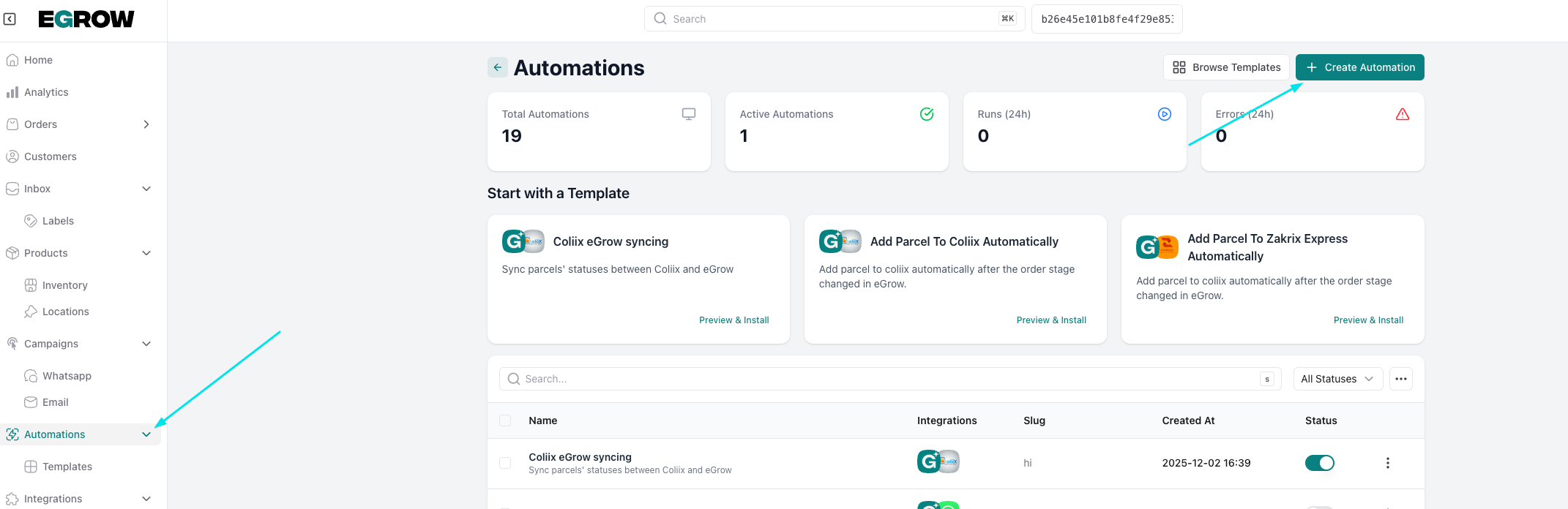
- from the home page click on automations on the left menu, then create automation
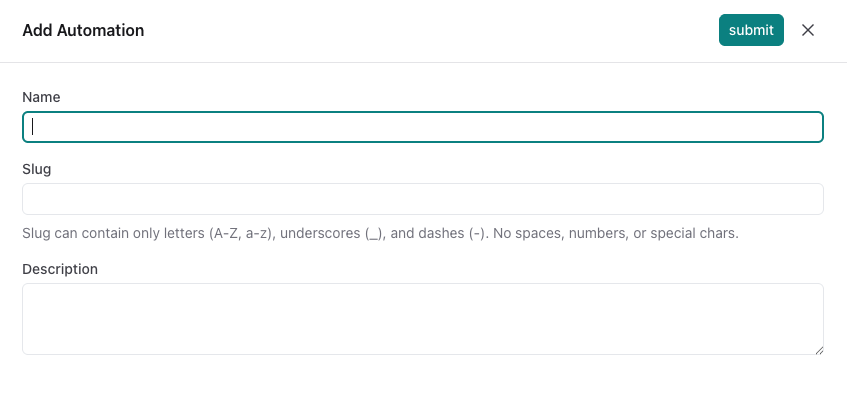
- name your automation then submit
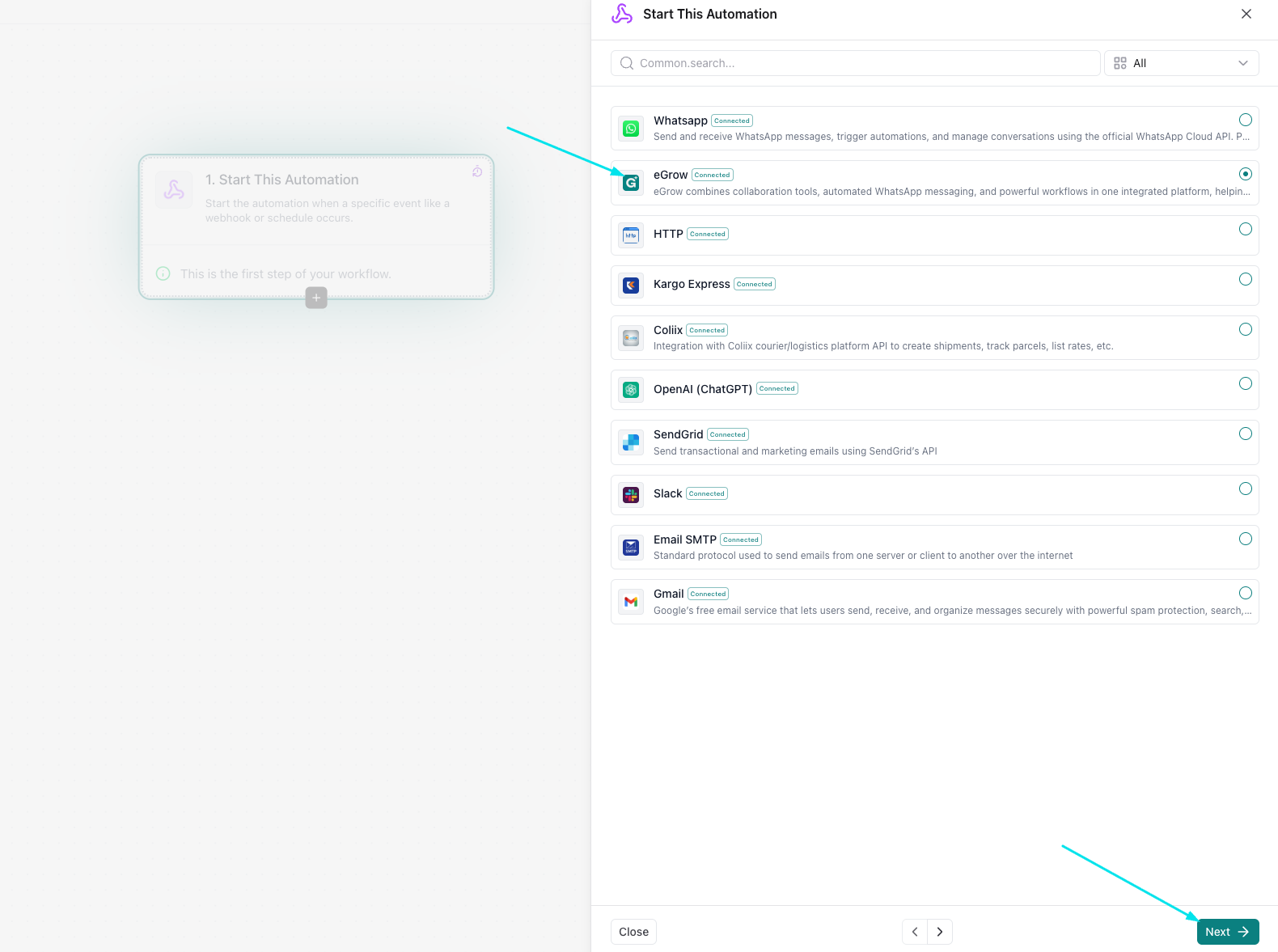
Trigger:
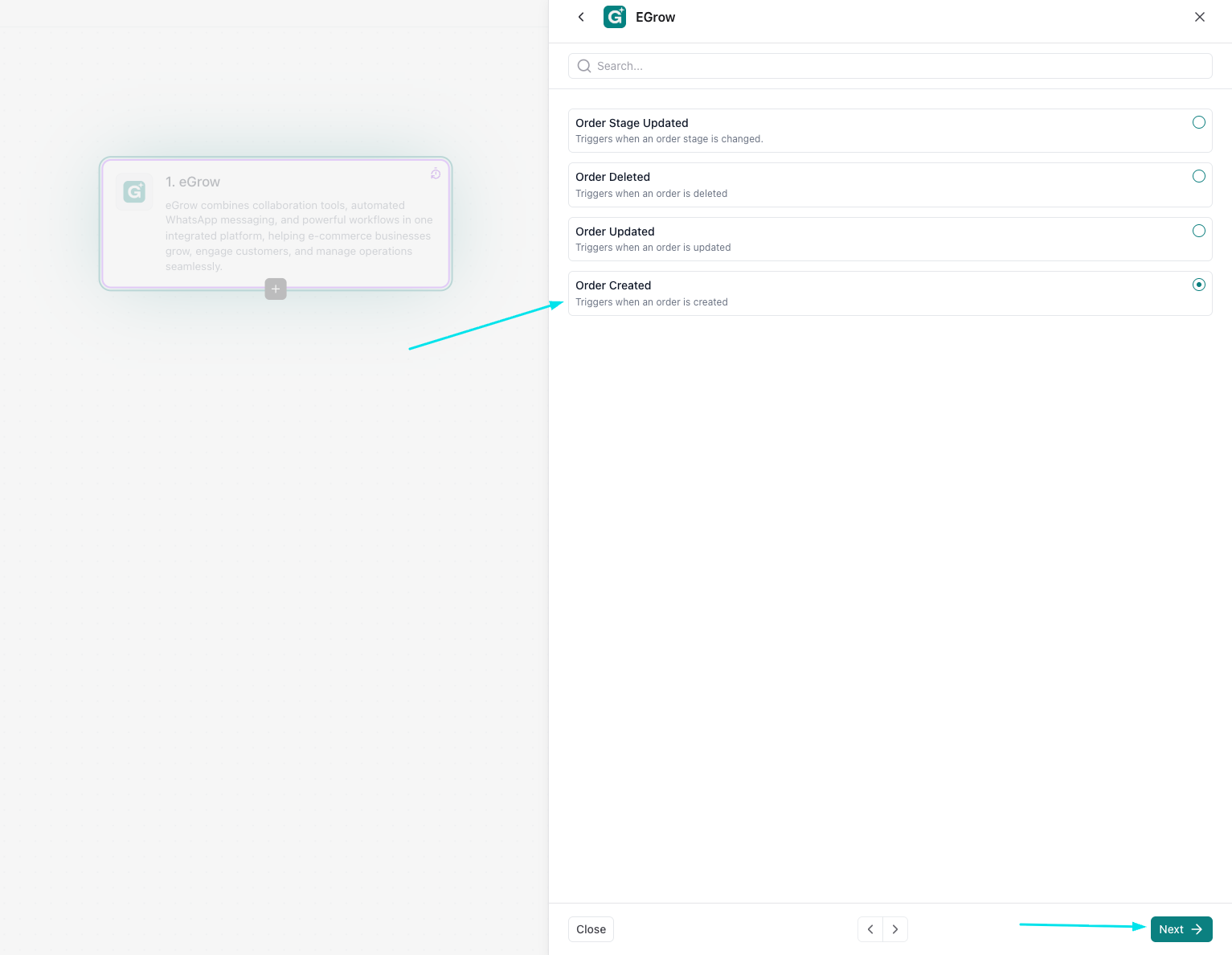
- select eGrow then click next
- select the stage you want to be in the trigger (order created in this case)
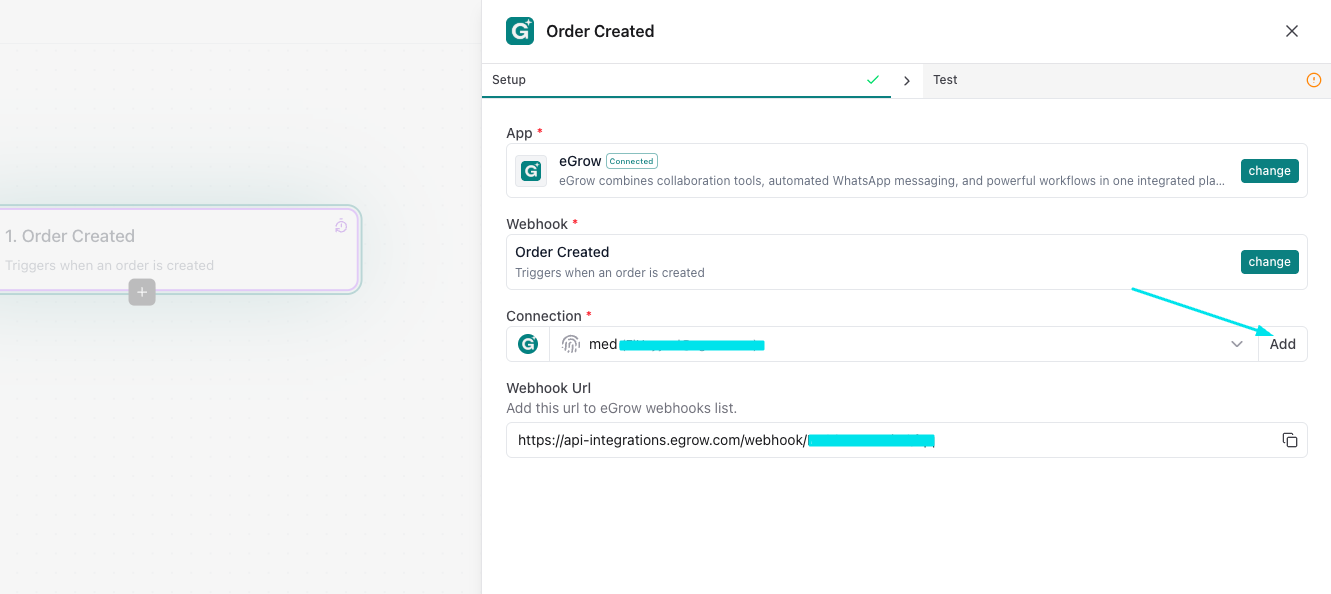
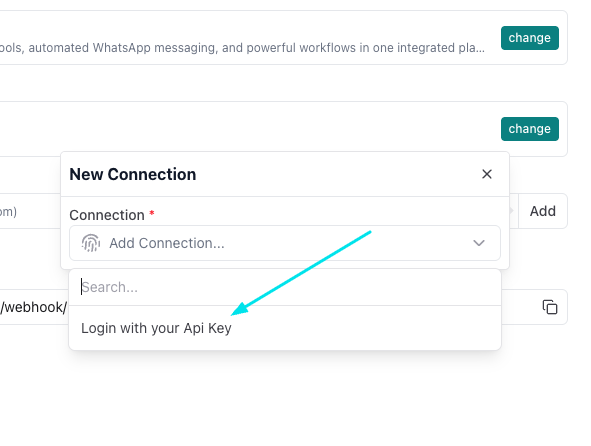
- add an eGrow connection and login using your Api key (you can find it in the profile settings)
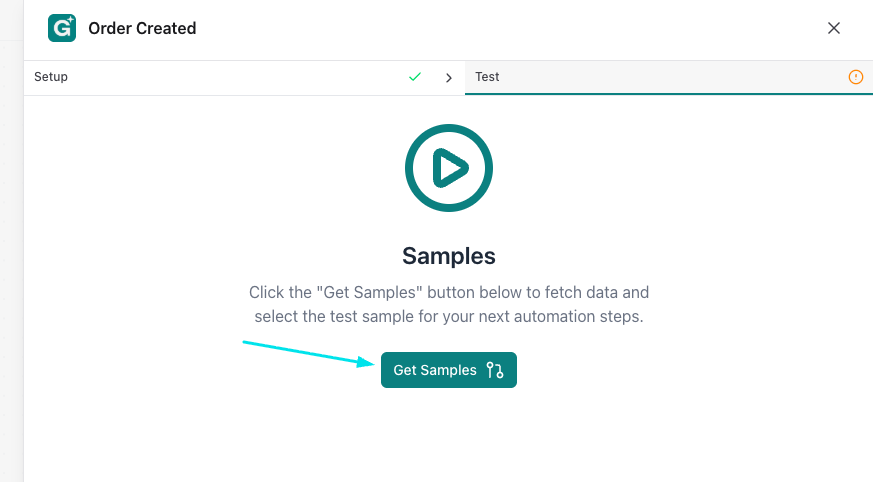
- get samples then select the sample and proceed
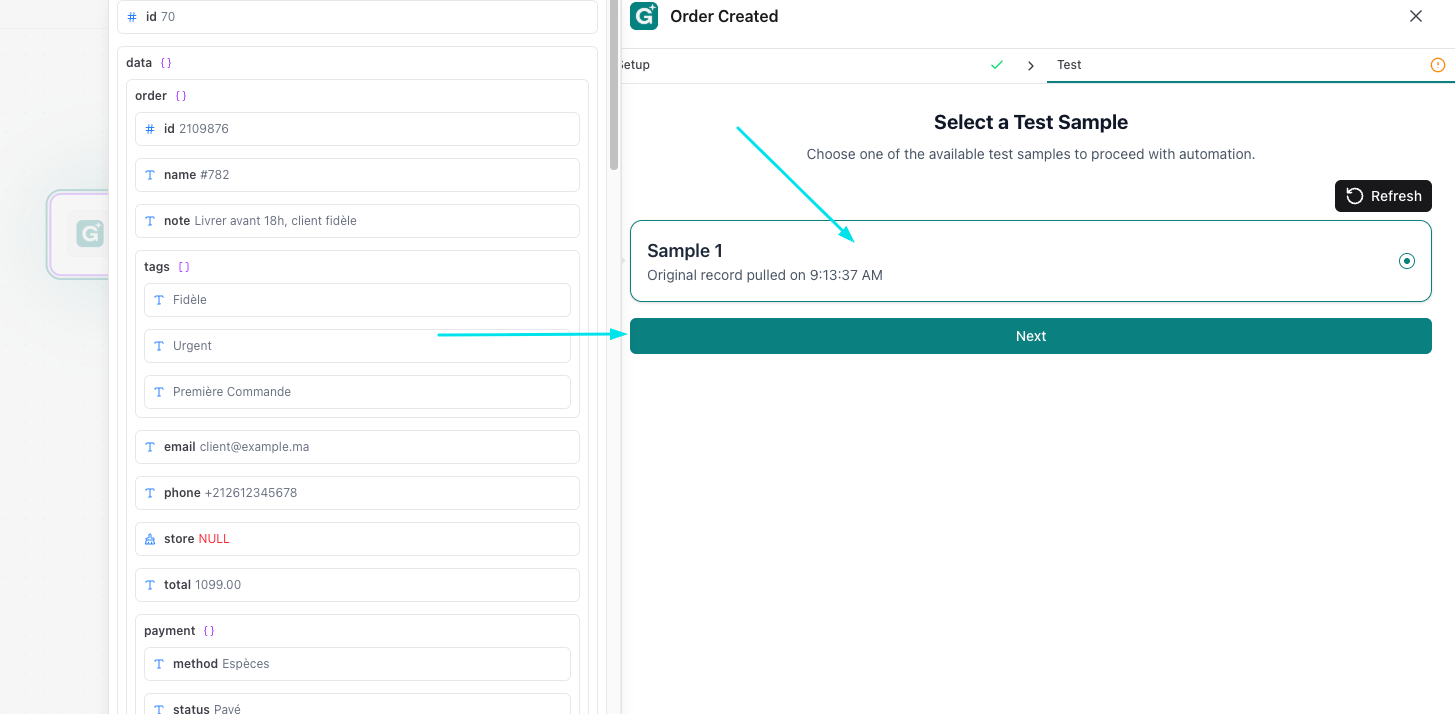
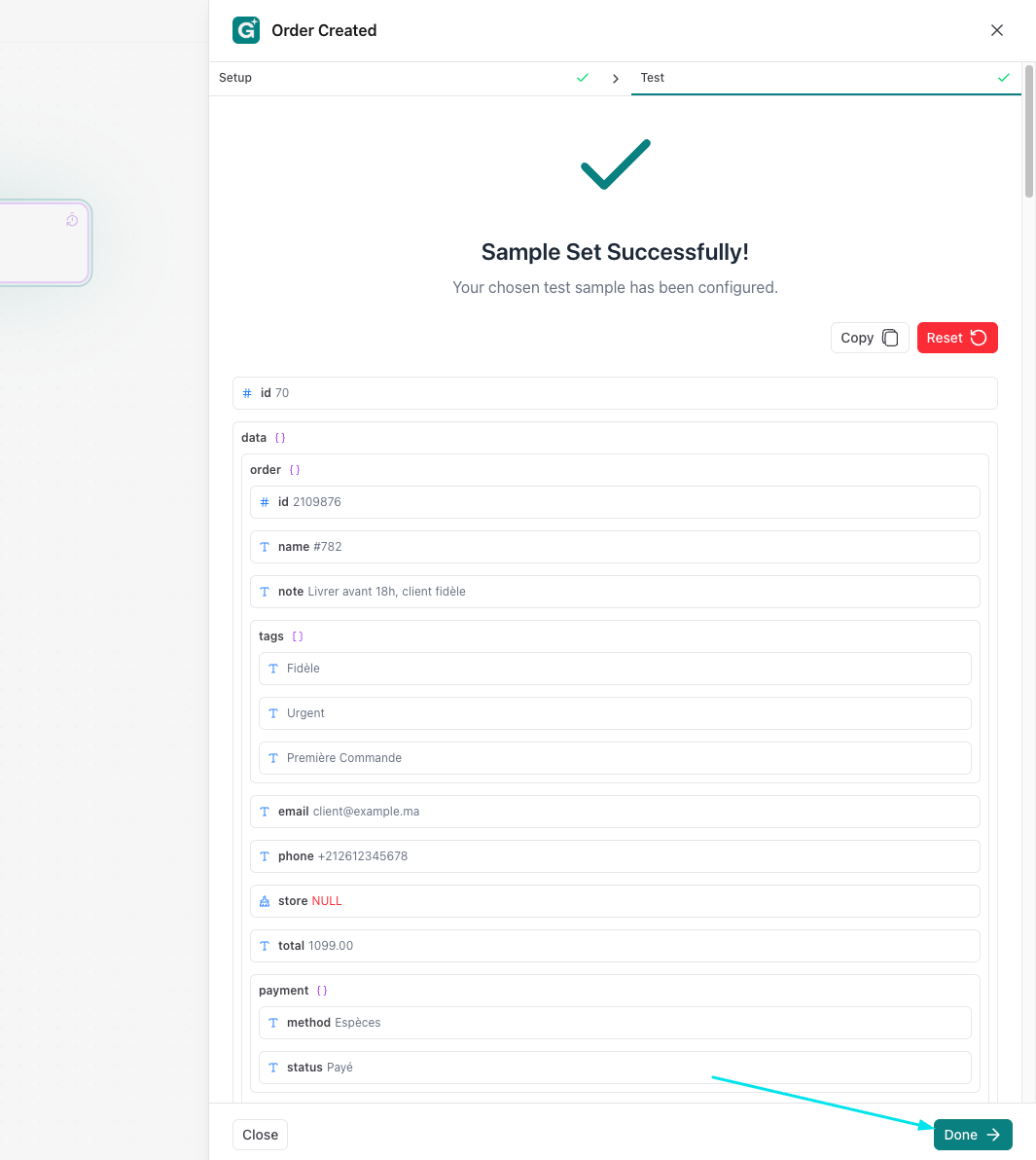
Condition:
- now add a condition
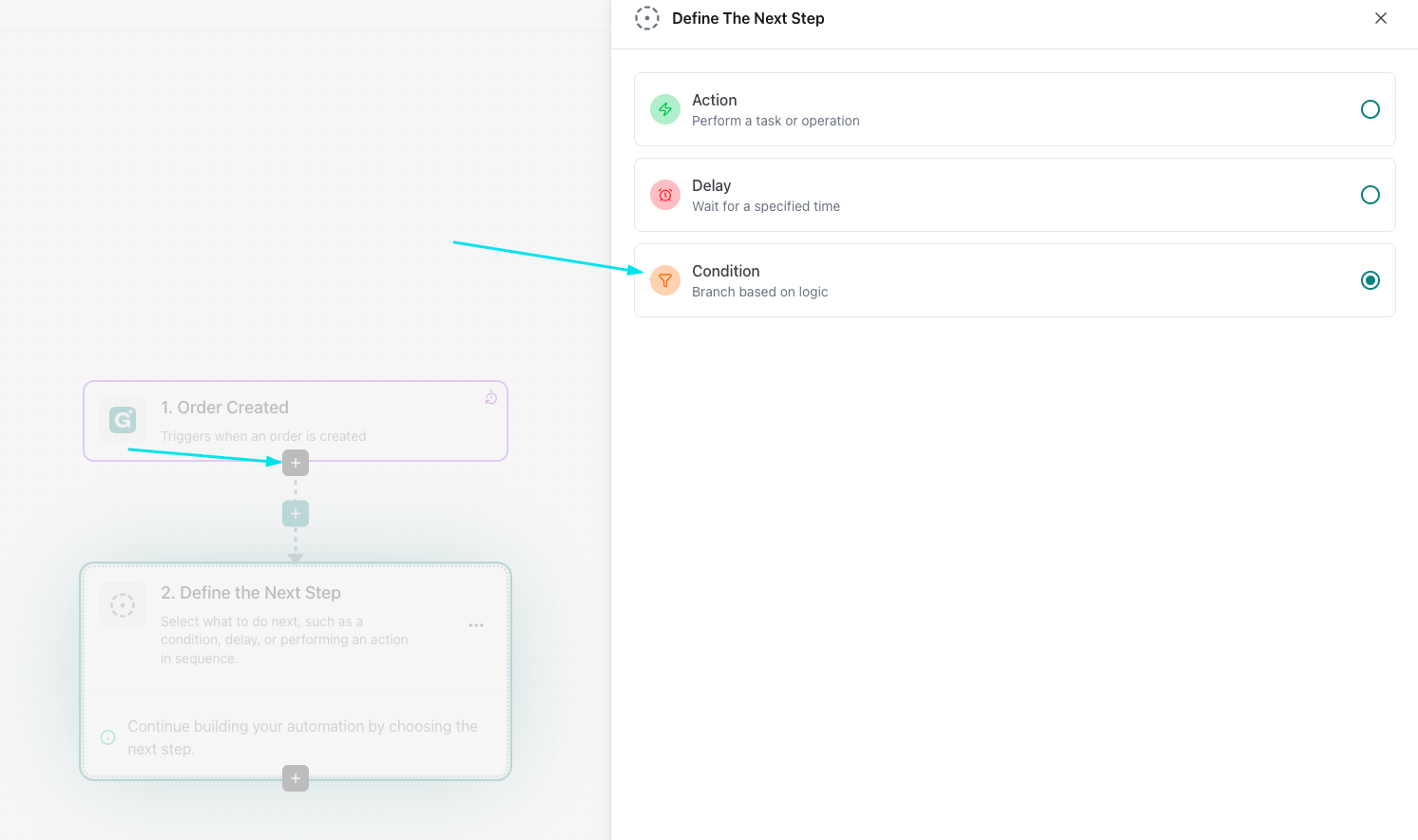
select the pipeline id to load the pipeline
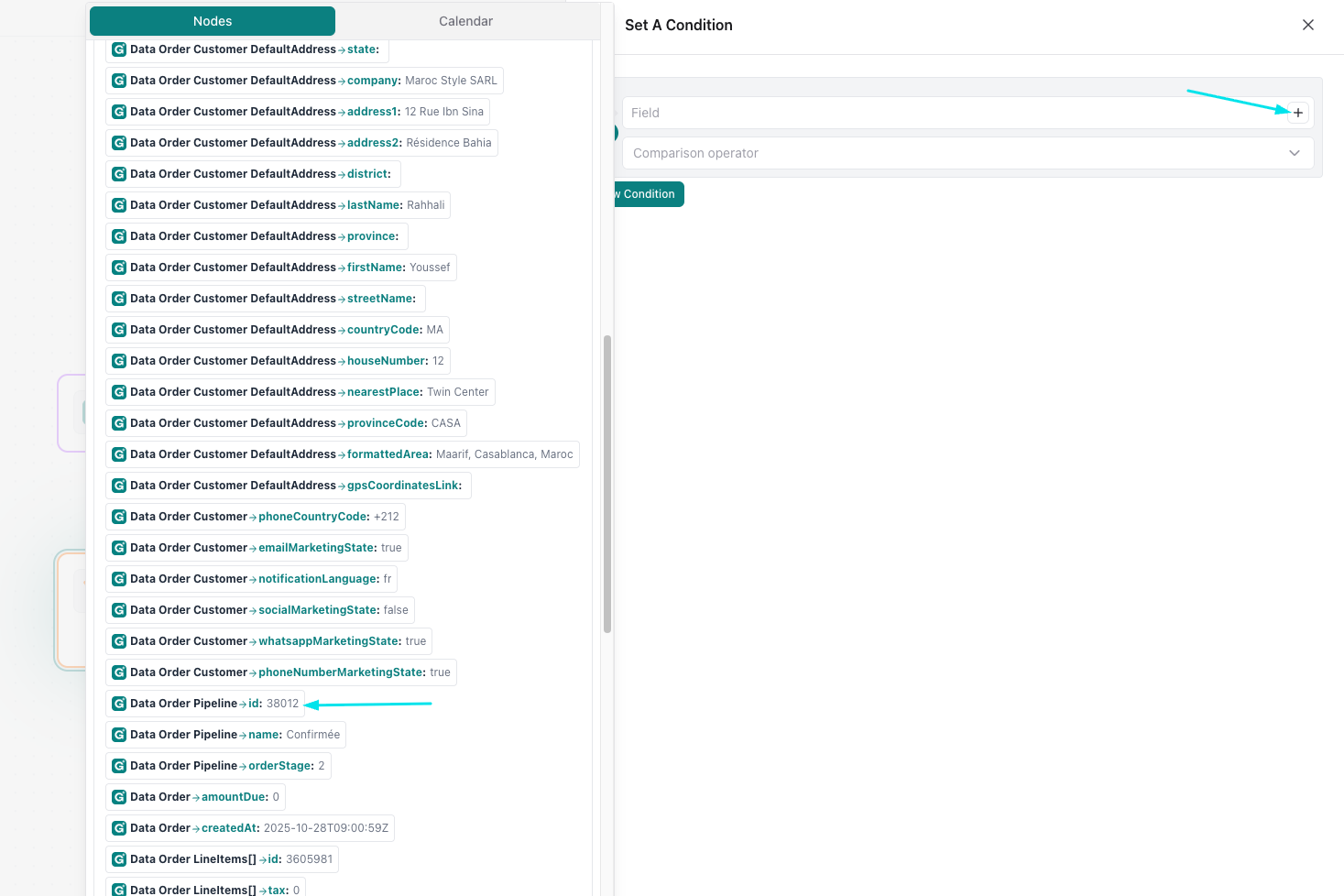
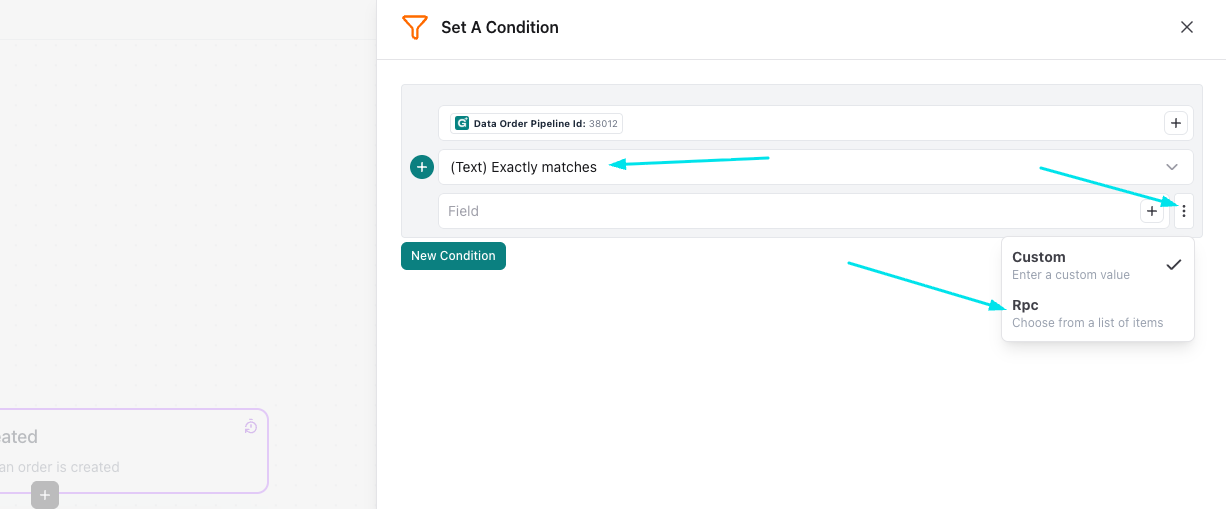
- select exactly matches and select Rpc to get the order stages from your pipeline
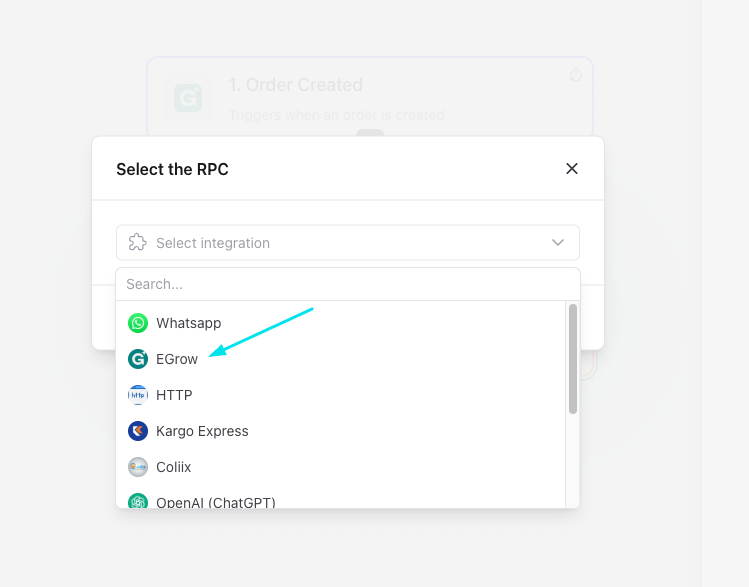
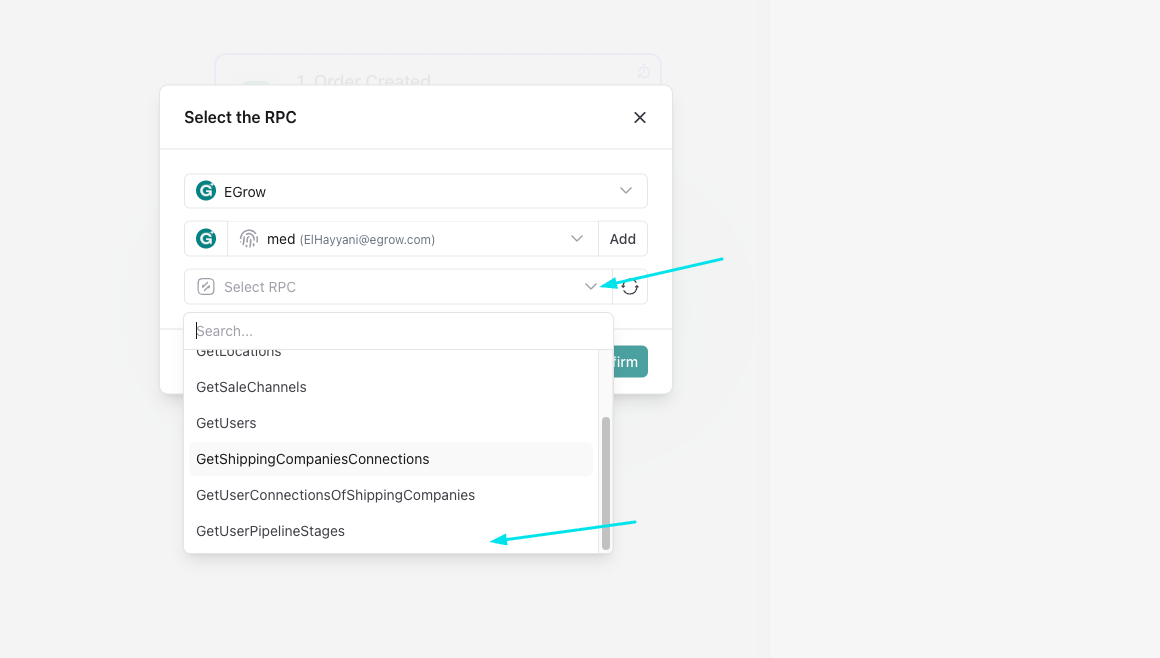
- select egrow then get the user pipeline stages
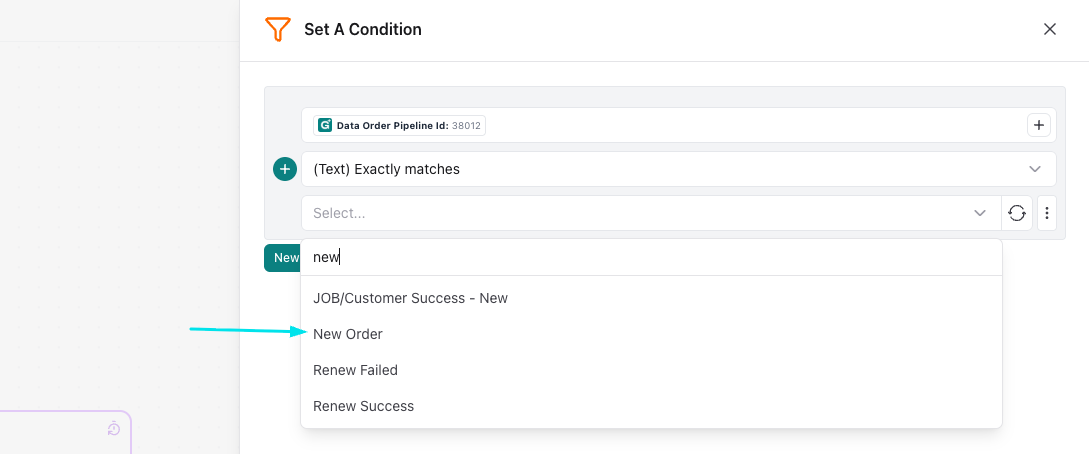
- now select the stage you want (in a our case we want a new order)
Action:
- now we add the action
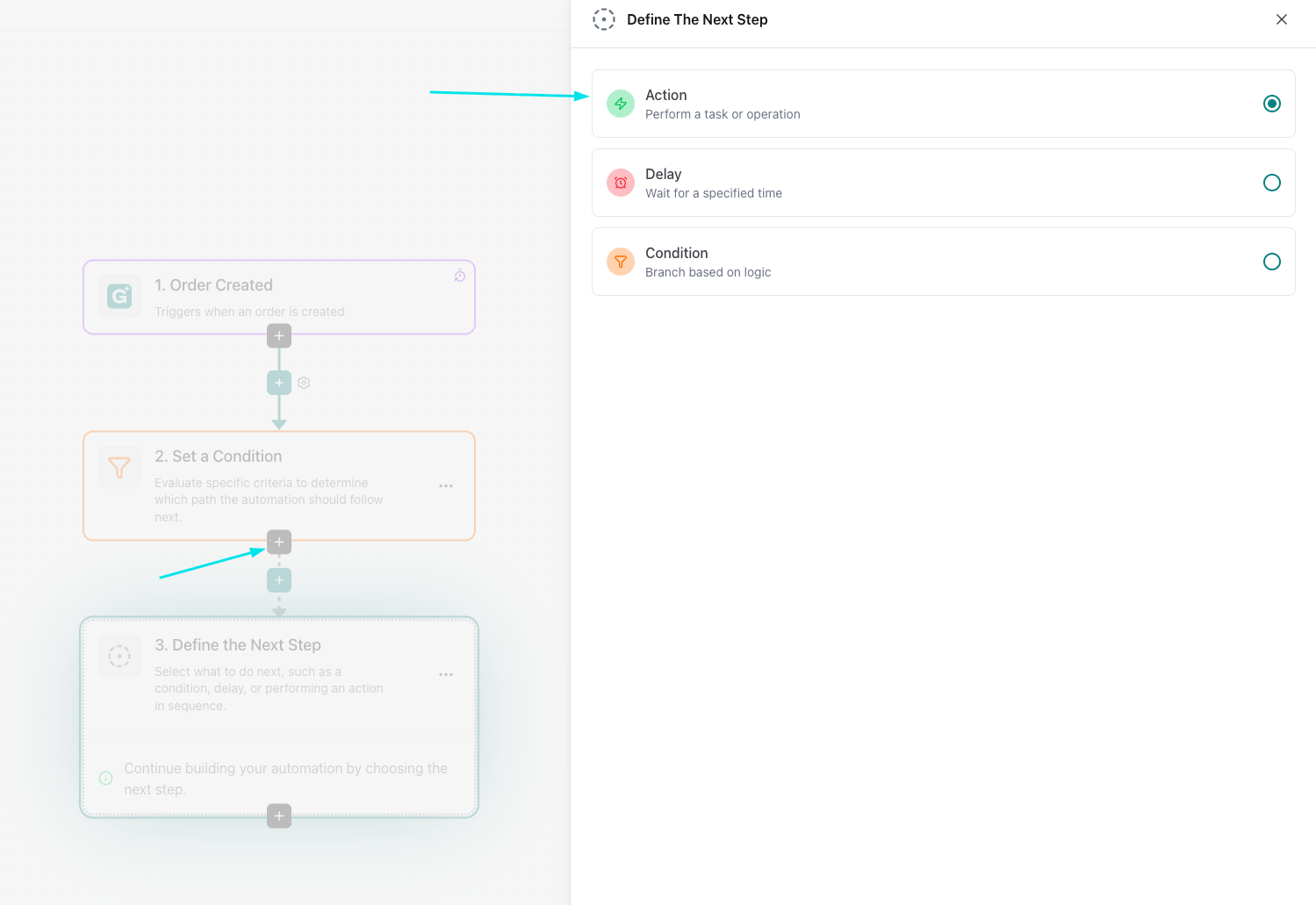
- we select whatsapp and send whatsapp template
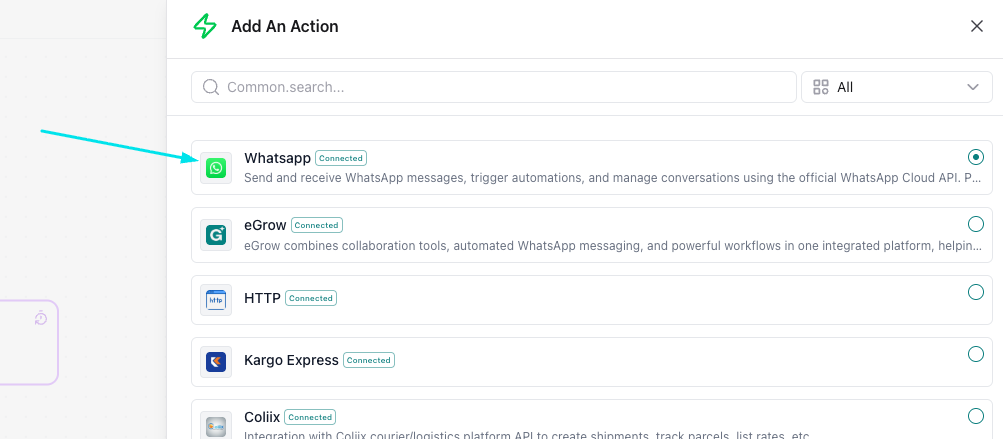
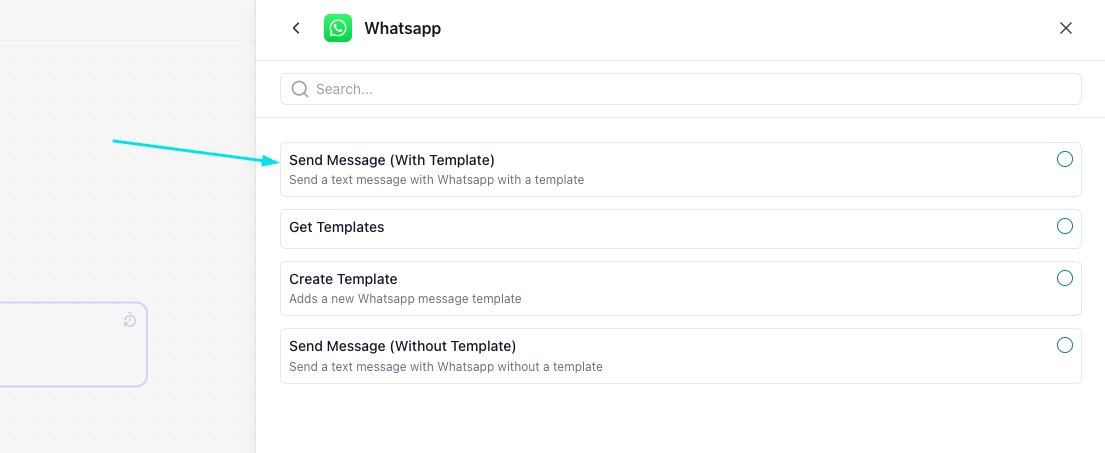
- connect to your whatsapp if you haven't connected before
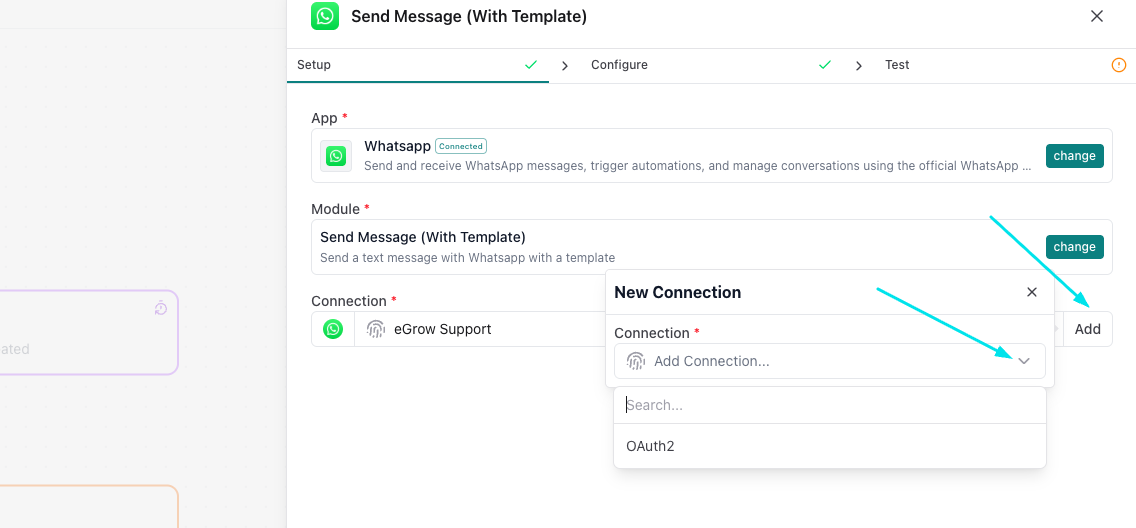
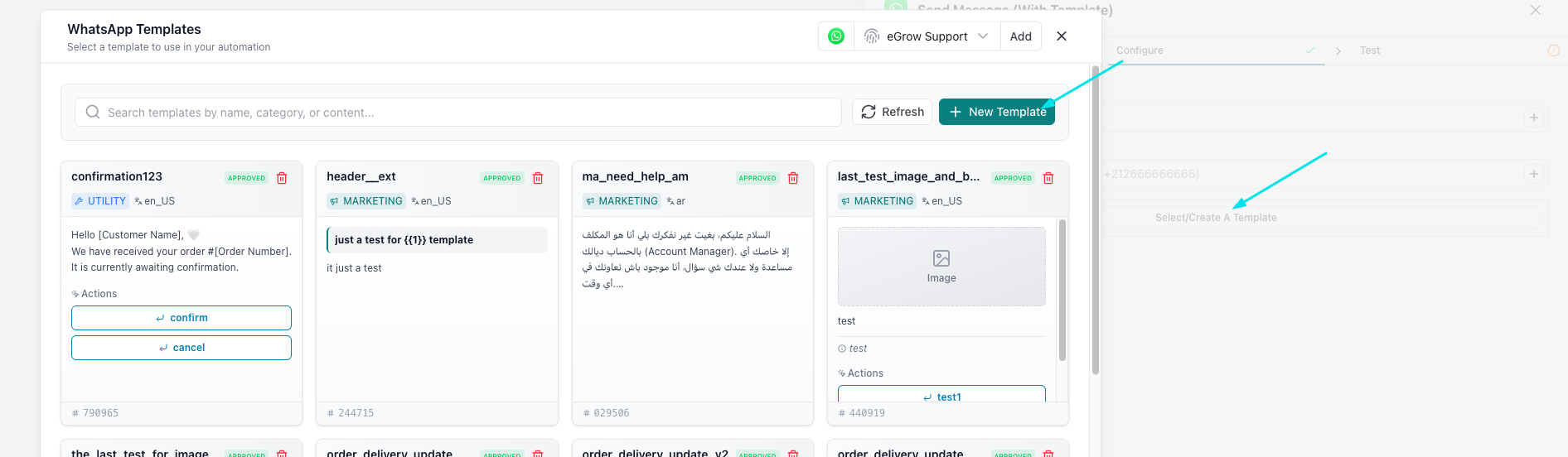
- select a template if you already have it or create a new one instead
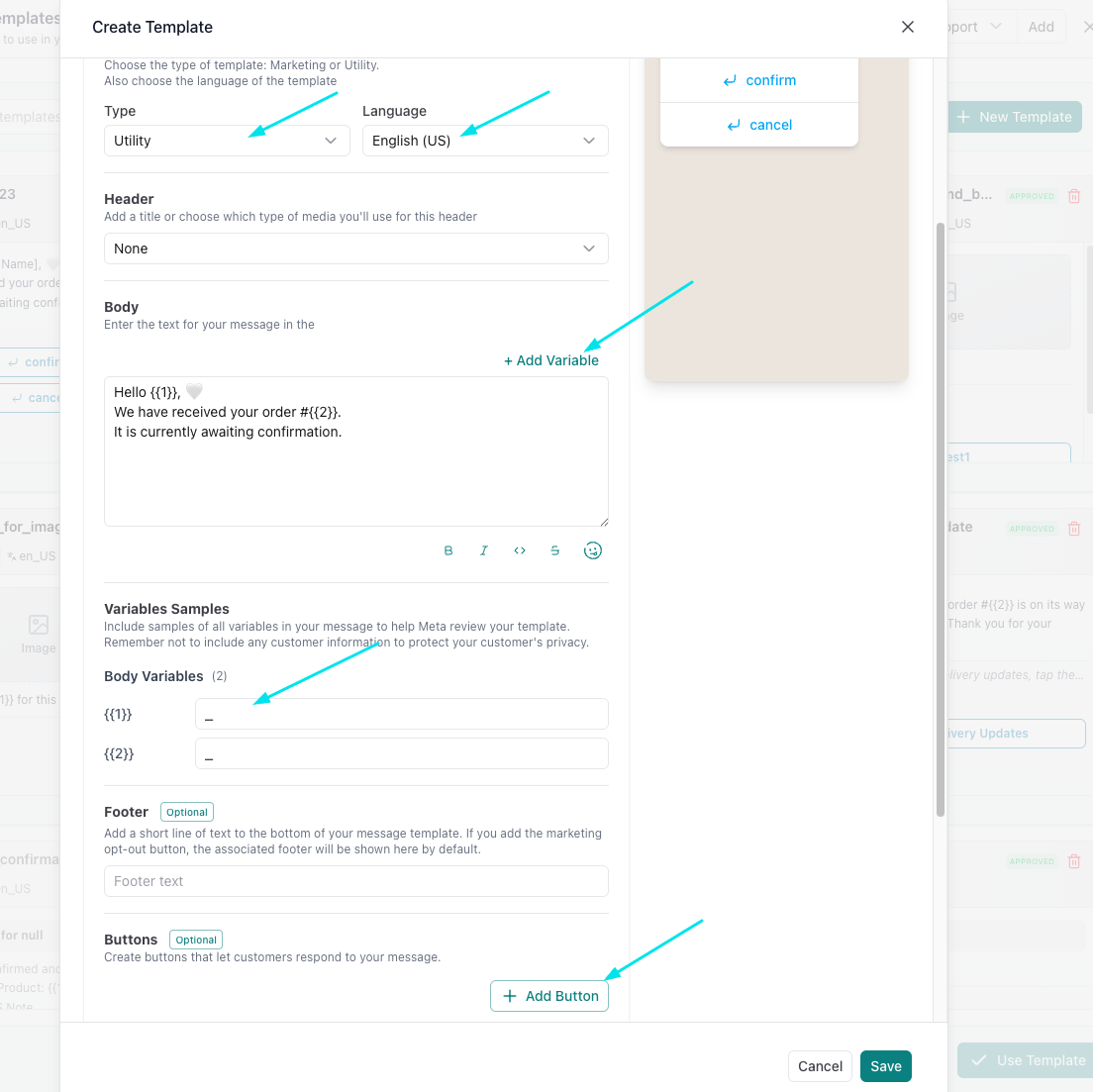
- select the template type (utility for normal messages and marketing for campaigns) and enter the text you want to send, you can also add variables to replace with the name, price..., and bouttons for actions then save
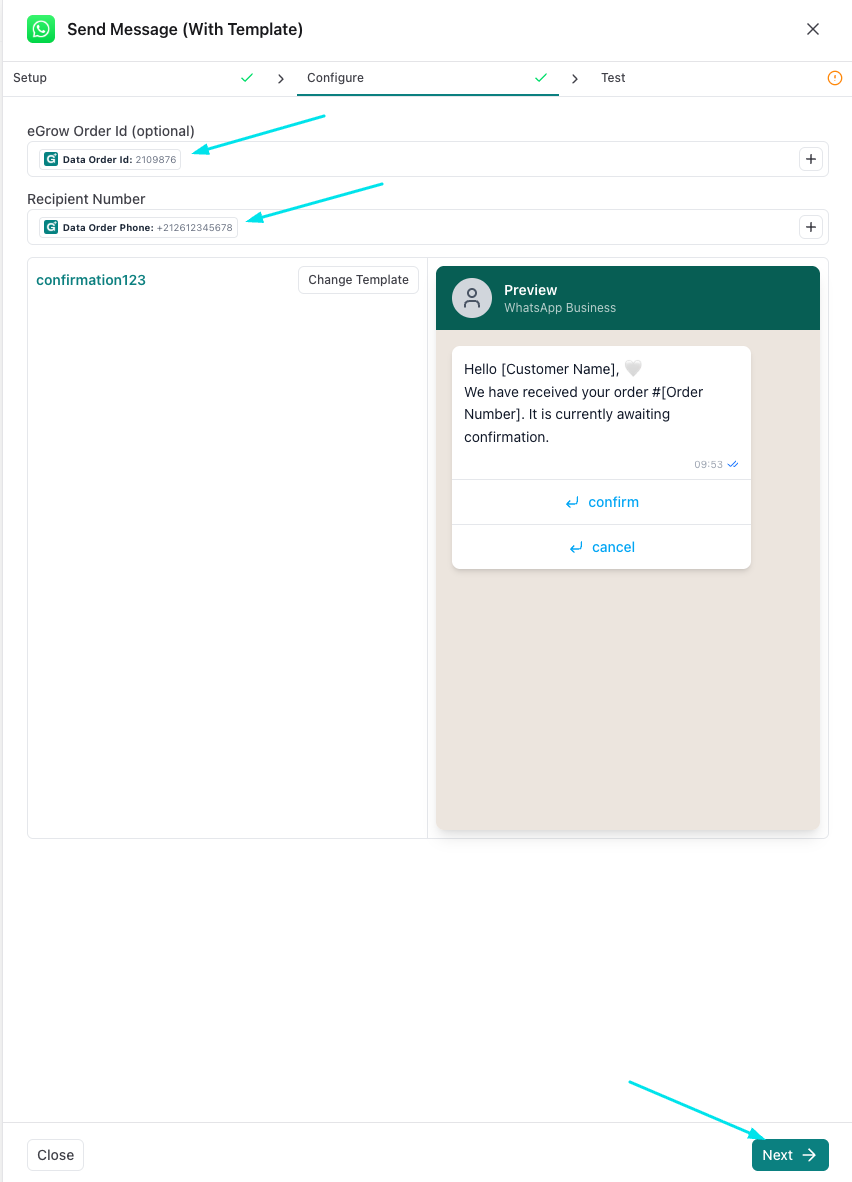
- select the order id and phone number of the recipient
- get samples and press done
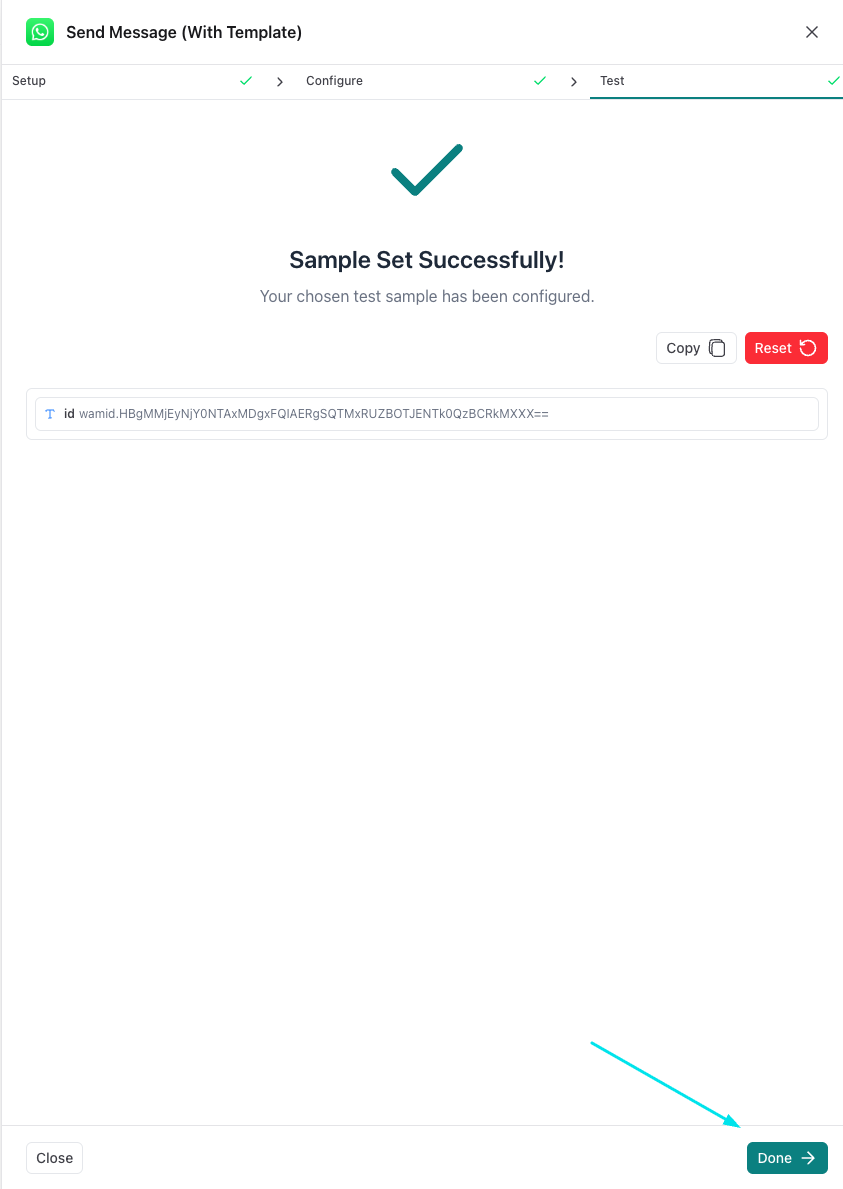
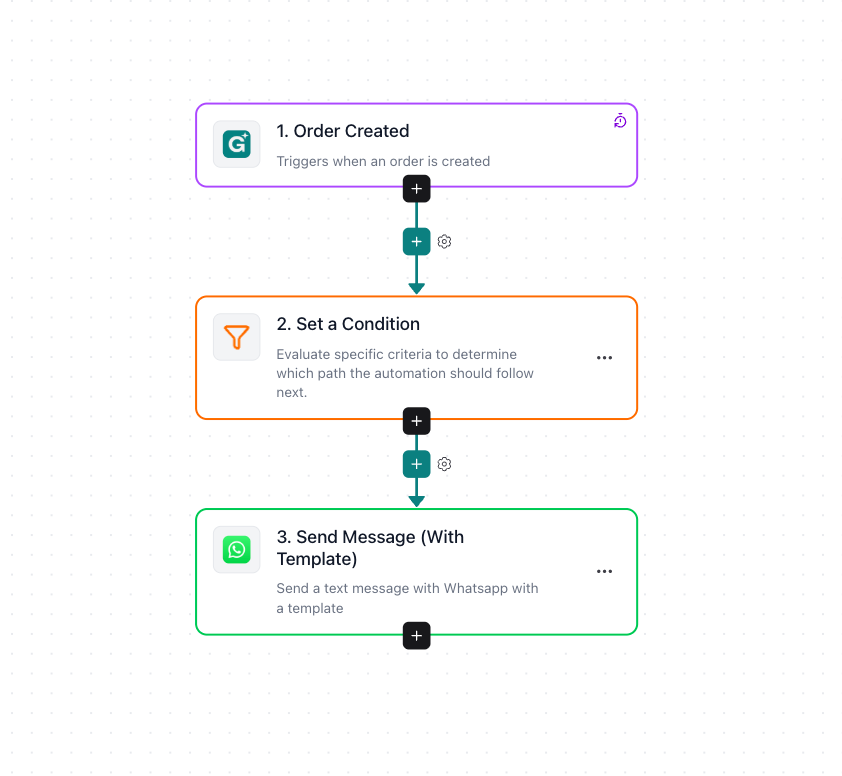
- the final result should look like this