eGrow supports two ways to connect WhatsApp:
1. Coexistence (scan a QR code and keep the WhatsApp Business app). This method is official and completely legal. However, it comes with the app's own limits and known troubles — WhatsApp may block sending when you message many customers, campaigns are restricted, and disconnections are more frequent.
2. Recommended — a dedicated number without the WhatsApp app. Connect a number that is NOT installed in any WhatsApp app directly to eGrow, and answer & receive all messages from eGrow Web and the eGrow mobile app. This is the most stable method for automations, campaigns and high message volumes, and it is what we always advise.
Follow this step-by-step guide to create your first template and start automating your WhatsApp messages efficiently.
Step 1: Access WhatsApp Templates
From your eGrow dashboard, navigate to:
Inbox → Templates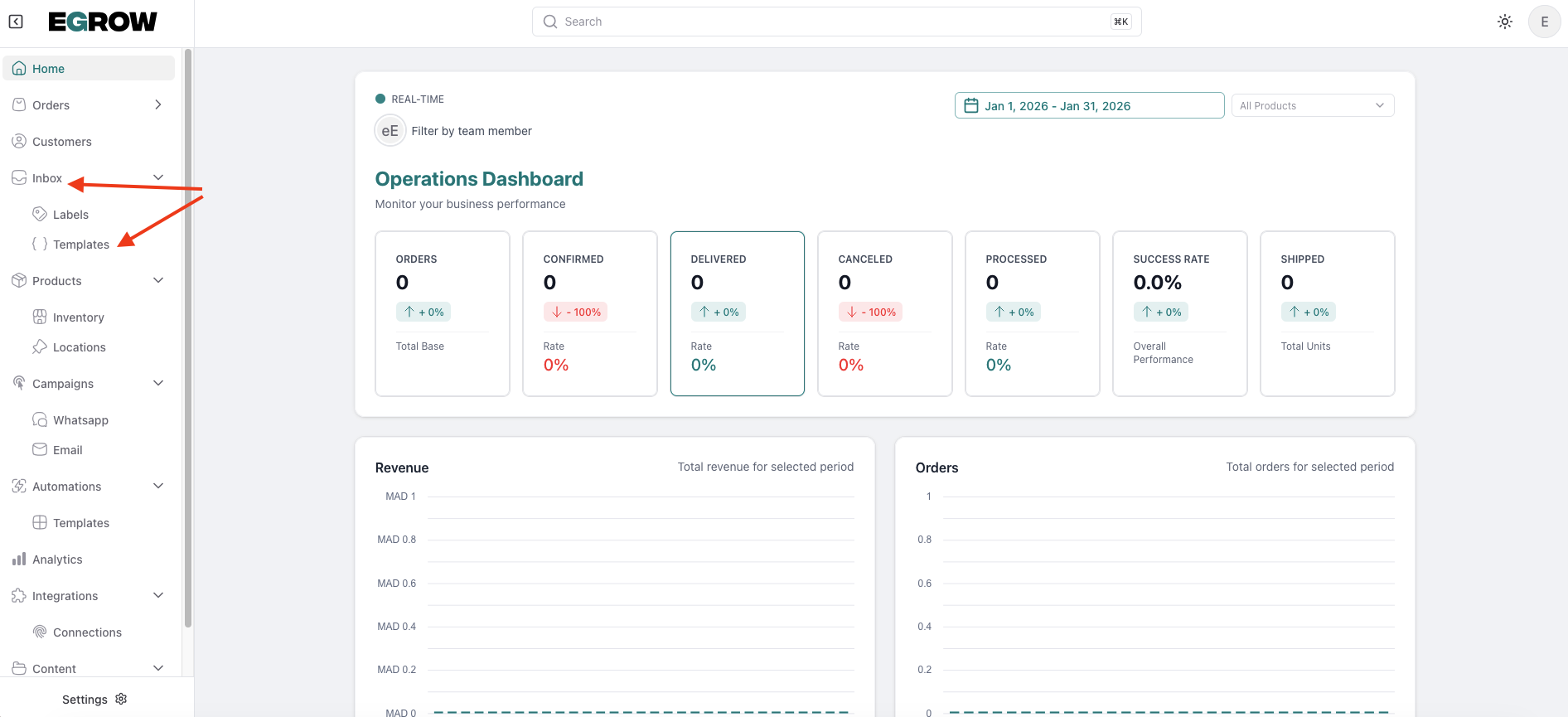
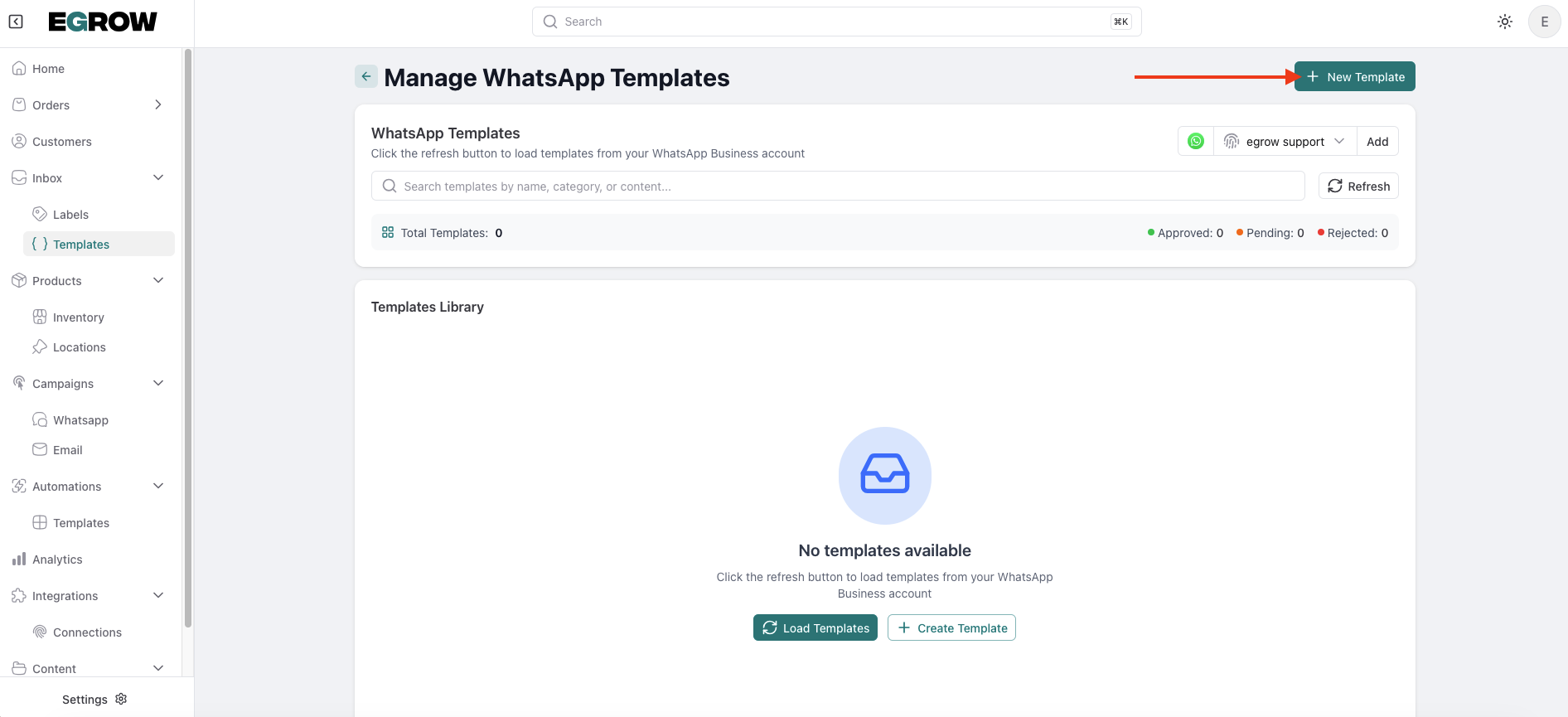
Click New Template to start creating your first template.
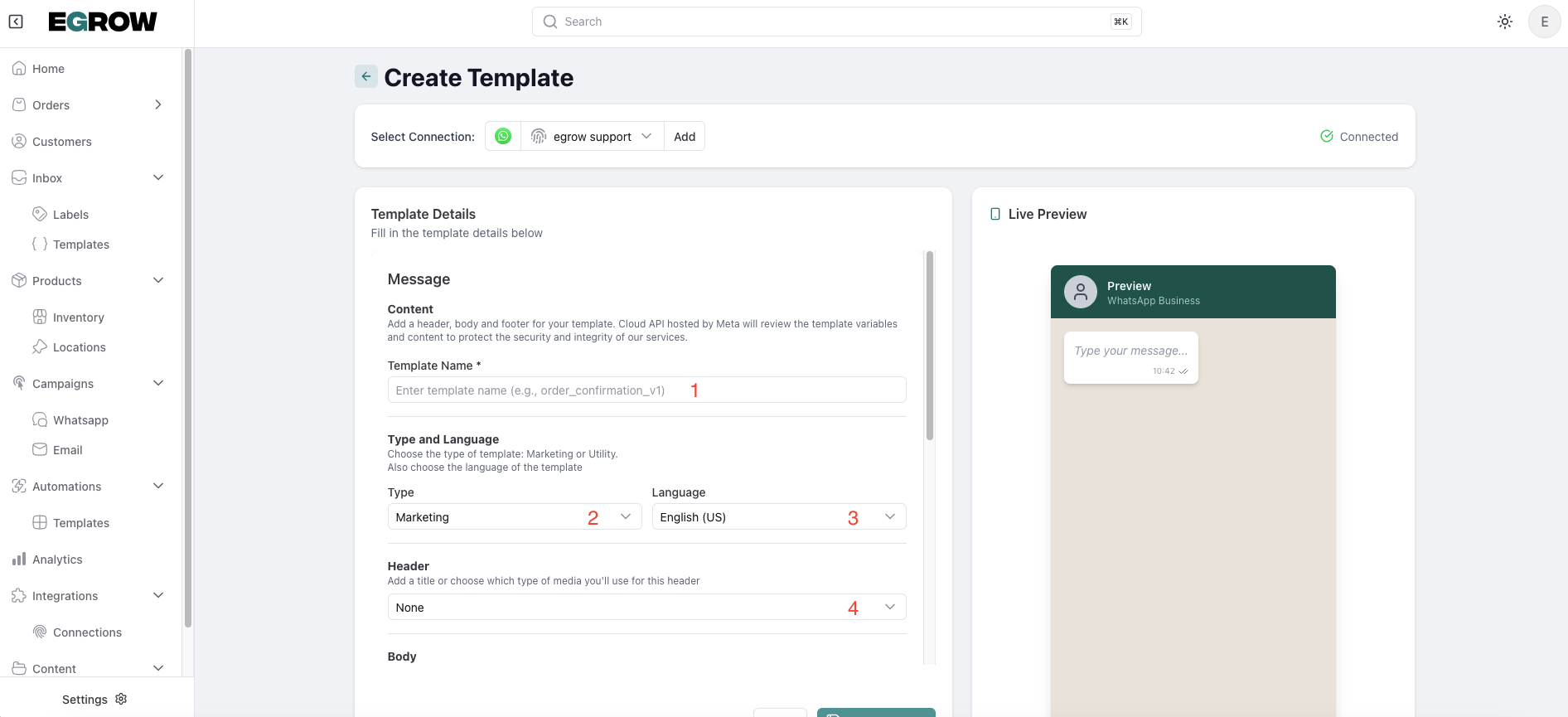
Step 2: Fill in Template Details
Template Name: Use a simple and clear name, like
order_update_1.
(Avoid spaces, capital letters, and special characters.)Language: Choose the language for your message (e.g., English US, Arabic).
Type: Select the category for your template (e.g., Utility, Marketing).
Step 3: Compose the Message Body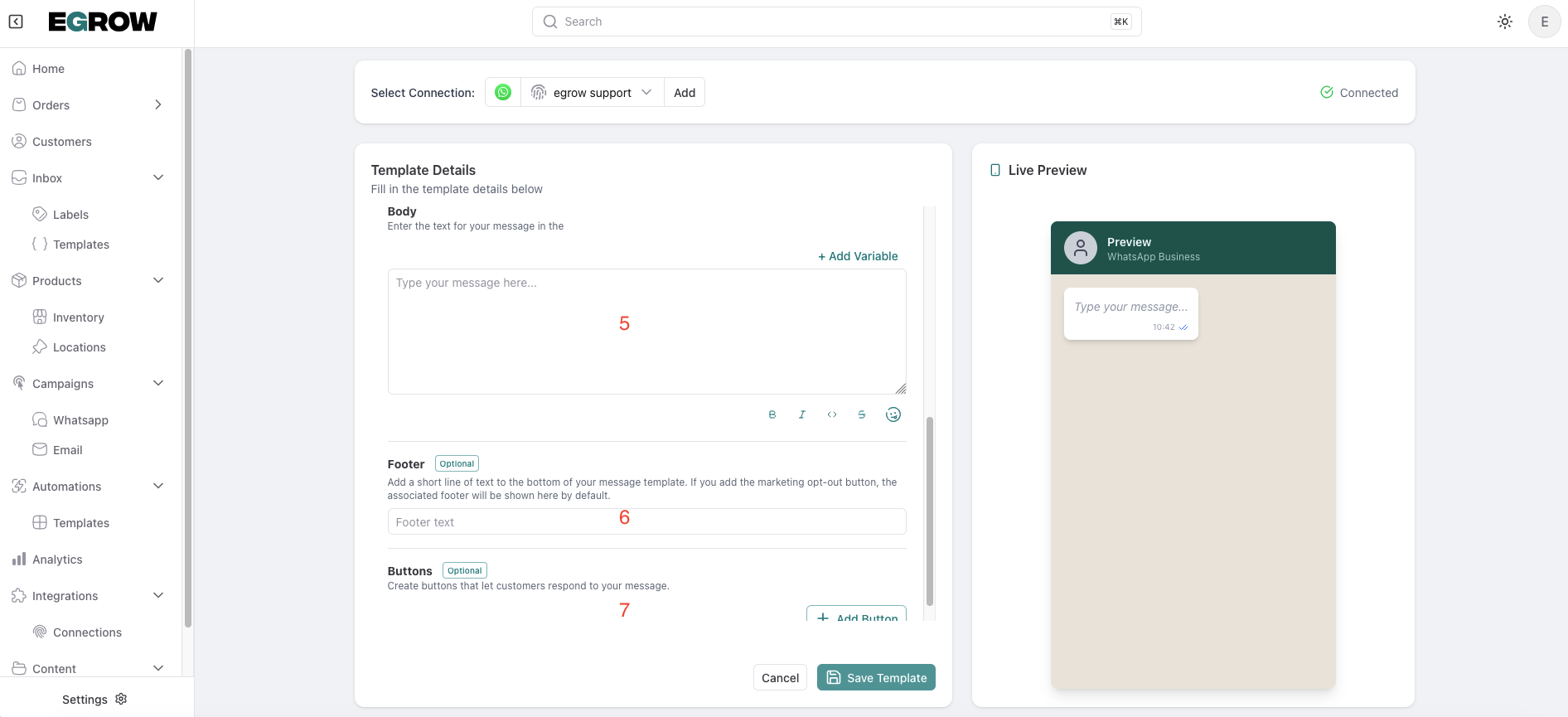
In the Body section, write your message text.
Use variables to insert dynamic data. Place your cursor where the variable should appear, then click Add Variable.
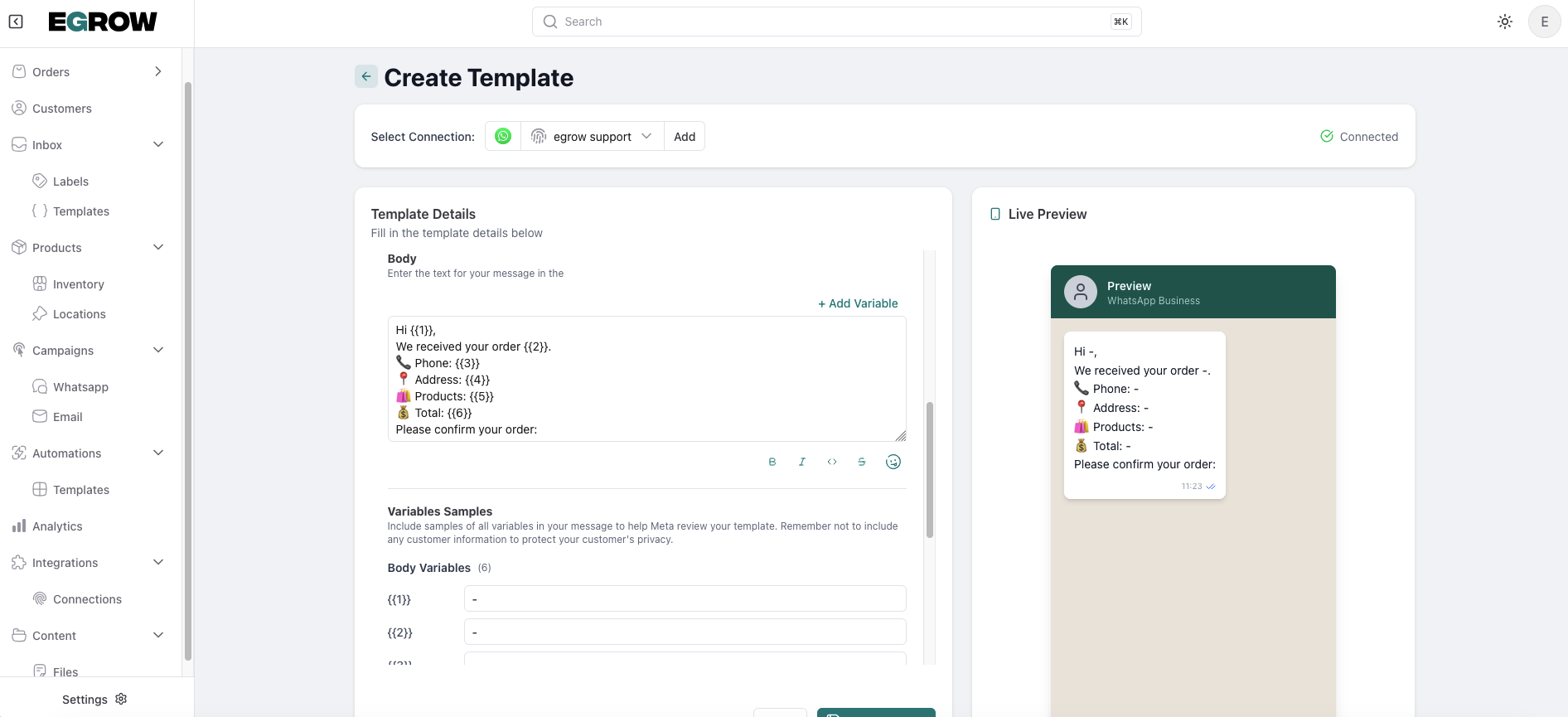
Example:
Hello {{1}}, thank you for your order!
🧾 Order Number: {{2}}
📦 Product: {{3}}
💰 Total Amount: {{4}}
📍 Address: {{5}}

Please confirm your order so we can start processing it.
Common Variables:
{{1}}→ Customer Name{{2}}→ Order Number{{3}}→ Product List{{4}}→ Total Amount{{5}}→ Shipping Address
📌 Important: Provide sample values for each variable below the editor — this is required for WhatsApp template approval.
Step 4: (Optional) Add a Header or Footer
Header: You can add media (text, image, or document) or leave it blank.
Footer: Include a short note, e.g.,
"Thank you for choosing us."
Step 5: (Optional) Add Buttons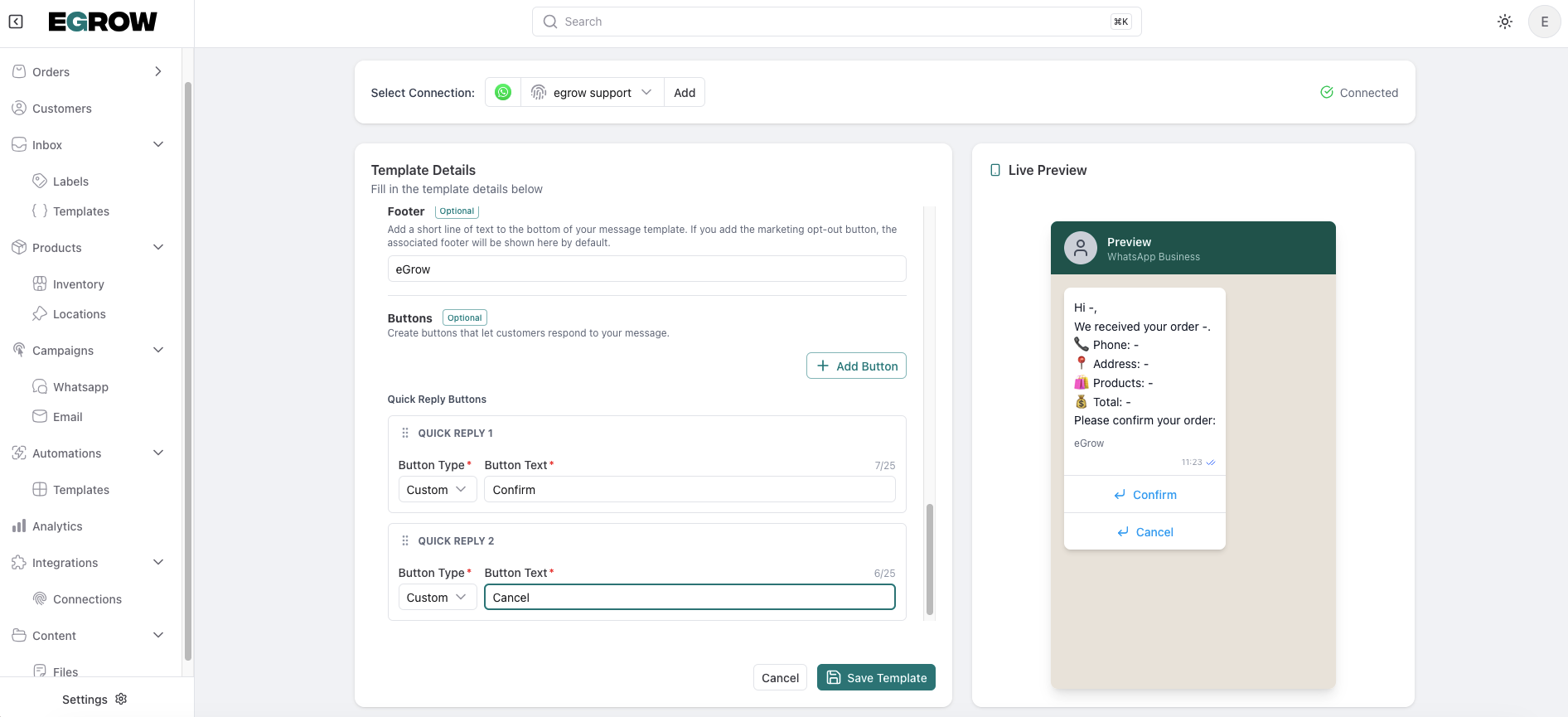
Enhance customer interaction with Quick Reply or Call to Action buttons.
Examples:
Quick Reply → Confirm Order
Quick Reply → Cancel Order
Step 6: Preview and Save
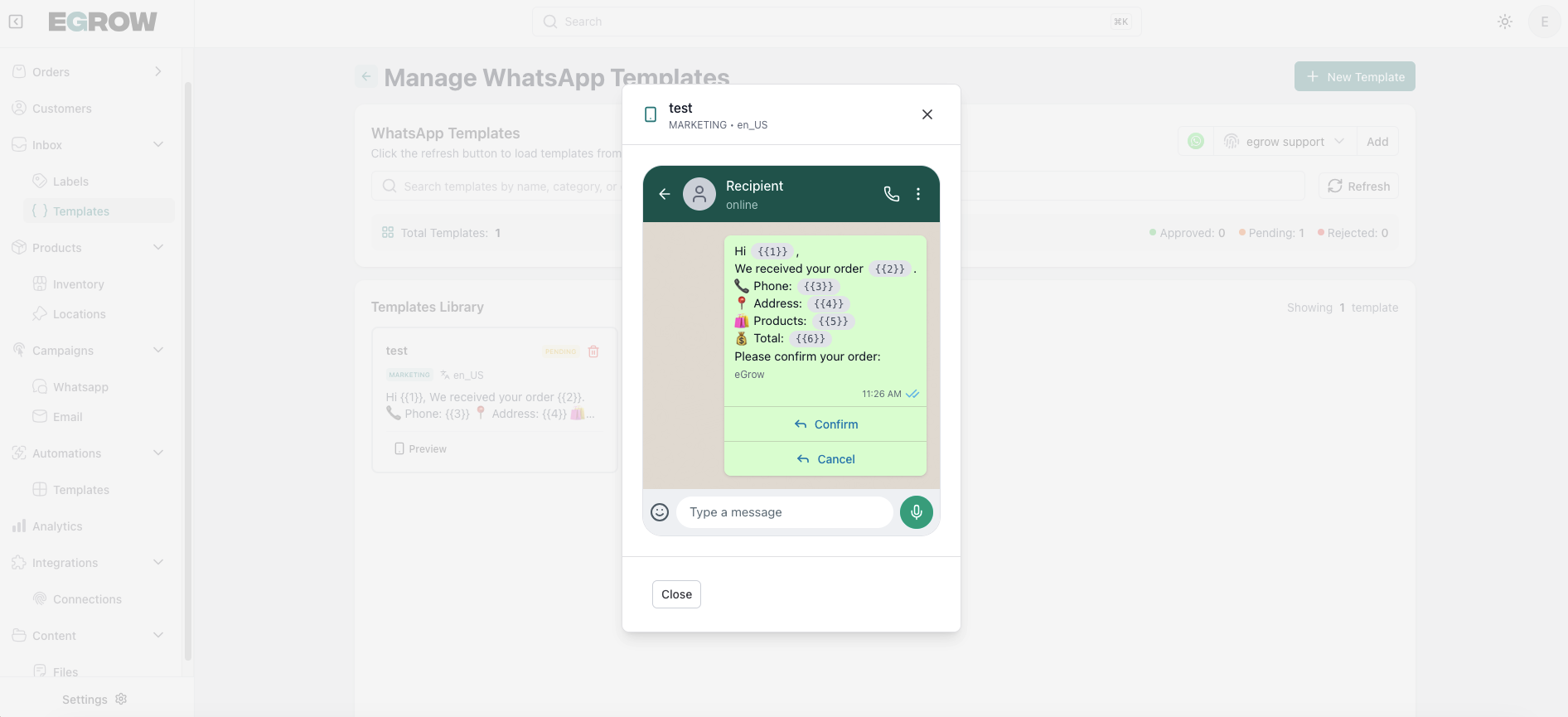
The Template Preview on the right updates in real time as you type.
Once satisfied, click Save to submit your template for WhatsApp review.
💡 Tips for Better Templates
Keep messages short, clear, and friendly.
Avoid promotional wording in Utility or Transactional templates.
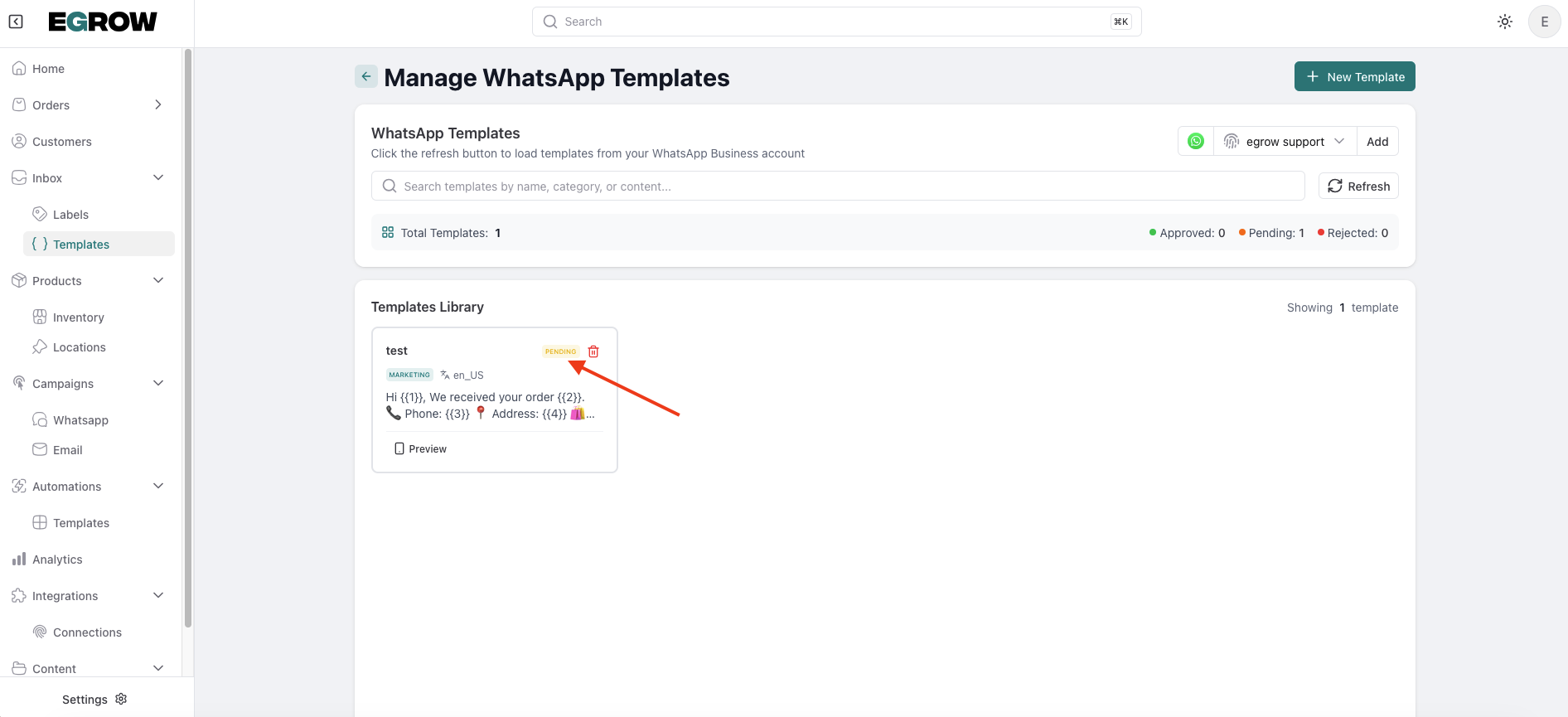
Every template must be approved by WhatsApp before being used in automations.
✅ You’re Ready!
Once approved, your template can be used in eGrow automations to send order confirmations, shipping updates, reminders, and more — all automatically.