Step-by-Step: Integrate Sendit with eGrow
Step 1: Access Sendit Integration in eGrow
Log in to your eGrow dashboard
Navigate to Integrations
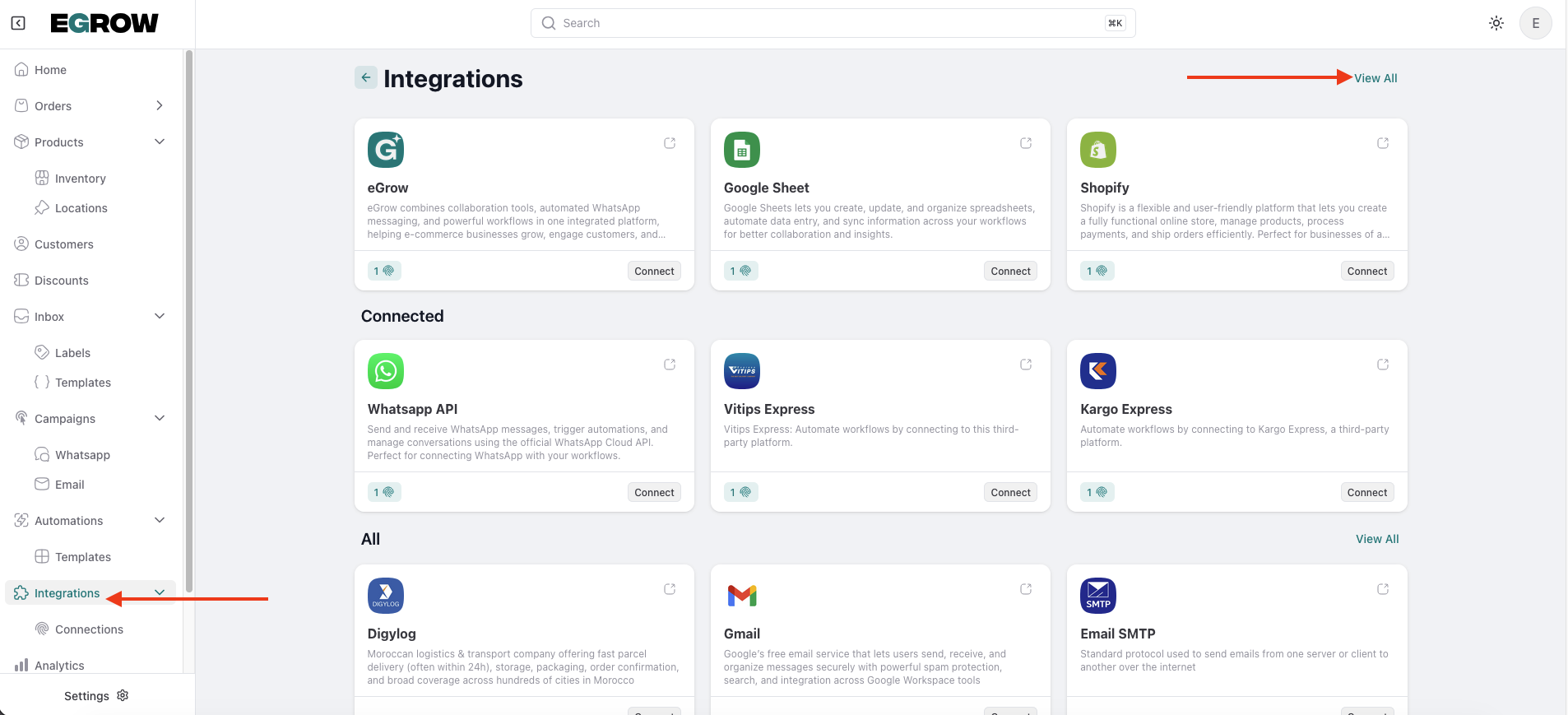
Locate Sendit from the list of available integrations
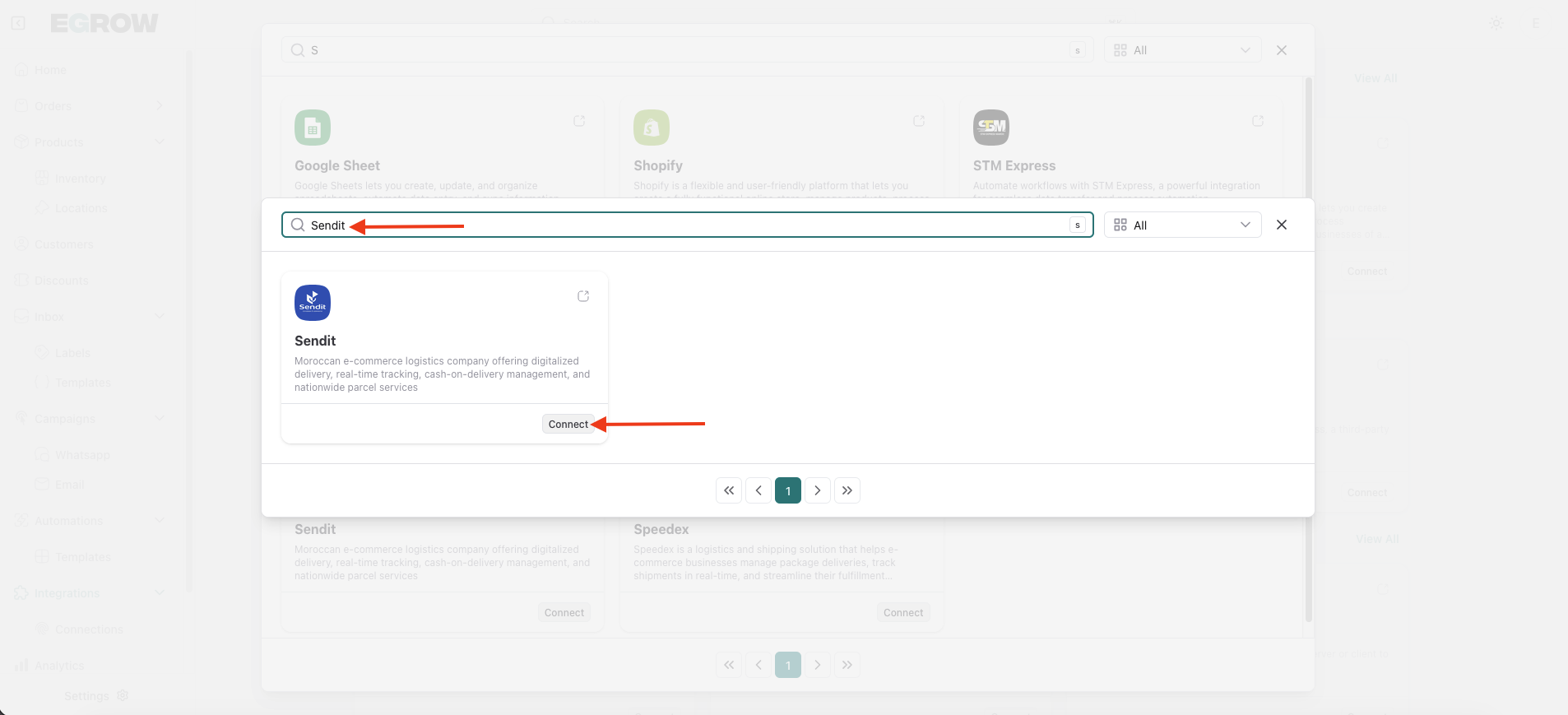
Click Connect
Click Add Connection
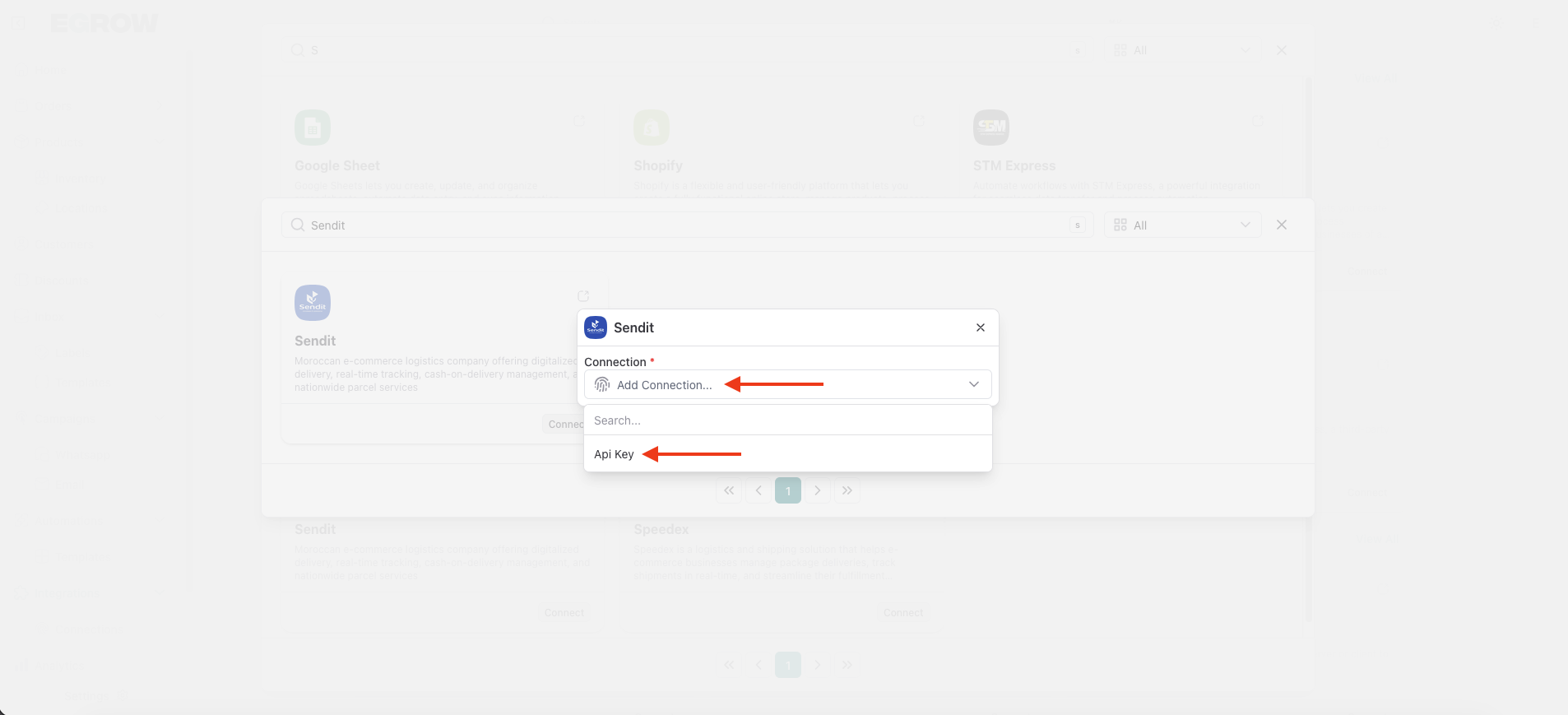
Step 2: Fill in the Sendit Connection Form in eGrow
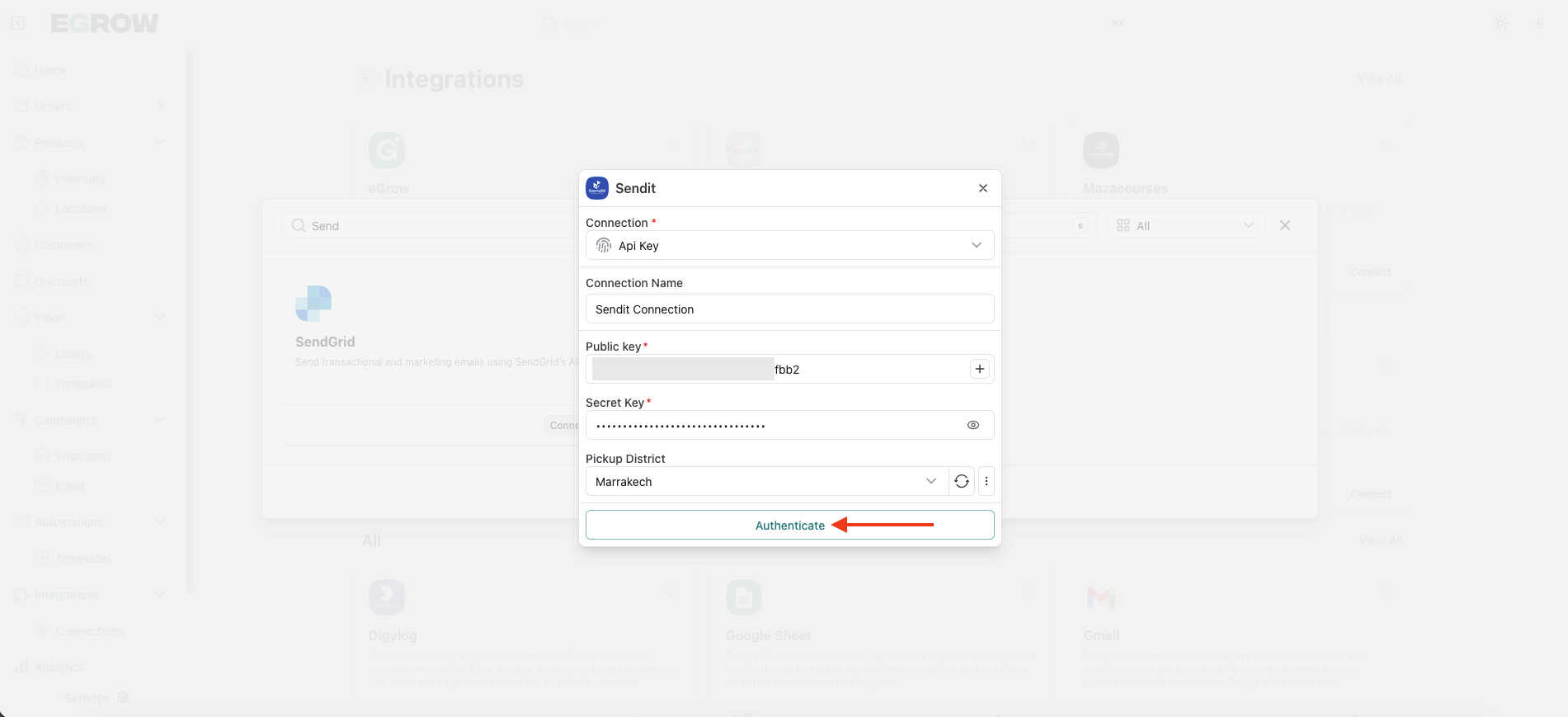
In the new connection form, enter the following details: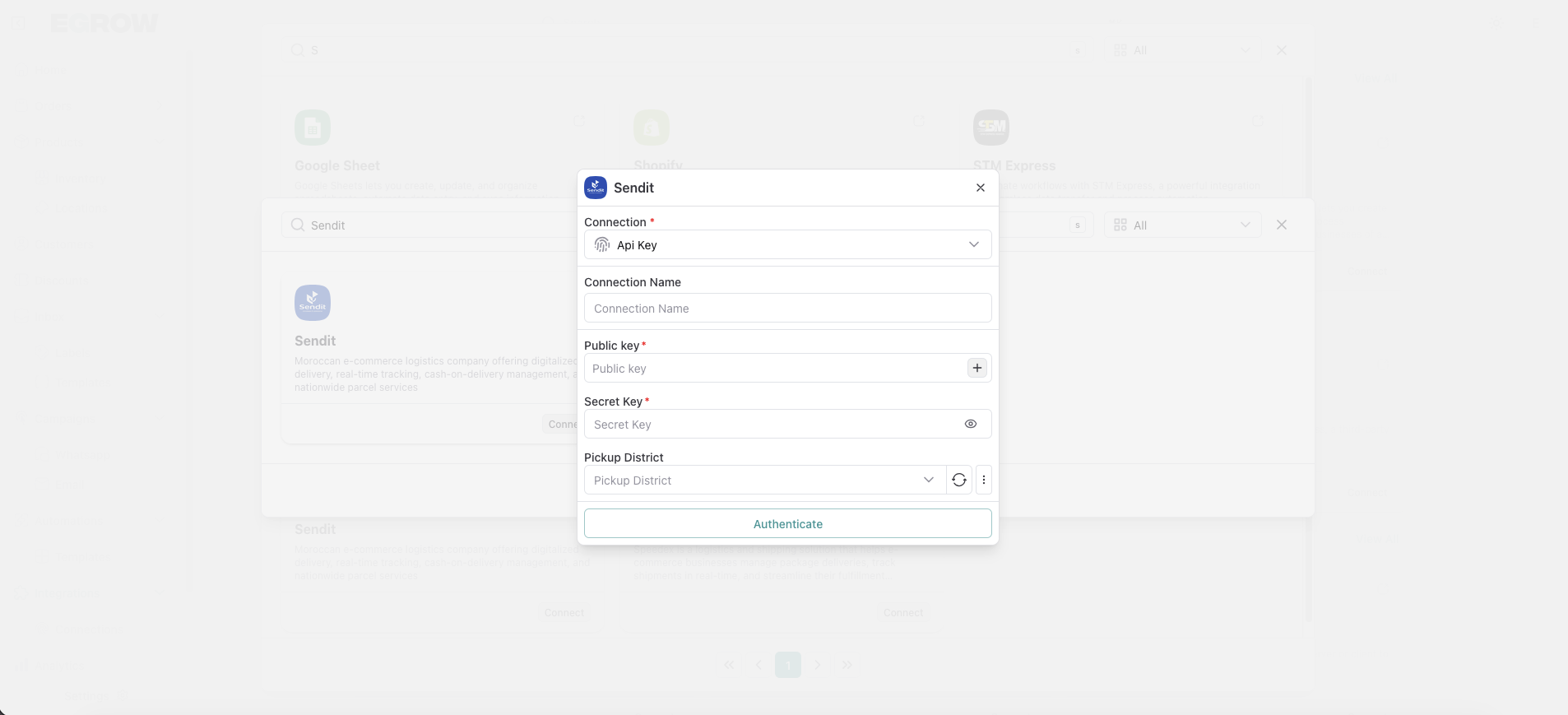
Connection Name
A recognizable name for this integration (example: Sendit Main Account)Public Key
This will be copied from your Sendit dashboardSecret Key
This will also be copied from your Sendit dashboard
Keep this page open — you’ll return to it after retrieving the API credentials from Sendit.
Step 3: Generate API Credentials in Sendit
Log in to your Sendit dashboard
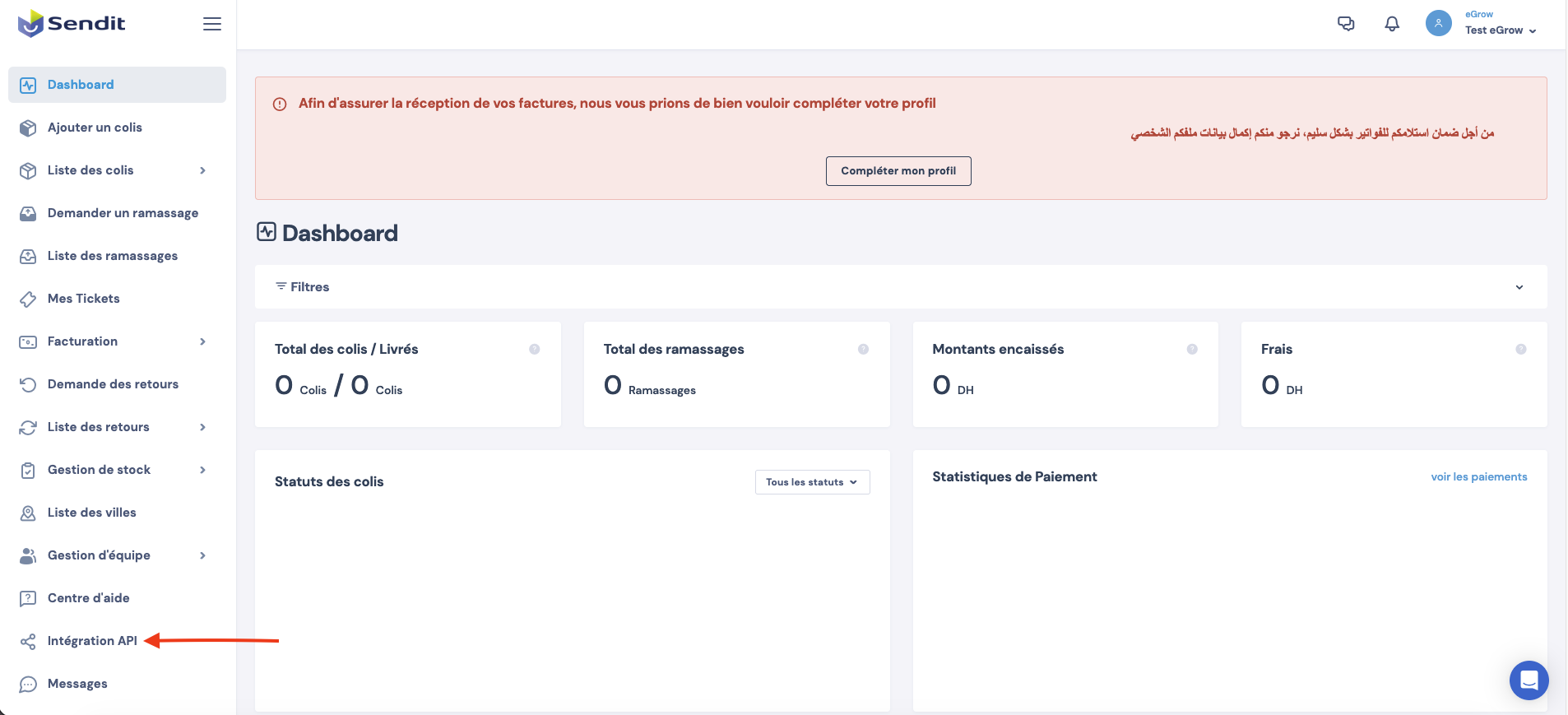
Navigate to the API Integration section
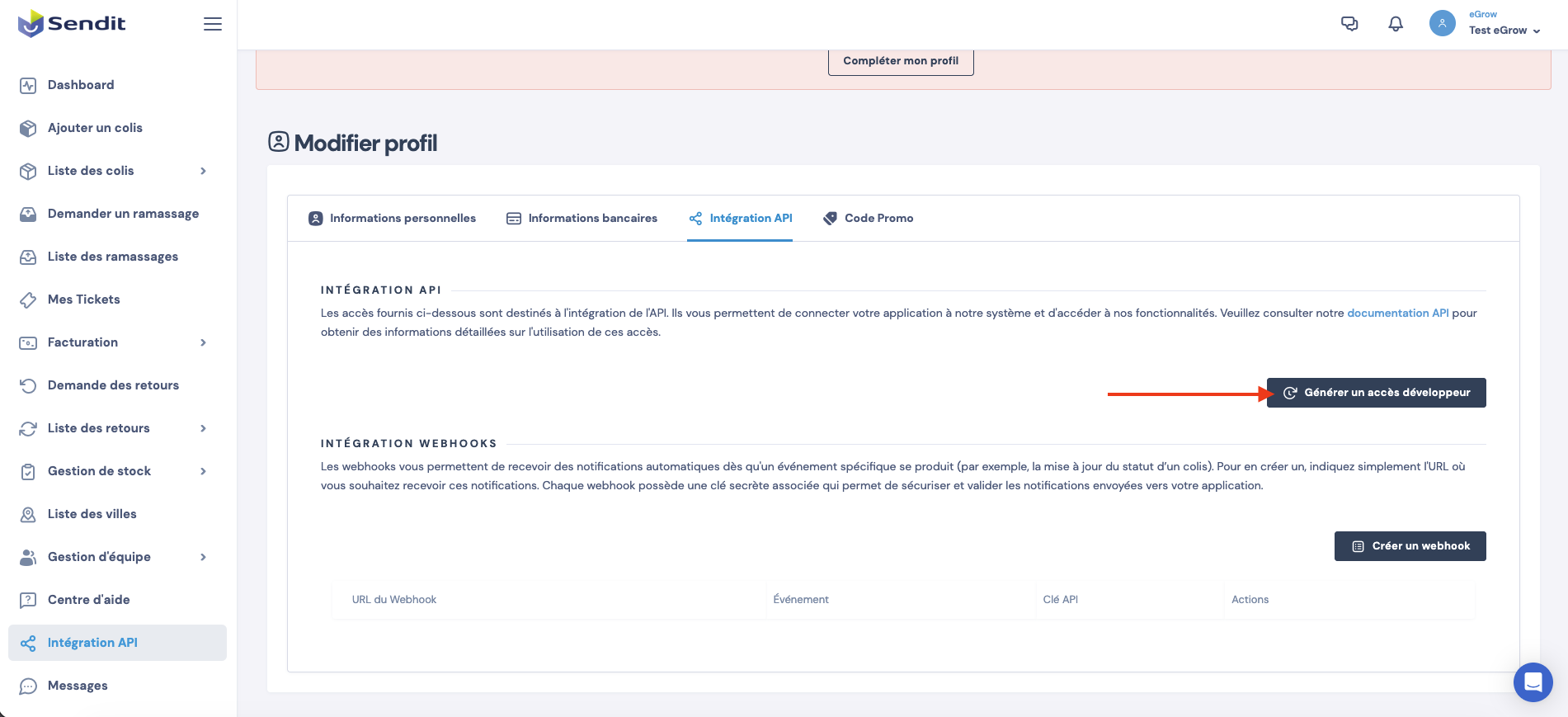
Click Generate Developer Access
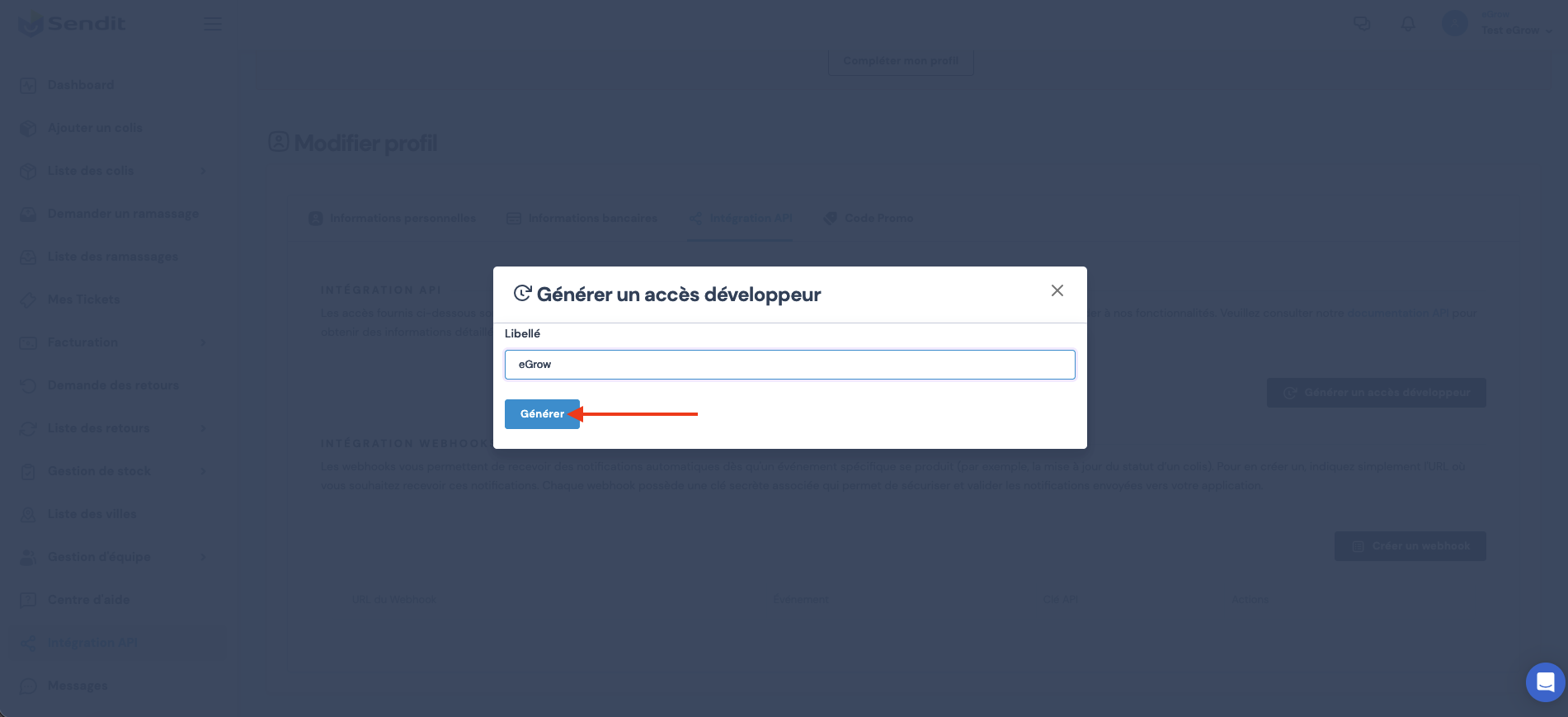
Once generated, copy:
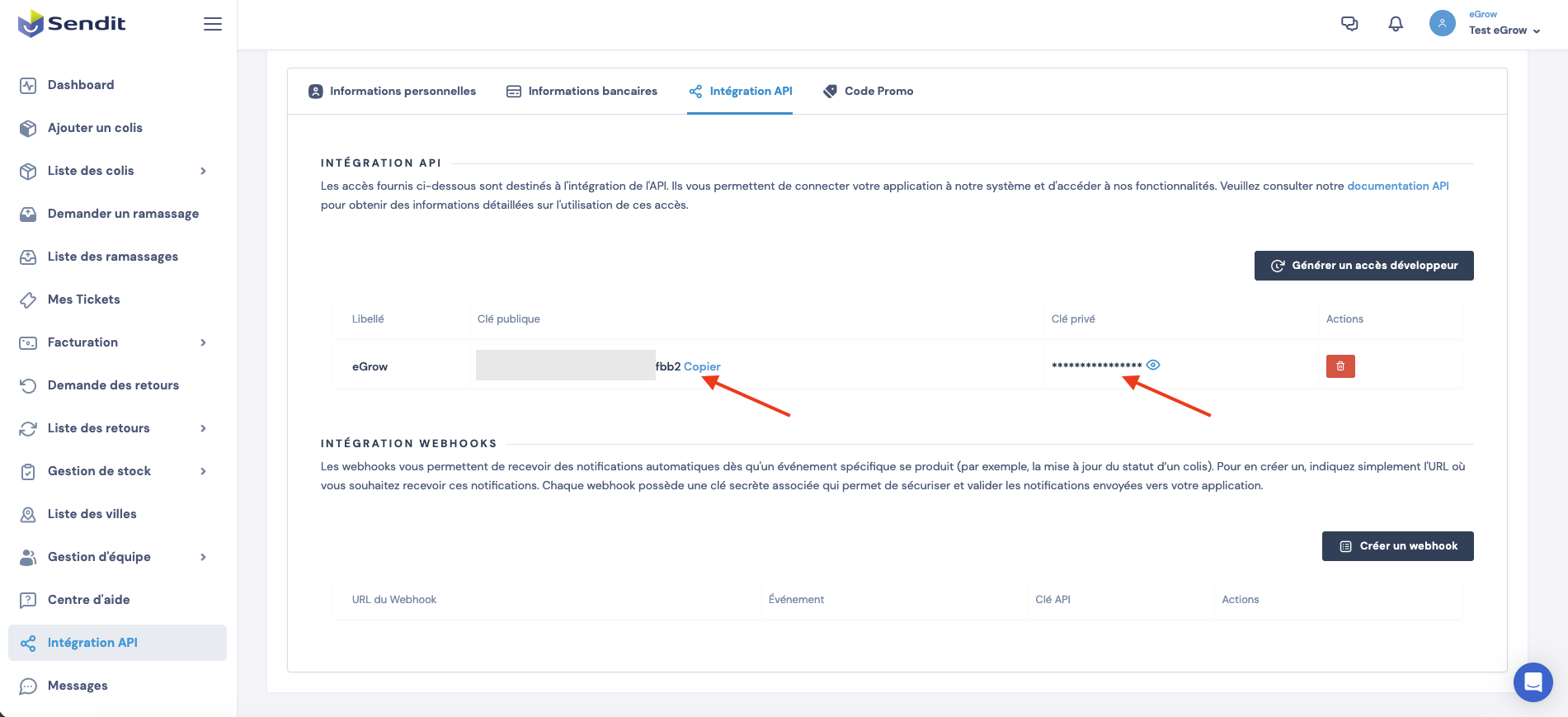
Public Key
Secret Key
These credentials are required to authenticate your Sendit account with eGrow.
Step 4: Complete the Integration in eGrow
Return to the Sendit connection form in eGrow
Paste the Public Key and Secret Key into their respective fields
Click Authenticate
✅ Integration Successful
Once authentication is completed:
A success message will appear
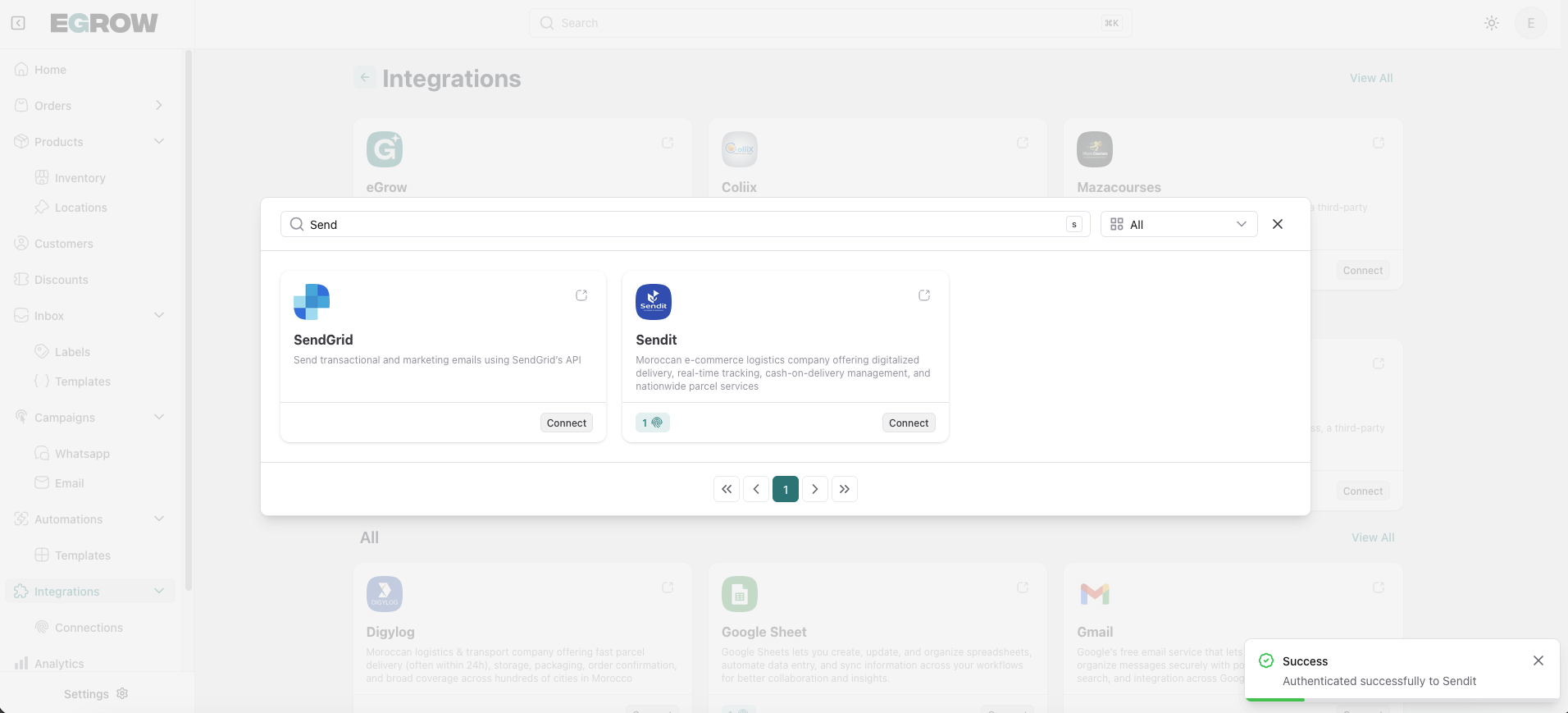
Your Sendit account will be connected to eGrow
The connection will be available for order fulfillment and automation workflows
What You Can Do After Integration
After connecting Sendit with eGrow, you can:
Send orders to Sendit automatically or manually
Manage shipments directly from eGrow
Track delivery status
Use Sendit in automations and workflows
💡 Tip
If the connection fails:
Make sure the API keys were copied correctly
Ensure Developer Access is active in your Sendit account
Try regenerating the keys if needed