Step-by-Step: Automatically Send Parcels to Zakrix Express
Step 1: Find the Zakrix Express Automation Template
Log in to your eGrow account
From the left sidebar, click Automations
Select Templates
Look for the template titled “Add Parcel to Zakrix Express Automatically”
Click Preview & Install
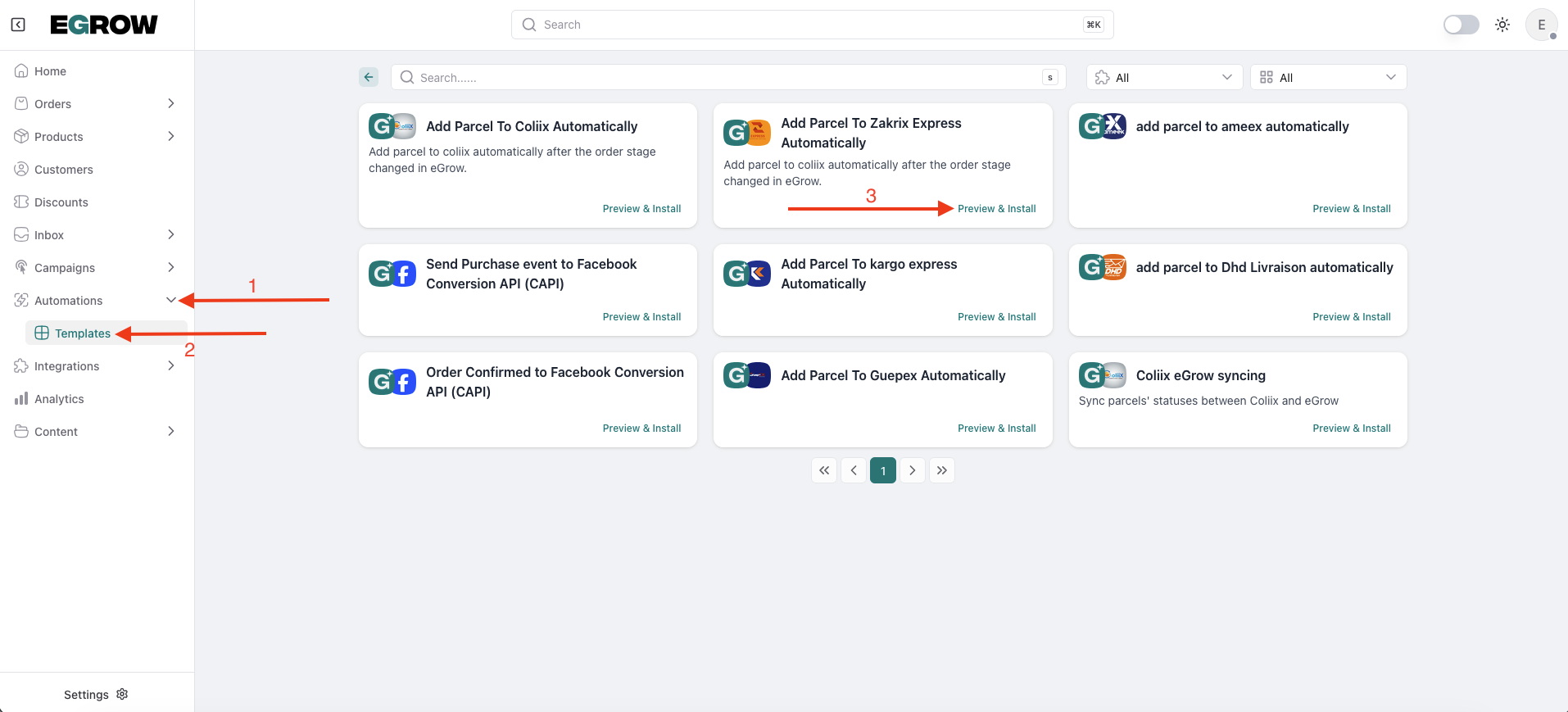
This template is preconfigured and ready to use.
Step 2: Name and Install Your Automation
In the Slug field (bottom-right corner), enter a name
Example:
zakrix-shipping
Click Install
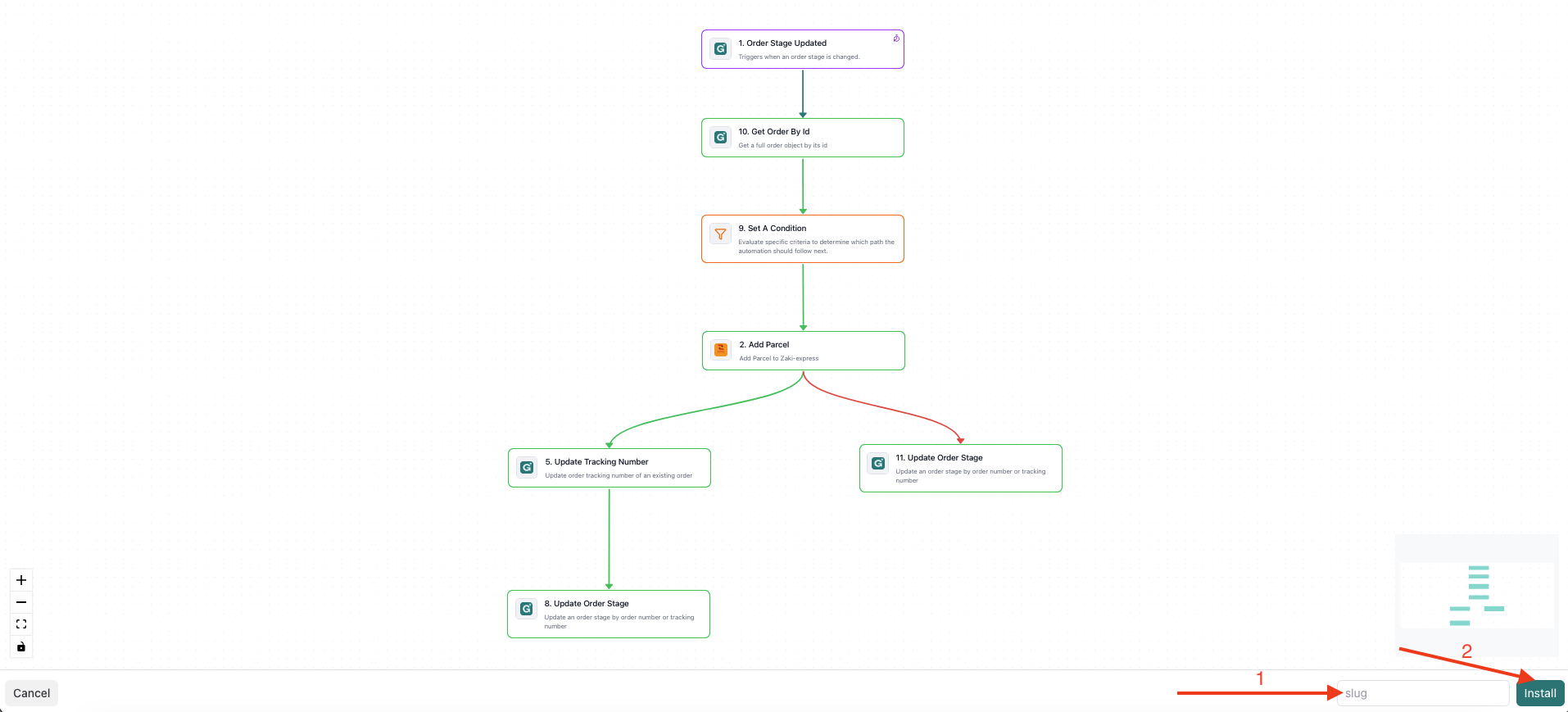
The slug is only used internally.
Step 3: Save and Activate
Review the automation workflow
Click Save Changes in the top-right corner
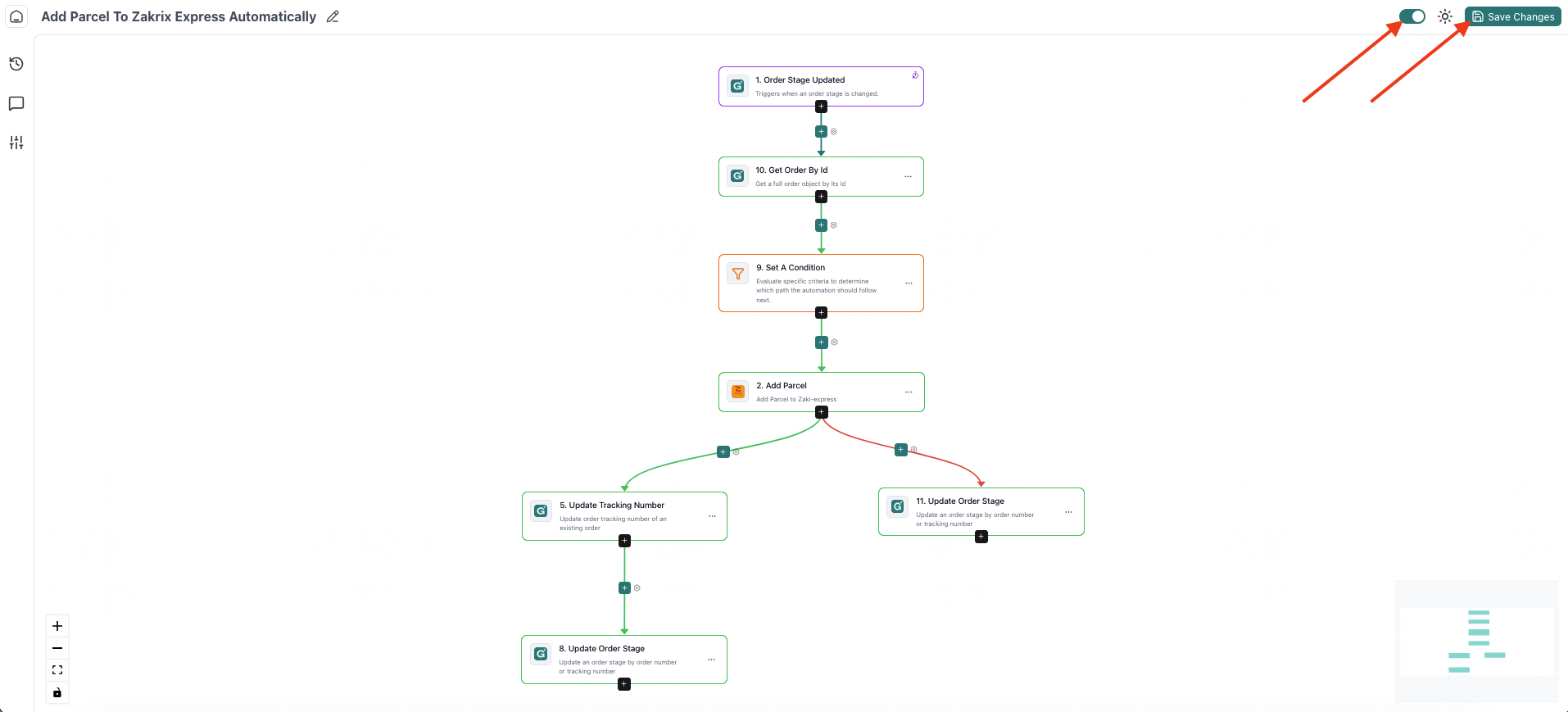
🎉 Your automation is now active.
✅ What Happens Next?
Orders reaching the configured pipeline stage
Are automatically sent to Zakrix Express
No manual parcel creation required
You can track execution and shipment status from your eGrow dashboard.