Step-by-Step: Send a Parcel Manually
1. Log in to your eGrow V2 Account
Open your browser and go to eGrow
Log in using your credentials
2. Navigate to Orders
From the left-side navigation menu, click Orders
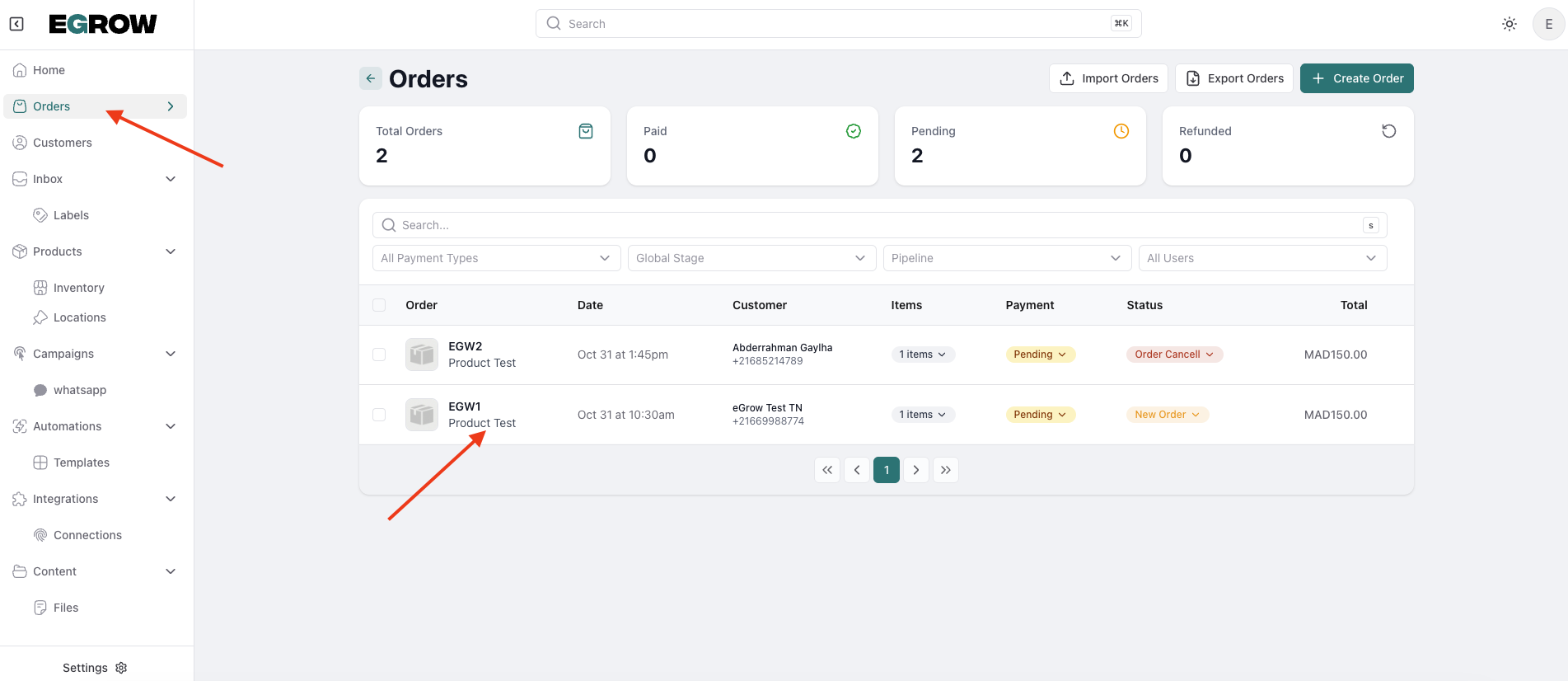
Search for and select the order you want to ship
3. Open the Order Details
Click the order row to open its details page
4. Add a Parcel
Scroll down to the Delivery section
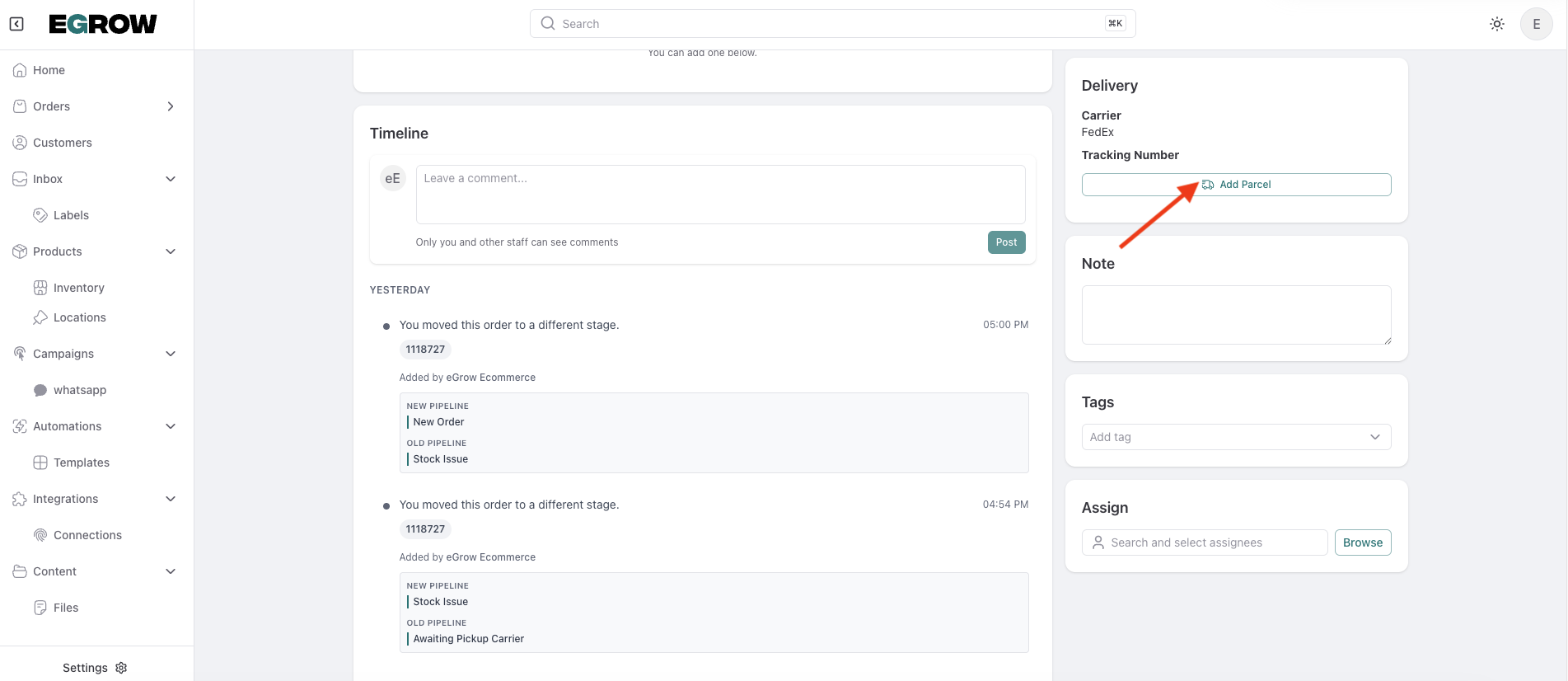
Click the Add Parcel button
5. Select Zakrix Express as Courier
From the courier list, choose Zakrix Express
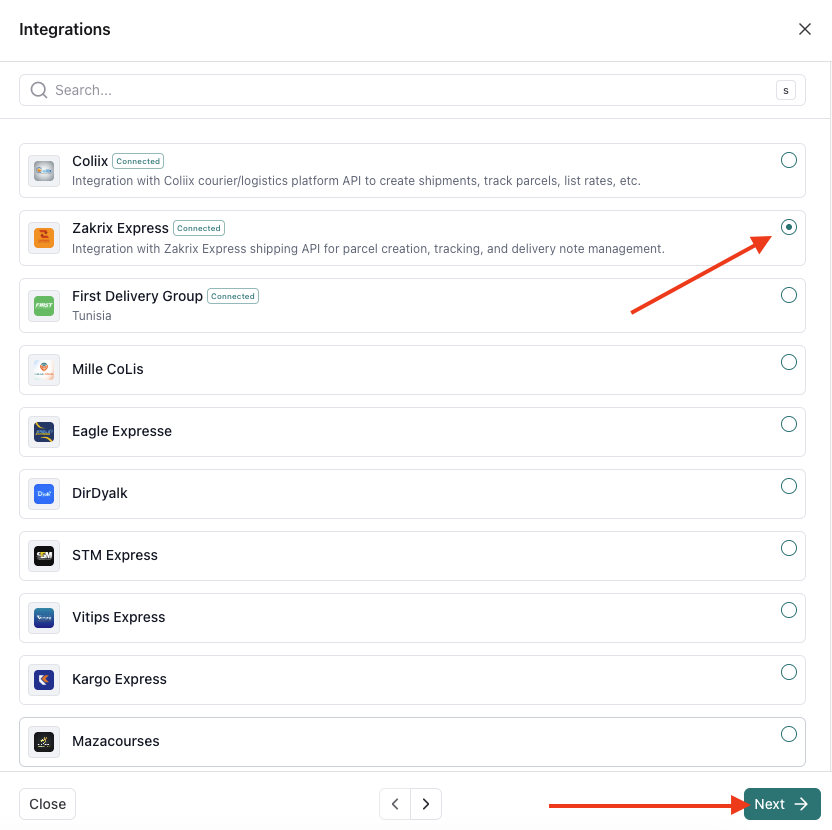
Click Next
6. Choose Your Connection
Select the Zakrix Express connection you previously added (API Key + Client ID setup)
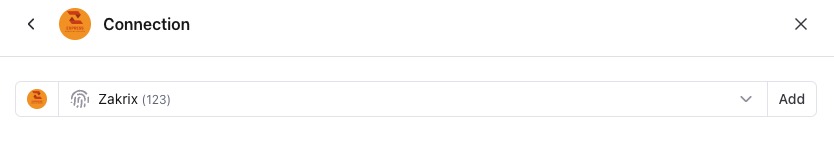
Click Next
7. Confirm Parcel Information
Review all displayed parcel and order details
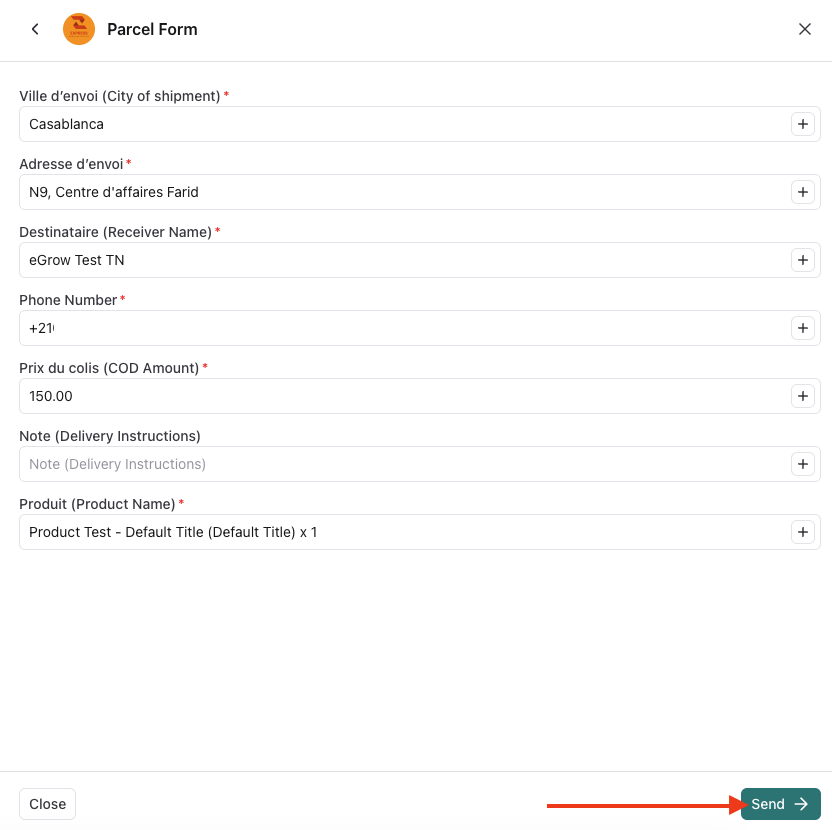
You can edit fields if needed (Phone, address, etc.)
8. Send Parcel to Zakrix Express
Click Send
Wait for confirmation to complete
Success Confirmation
A success message will appear confirming that the parcel has been successfully submitted to Zakrix Express.
You can now:
Track the shipment through your Zakrix Express portal
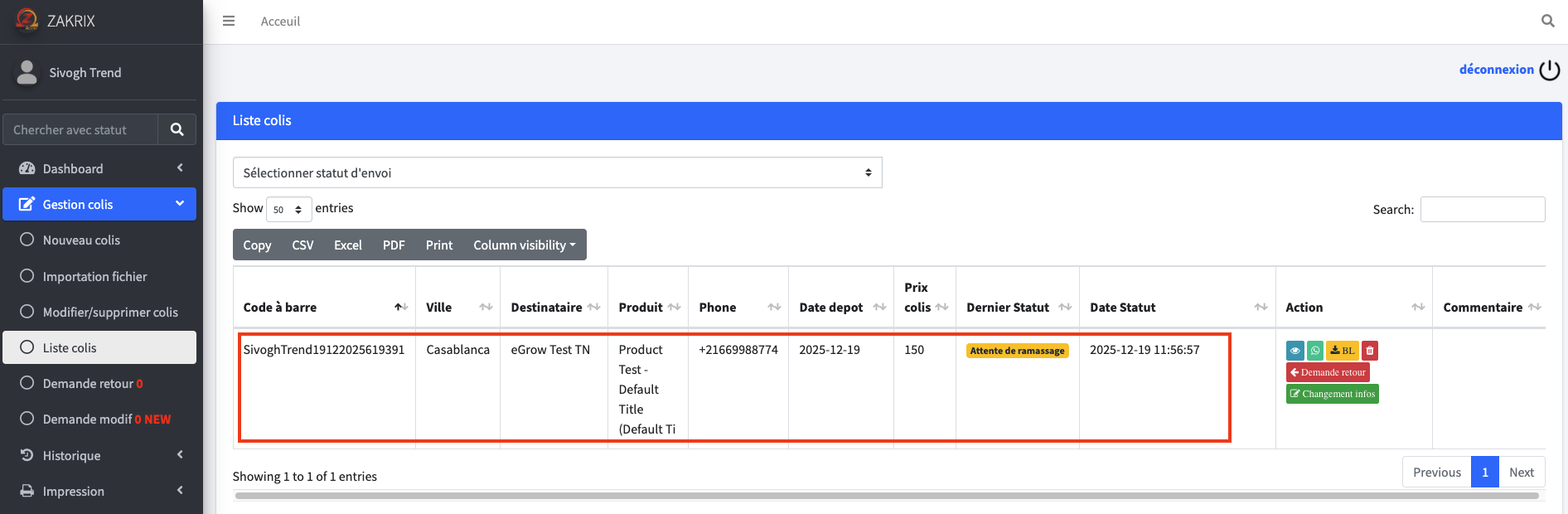
Monitor status updates inside eGrow when supported