Step-by-Step: Automatically Send Parcels to Ozon Stock
Step 1: Find the Ozon Stock Automation Template
First, locate the correct automation template inside your eGrow dashboard.
Log in to your eGrow account
From the left sidebar, click Automations
Select Templates
Search for the template titled:
“Add Parcel (Stock) to Ozon Automatically”Click Preview & Install
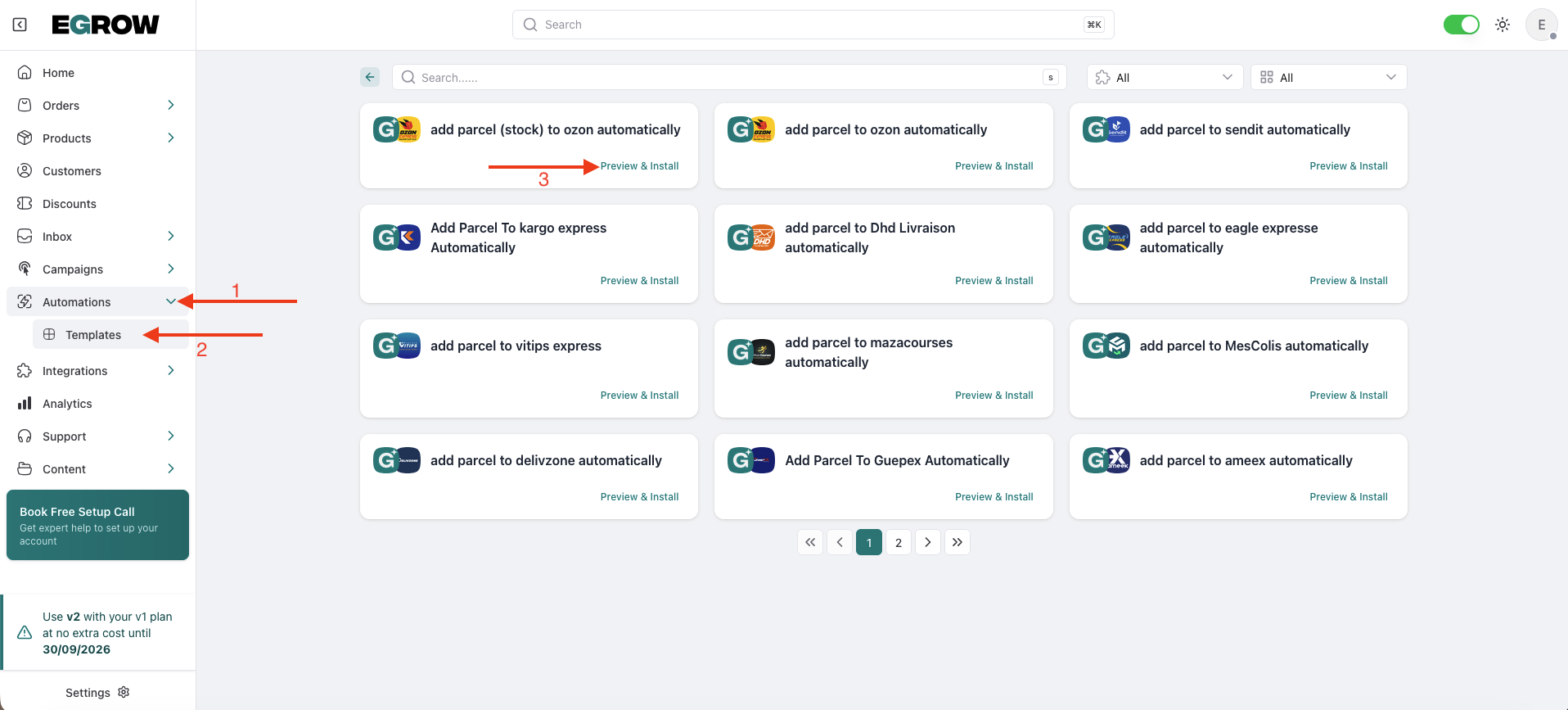
⚠️ Make sure you select the Stock version of the automation (not the regular Ozon Express one).
Step 2: Name and Install Your Automation
After clicking Preview & Install, you’ll see the workflow preview.
In the bottom-right corner, locate the Slug field
Enter a simple internal name
Example:ozon-stock-shipping
Click Install
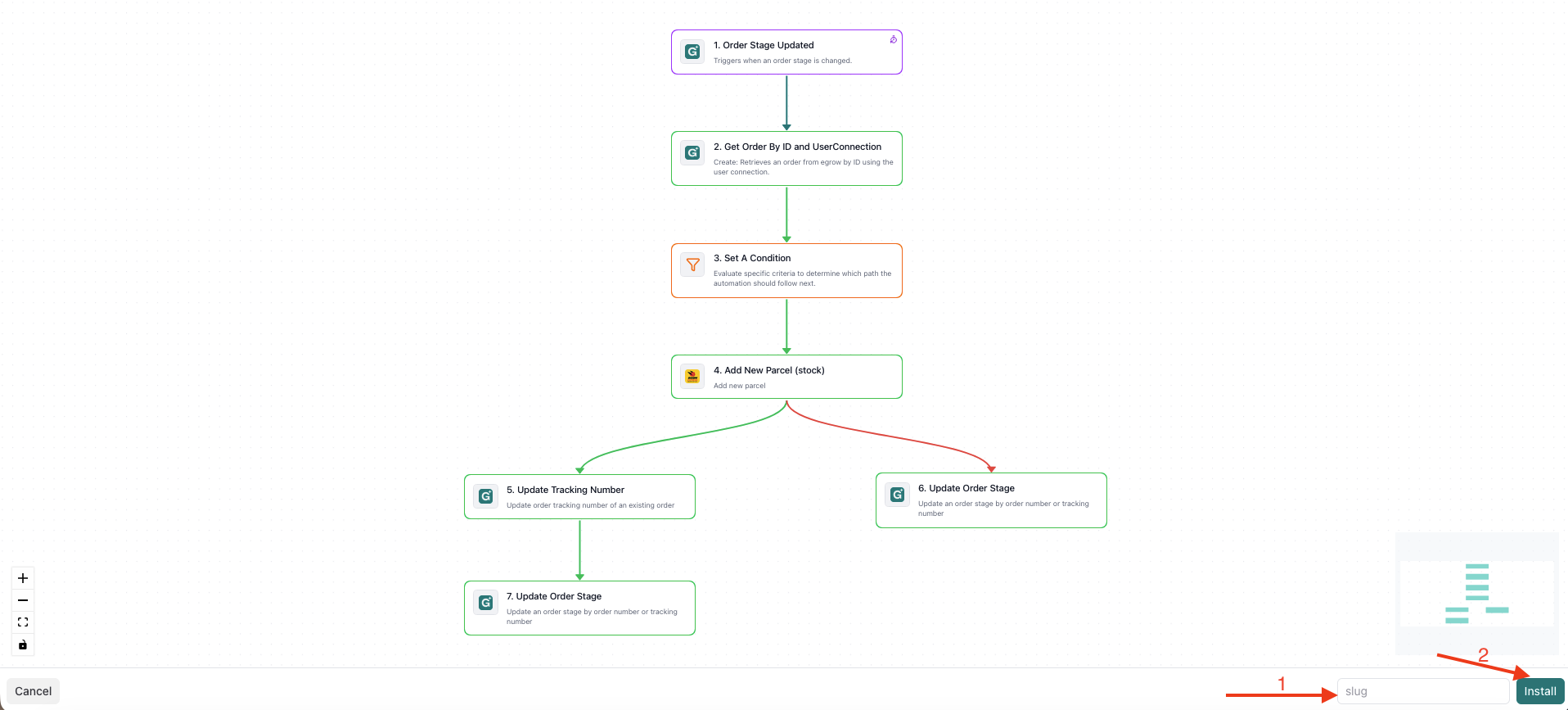
The slug is just an internal system identifier.
Step 3: Review and Configure (If Needed)
Once installed, you will be redirected to the automation editor.
Click on the trigger (for example: Order Stage Updated or Order Created)
Make sure your Ozon connection is selected
Confirm that the correct pipeline stage is used (for example: Ready for Ozon Stock)
You can adjust the stage based on when you want the order to be automatically sent.
Step 4: Save and Activate
After reviewing:
Click Enable and Save Changes in the top-right corner
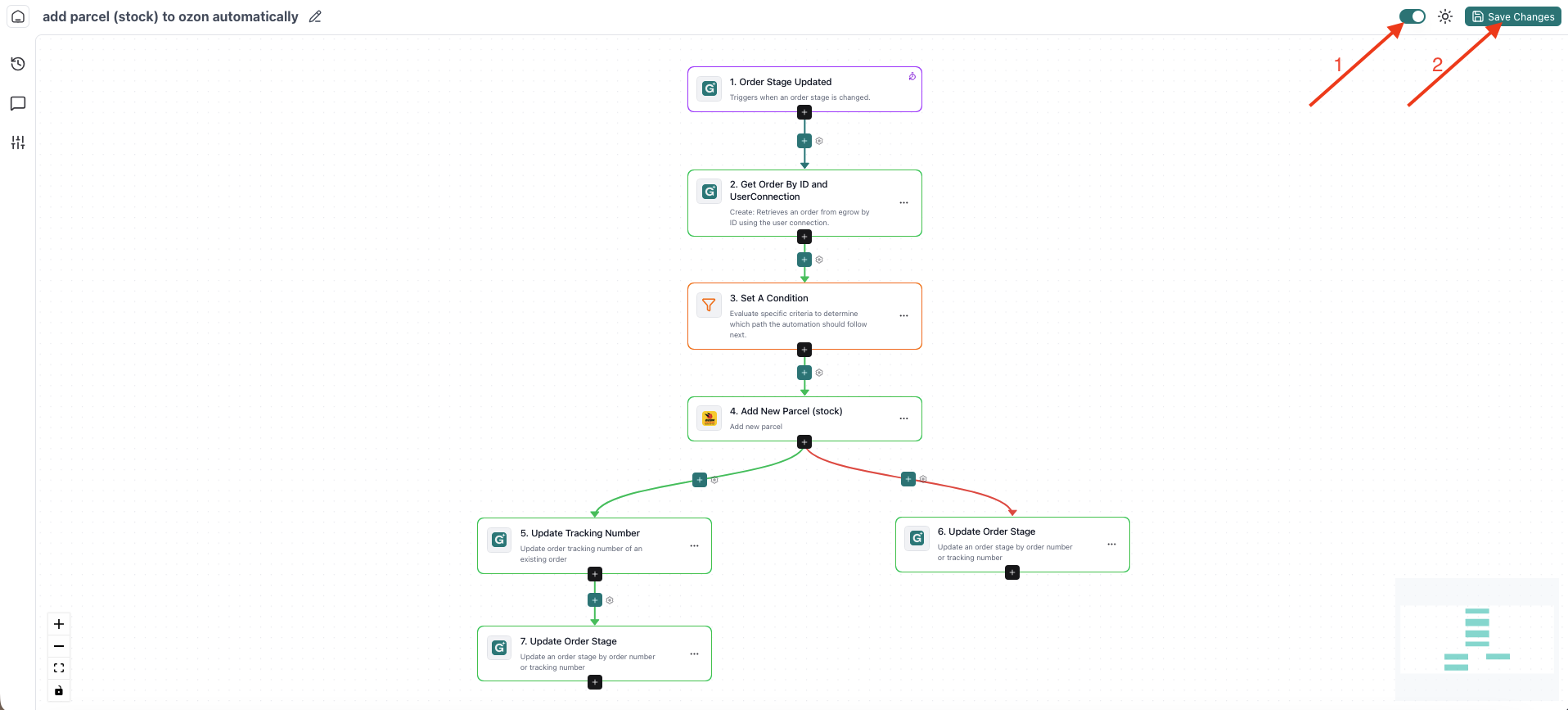
That’s it 🎉
Your automation is now active.
What Happens Next?
From now on:
When an order reaches the configured stage
eGrow will automatically send the parcel details to Ozon Stock
No manual parcel creation is required
You can monitor automation runs and shipping status directly inside your eGrow dashboard.
Important Before Activating
Make sure:
Your Ozon integration is already connected and authenticated
The correct pipeline stage is selected in the automation
Your products are properly configured for Ozon Stock fulfillment