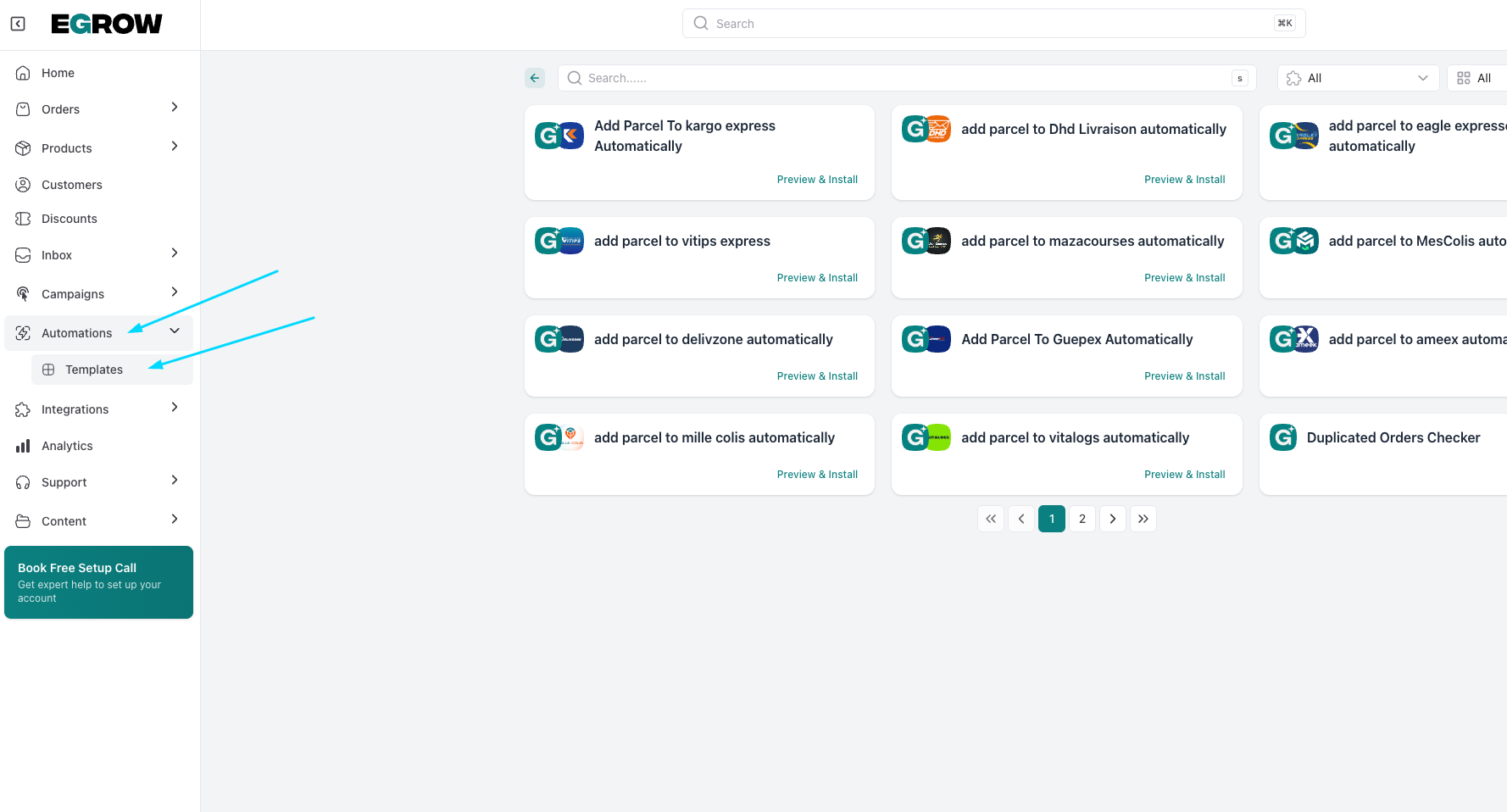
1. Open the Templates Library
From your eGrow dashboard:
Go to the Automations section.
Click the Templates tab.
You’ll see a library of prebuilt WhatsApp automation templates designed for common business use cases.
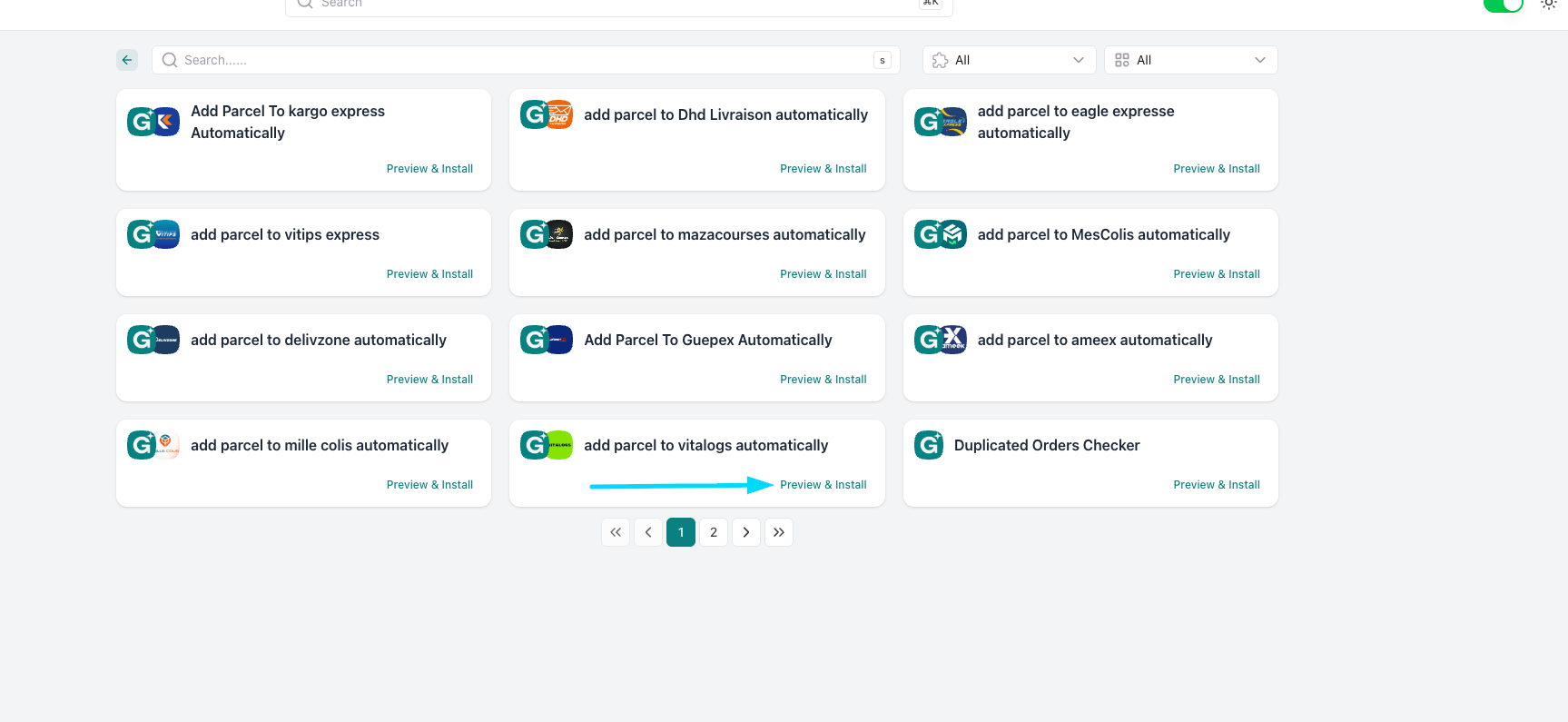
2. Preview the Template
Before customizing:
Click on any template you’re interested in.
Read its description and message flow.
This helps you understand how it works and whether it fits your business needs.
3. Install the Template
when you are sure the template serves your business needs :
Click Preview and install.
This creates your own copy that you can safely edit without affecting the original template.
- create a slug for the template then click install
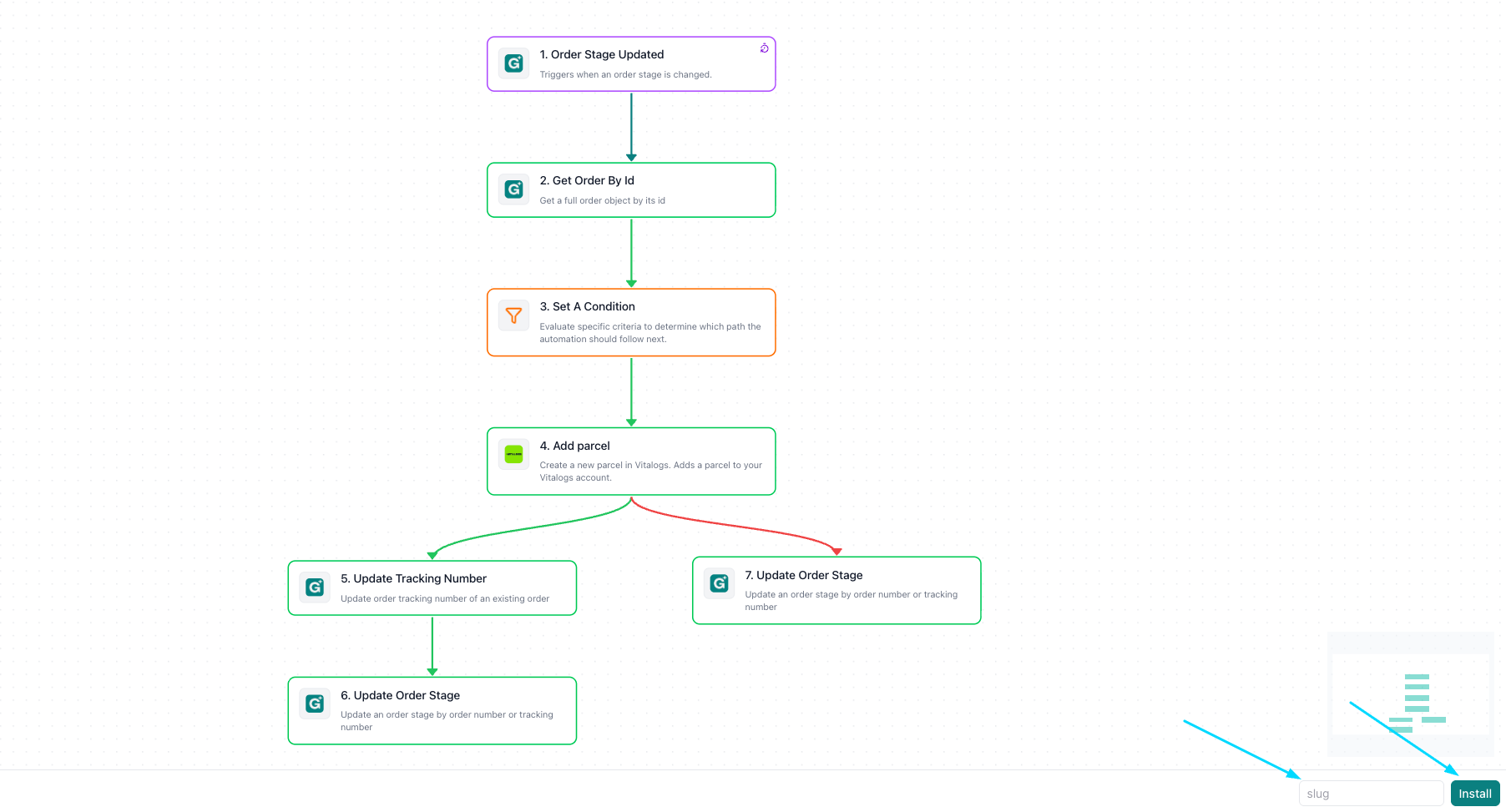
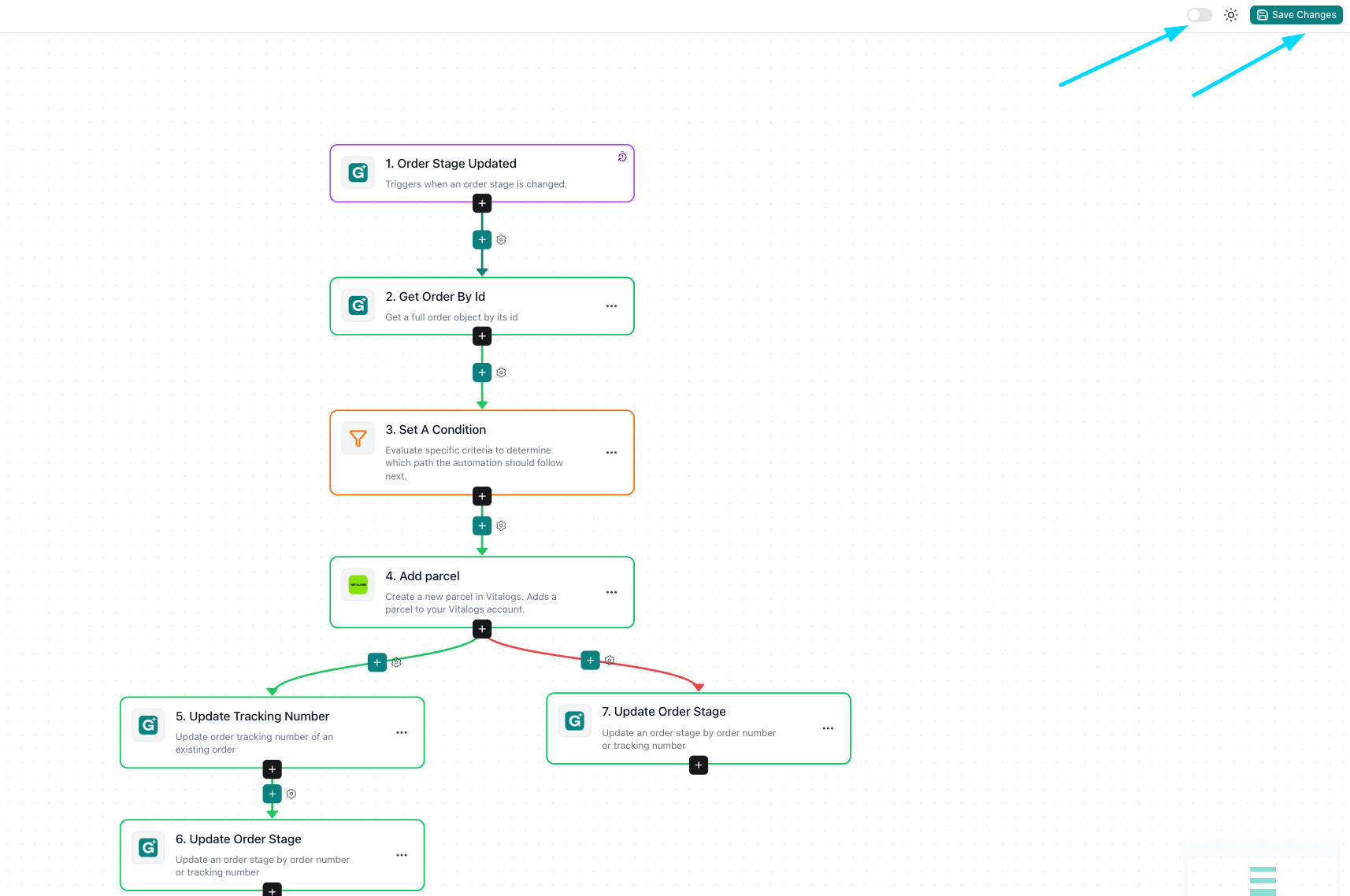
4. Edit the Trigger
Triggers decide when the automation runs:
Example triggers include new message received, new order created, order stage updated, specific keywords, and more.
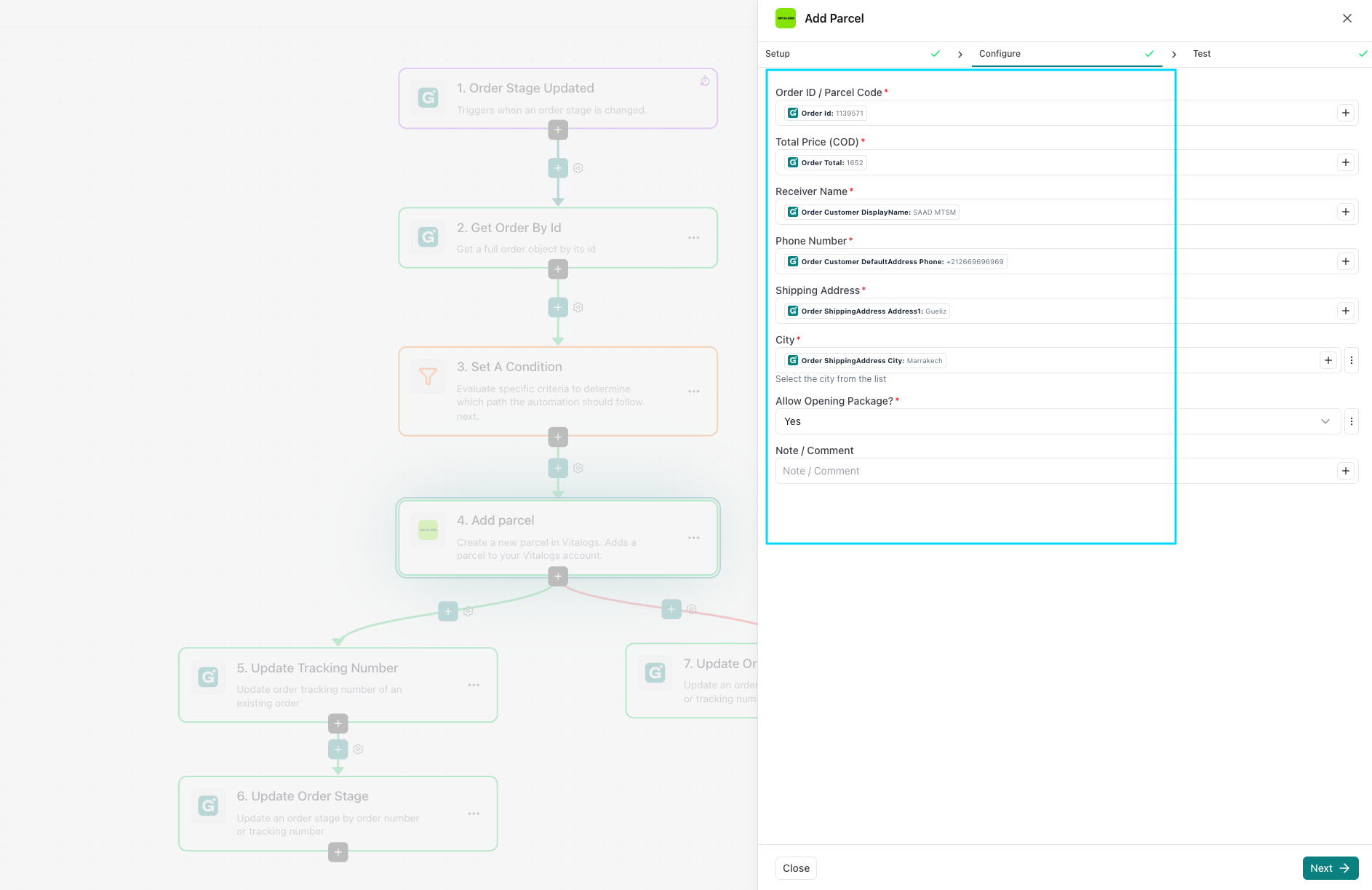
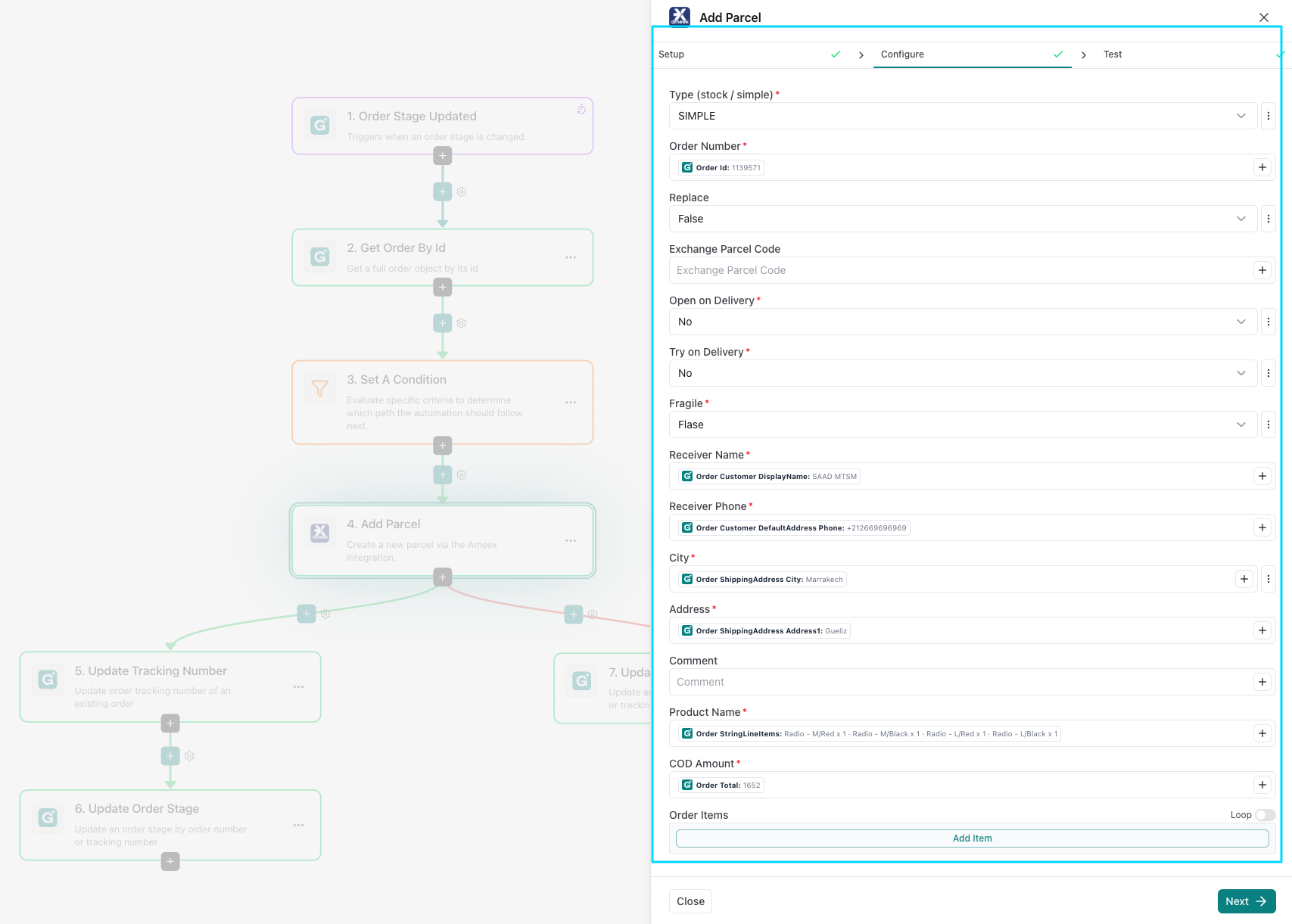
5. Customize the configuration
Now change the configuration to fit your brand voice:
Click on any message block inside the automation.
Enter the configuration section and edit the text or placeholders (like customer name or order number).
Make it personal and helpful.
- then press next and save your template