Why Automation Is Important for E-Commerce
Automation helps streamline your business operations and creates a seamless experience for your customers. Here are the biggest benefits:
1. Saves Time
Manual tasks like sending messages, updating order stages, or notifying team members can take hours. Automation handles all of that instantly.
2. Reduces Human Error
Mistakes happen—forgetting to update an order, missing a follow-up, sending the wrong message. Automation ensures tasks are executed perfectly, every time.
3. Improves Customer Experience
Customers love fast communication and accurate updates. Automation makes sure they receive what they need without delays.
4. Helps You Manage Multiple Stores
If your business operates across several sales channels, automation helps you centralize orders and keep everything synchronized.
5. Scales With Your Business
As your sales grow, automation grows with you. Whether you process 10 orders a day or 1,000, tasks are always handled reliably.
How Automation Works: The 3 Core Elements
To understand automation fully, you need to know its three main components:
1. Trigger (What starts the automation)
A trigger tells the system when the automation should begin.
Examples:
When an order is created
When an order is updated
When the order status changes
When a new customer is added
2. Condition (Rules that must match)
Conditions help you filter when the automation should run.
Examples:
City = Casablanca
Payment status = Paid
Order stage = Confirmed
Product = “Wireless Earbuds”
This is extremely useful when you want actions to apply only to specific orders or customers.
3. Action (What the automation does)
Actions are what the system performs automatically once the trigger and conditions are met.
Examples:
Send an email
Send a WhatsApp message
Move an order to a new stage
Notify a team member
Add a tag to an order
How to Create an Order-Based Email Automation (Step-by-Step Guide)
In this guide, we’ll walk through how to build a simple yet powerful automation that sends an email automatically when an order reaches a specific stage (for example: Order Delivered).
Why This Automation Is Useful
This type of automation is commonly used in e‑commerce to:
Notify internal teams when an order is delivered
Trigger follow‑up emails to customers
Launch post‑delivery actions (reviews, upsells, support, etc.)
Eliminate manual checking and human errors
Once set up, the automation runs 24/7 without intervention.
Automation Overview
Our automation has three main steps:
Trigger – Detect when an order stage changes
Condition – Check if the new stage matches a specific value
Action – Send an email when the condition is met
Each step is explained below using the corresponding screen.
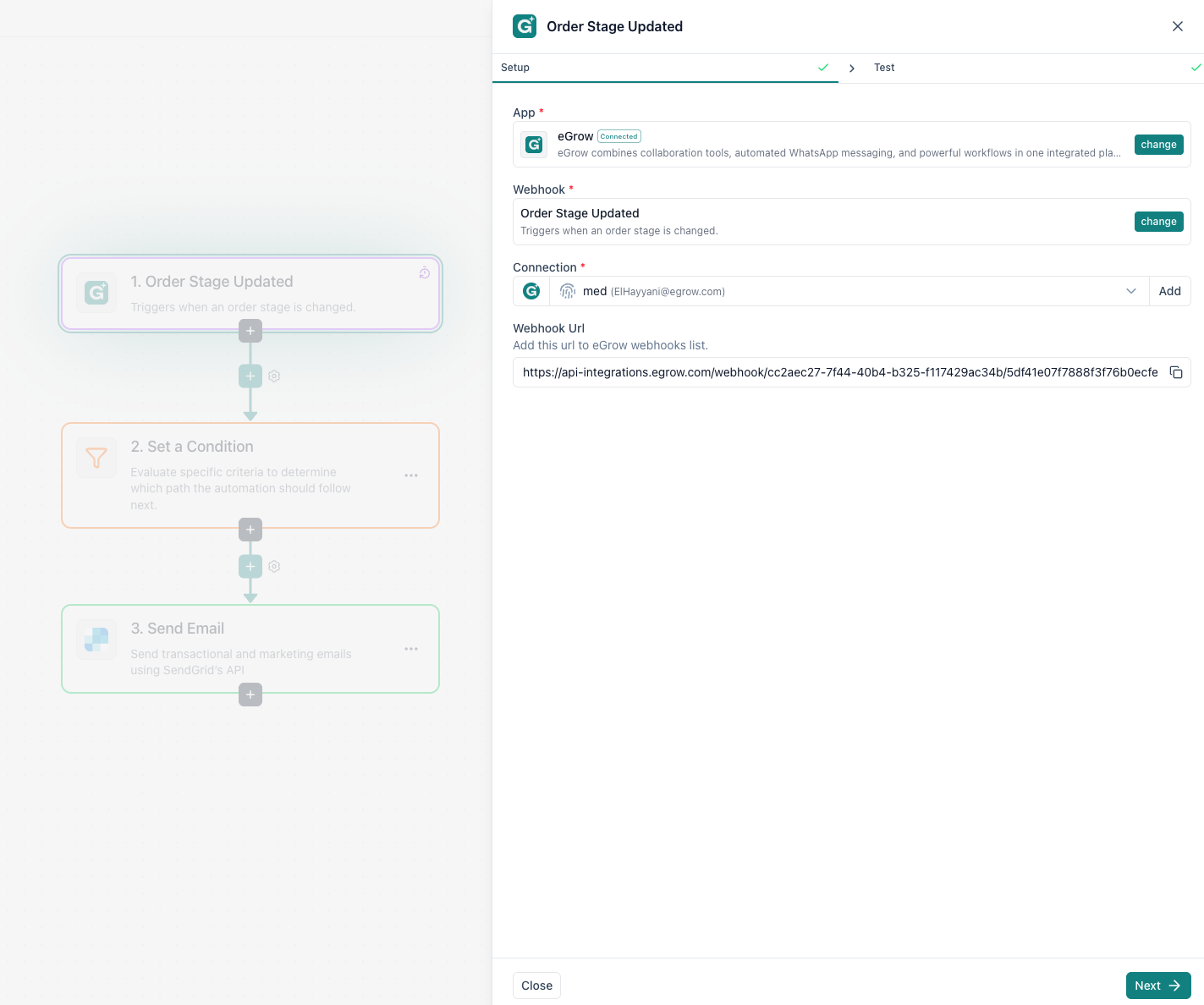
Step 1: Trigger- Order Stage Updated
Trigger screen: “Order Stage Updated”
This is where the automation starts.
What happens here?
The trigger listens for any change in an order’s stage inside your system. Every time an order moves from one stage to another (e.g. Confirmed → Shipped → Delivered), the automation is notified.
How to configure it:
App: Select eGrow
Webhook: Choose Order Stage Updated
Connection: Use your connected eGrow account
Webhook URL: Copy and add this URL inside eGrow’s webhook settings
Once connected, the trigger is ready to receive real‑time order updates.
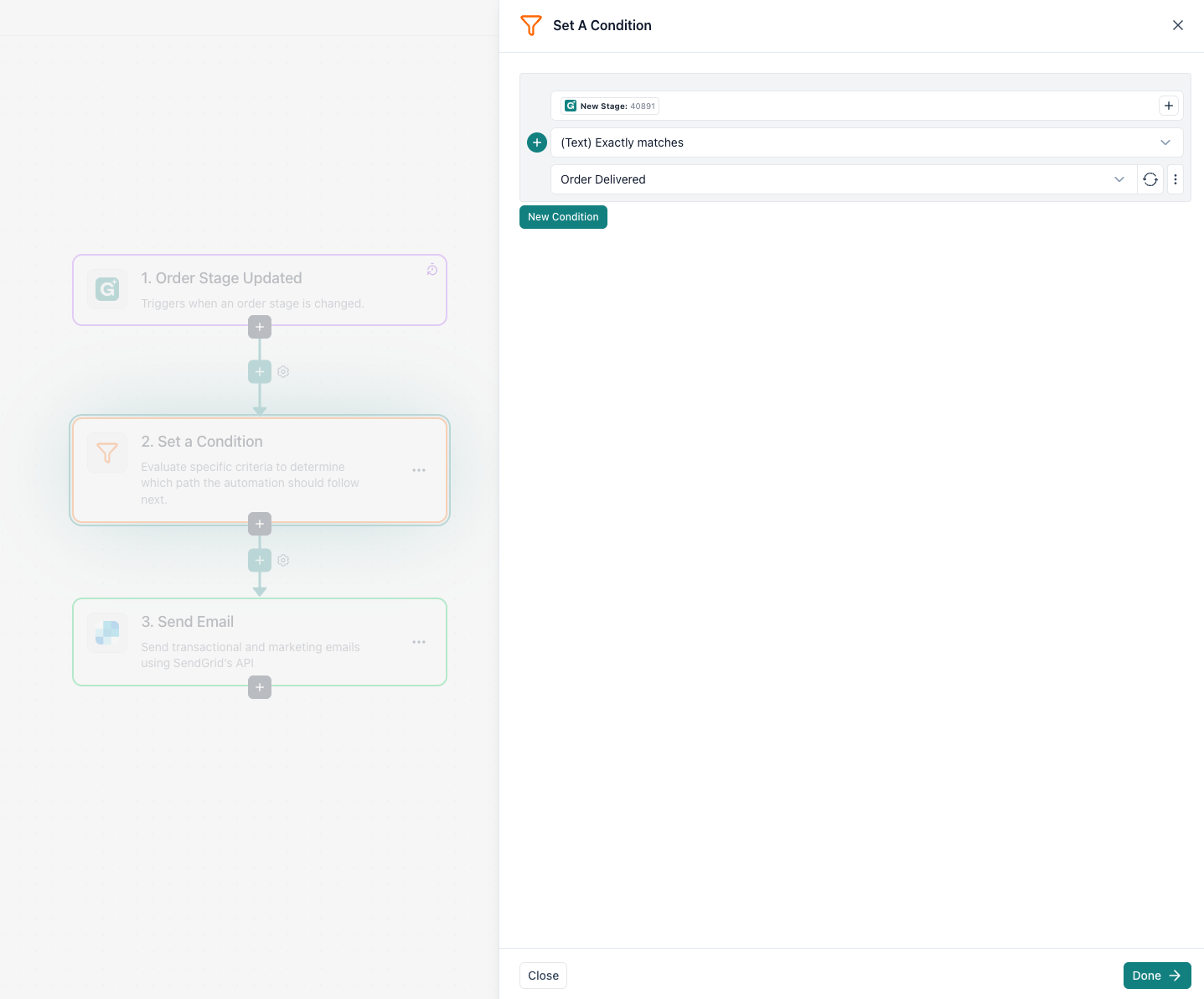
Step 2: Condition - Check the New Order Stage
Condition screen: “Set a Condition”
Not every stage change should send an email. That’s why we add a condition.
Condition logic used:
Field: New Stage
Operator: Text → Exactly matches
Value:
Order Delivered
What this means:
The automation will continue only if the order’s new stage is exactly “Order Delivered”.
If the order moves to any other stage (e.g. Confirmed, In Transit), the automation stops here.
This ensures emails are sent only when the order is delivered, nothing else.
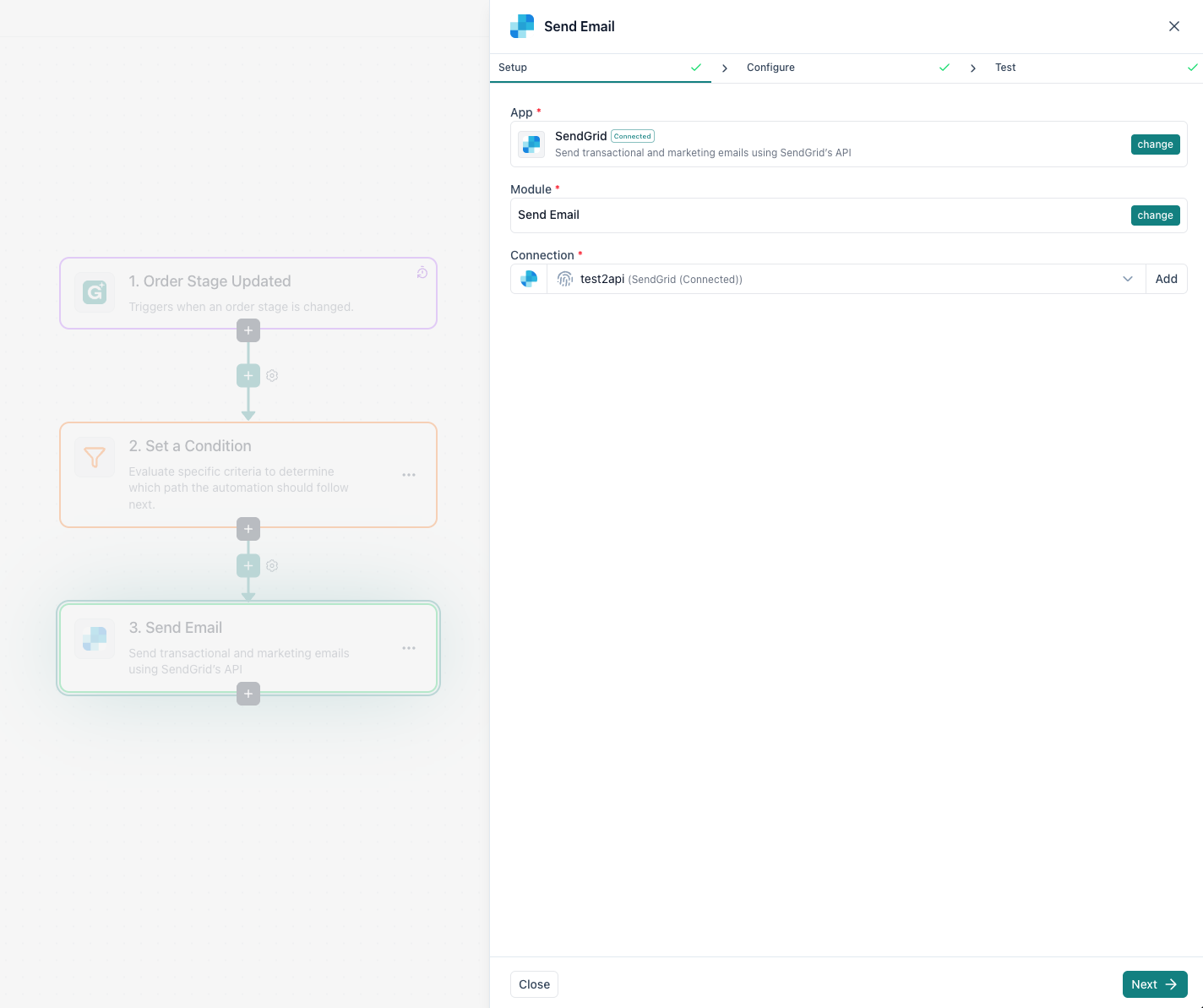
Step 3: Action – Send Email
Action screen: “Send Email”
Once the condition is met, the automation performs the final action: sending an email.
Typical use cases:
Notify your team that an order has been delivered
Send a delivery confirmation to the customer
Trigger a satisfaction or review request
What you can configure:
Recipient email (team member or customer)
Email subject (e.g. “Order Delivered Successfully”)
Email body with dynamic order data such as:
Order ID
Customer name
Delivery city
Total amount
You can personalize the email using dynamic fields coming from the trigger data.
Final Automation Flow (Summary)
Here’s how everything works together:
An order changes stage in eGrow
The automation detects the change
The condition checks if the stage is Order Delivered
If true → an email is sent automatically
If false → nothing happens
Simple, clean, and fully automated.
Best Practices & Tips
✔ Use exact stage names to avoid mismatches
✔ Test the automation with a sample order
✔ Keep email content short and clear
- ✔ Log important automations for monitoring
Conclusion
With this setup, you’ve built a reliable, no‑code automation that reacts instantly to order updates and keeps your team or customers informed.
This approach can be extended to:
WhatsApp notifications
CRM updates
Review requests
Customer segmentation
Automation like this saves time, reduces errors, and scales effortlessly as your order volume grows.