What You’ll Achieve
Automatically capture new orders from eGrow
Send order data to Google Sheets without manual export
Keep your spreadsheet updated in real time
Step-by-Step: Automatically Send Orders to Google Sheets
1. Go to Automations
From your eGrow dashboard:
Navigate to Automations
Click Create Automation
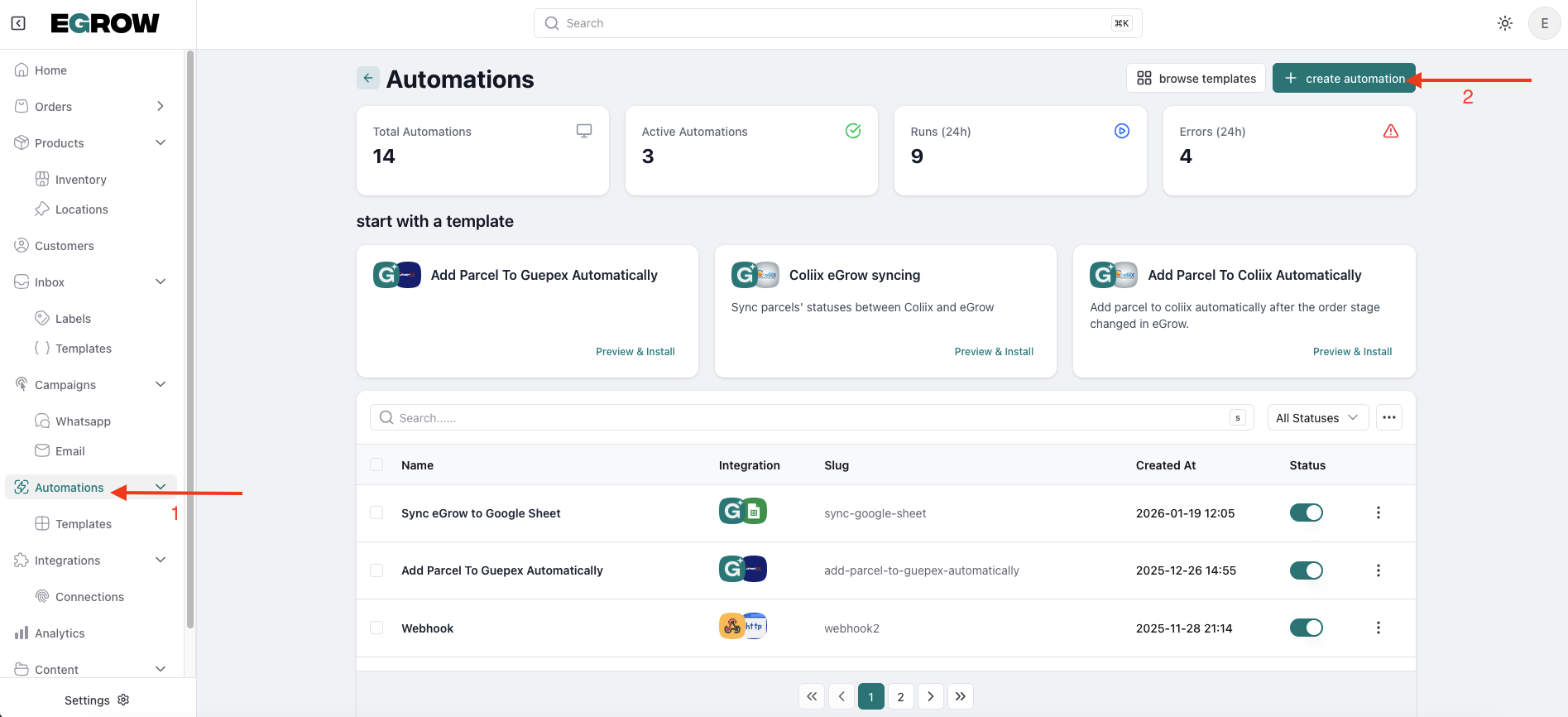
2. Set Automation Name
Enter a name for your automation
Example:
Add New Orders to Google Sheets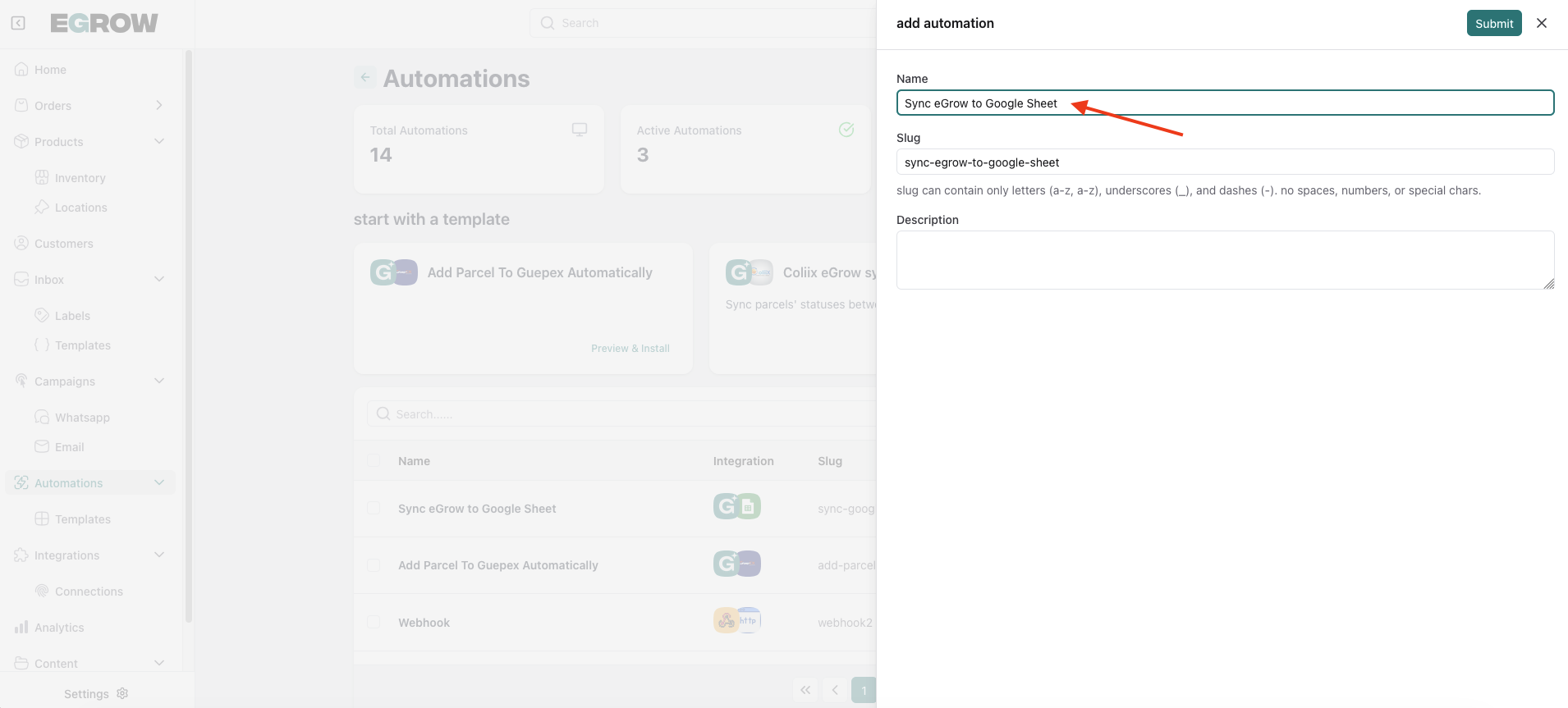
Click Next
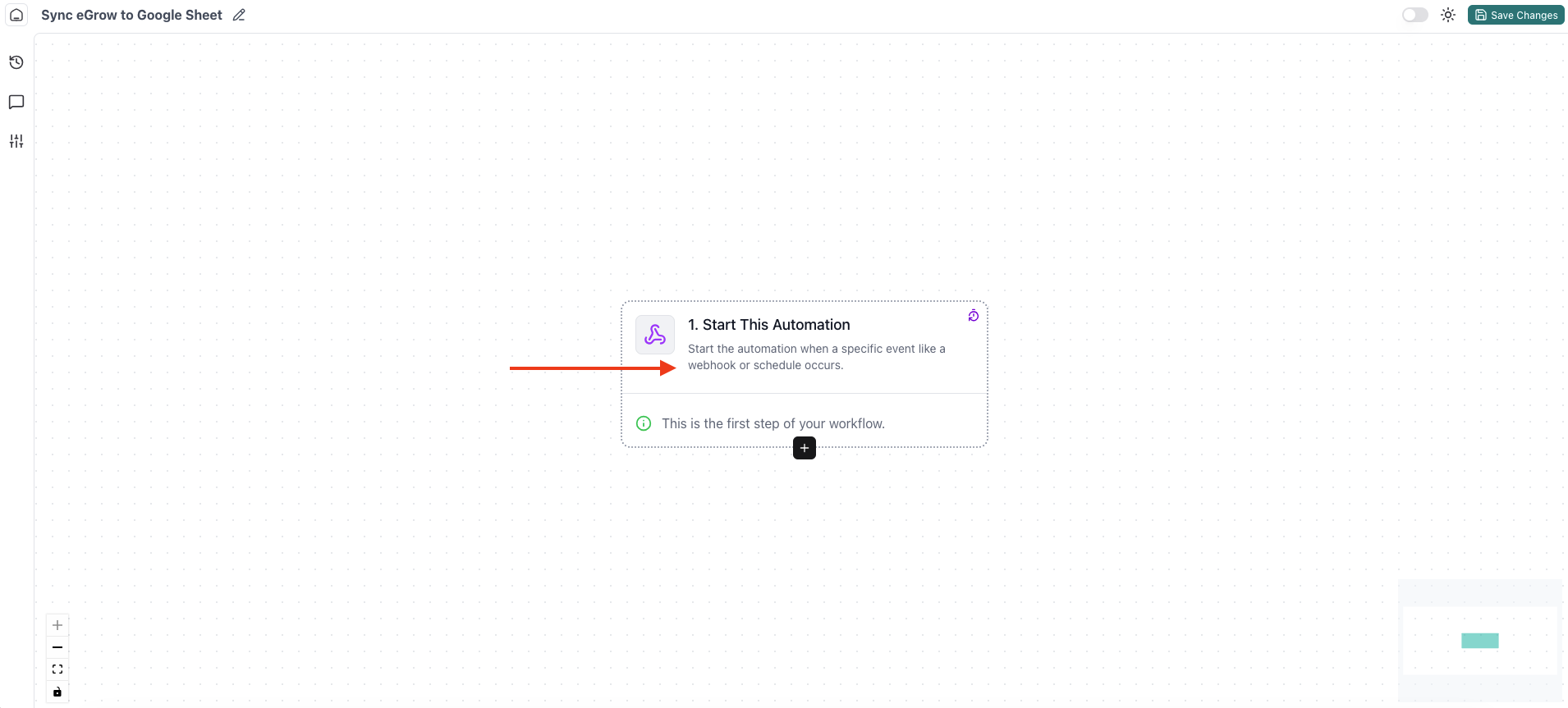
3. Configure the Trigger
Choose the Trigger App
Click Start Automation
Select your eGrow connection
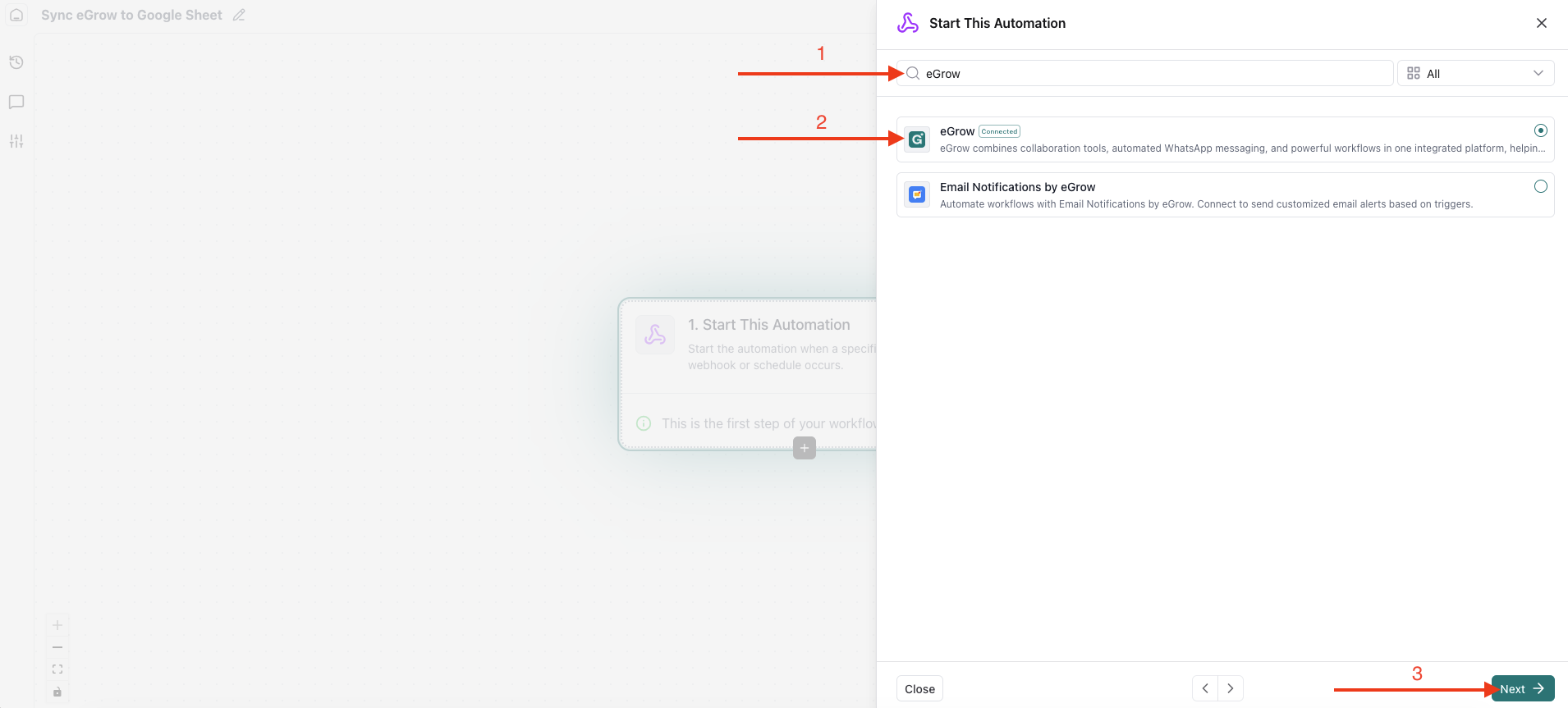
Click Next
Select Trigger Event
Choose Order Created
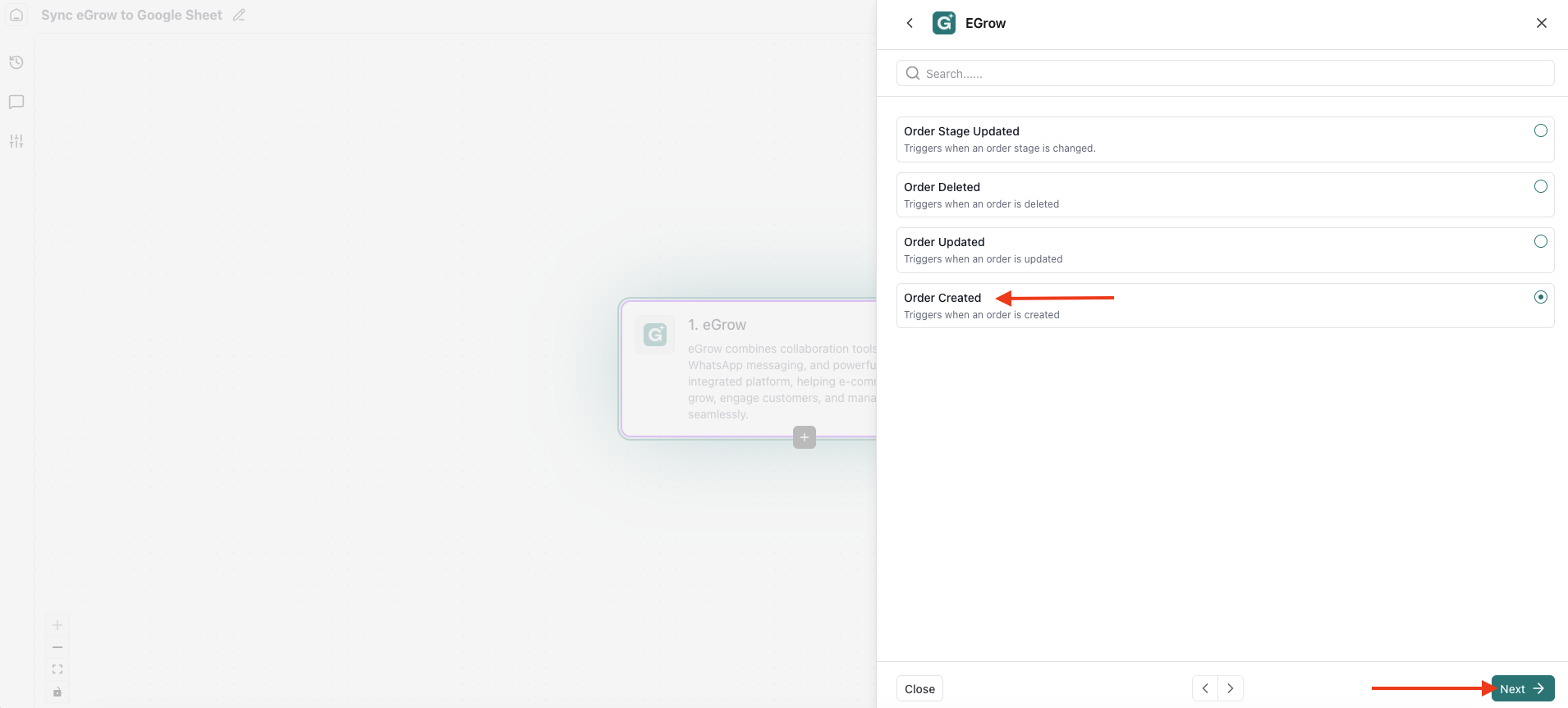
Click Next
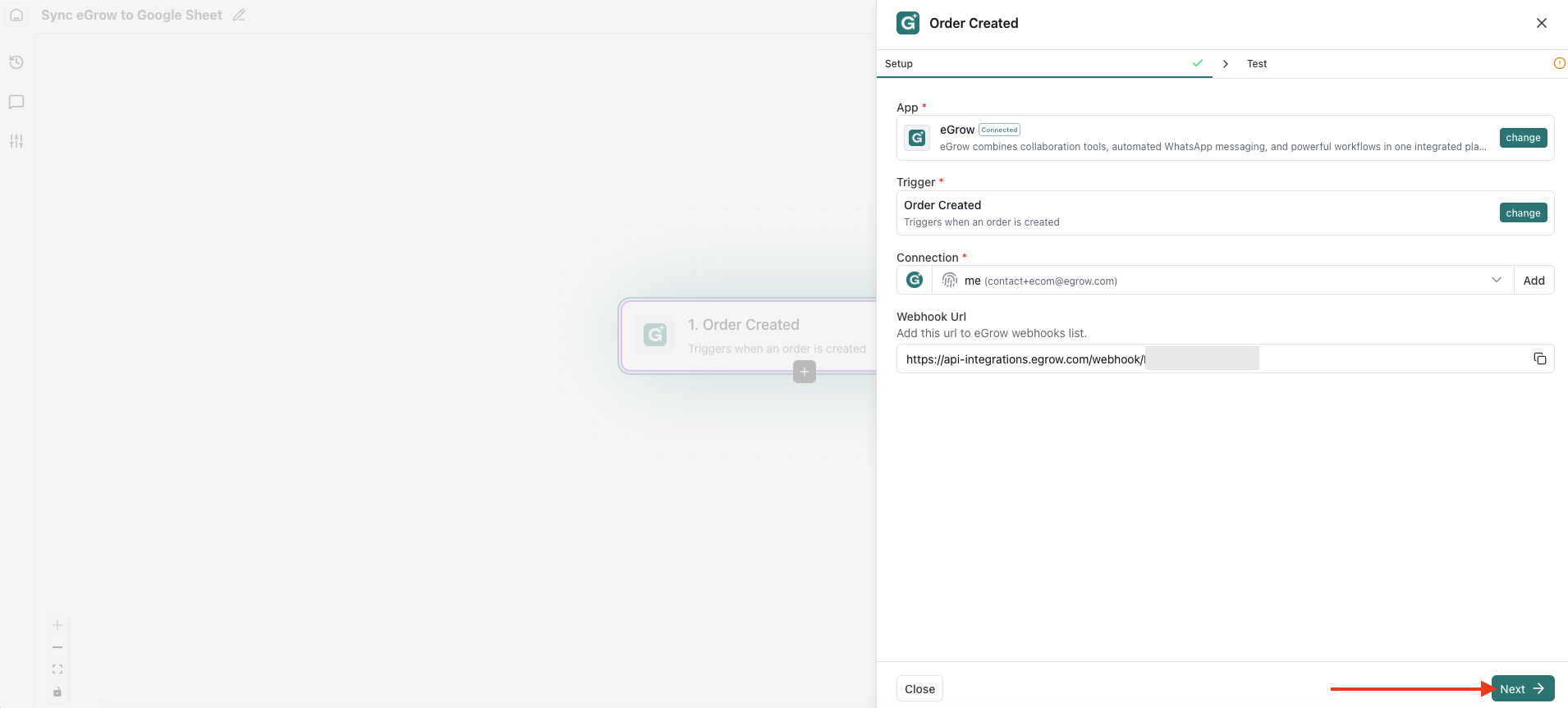
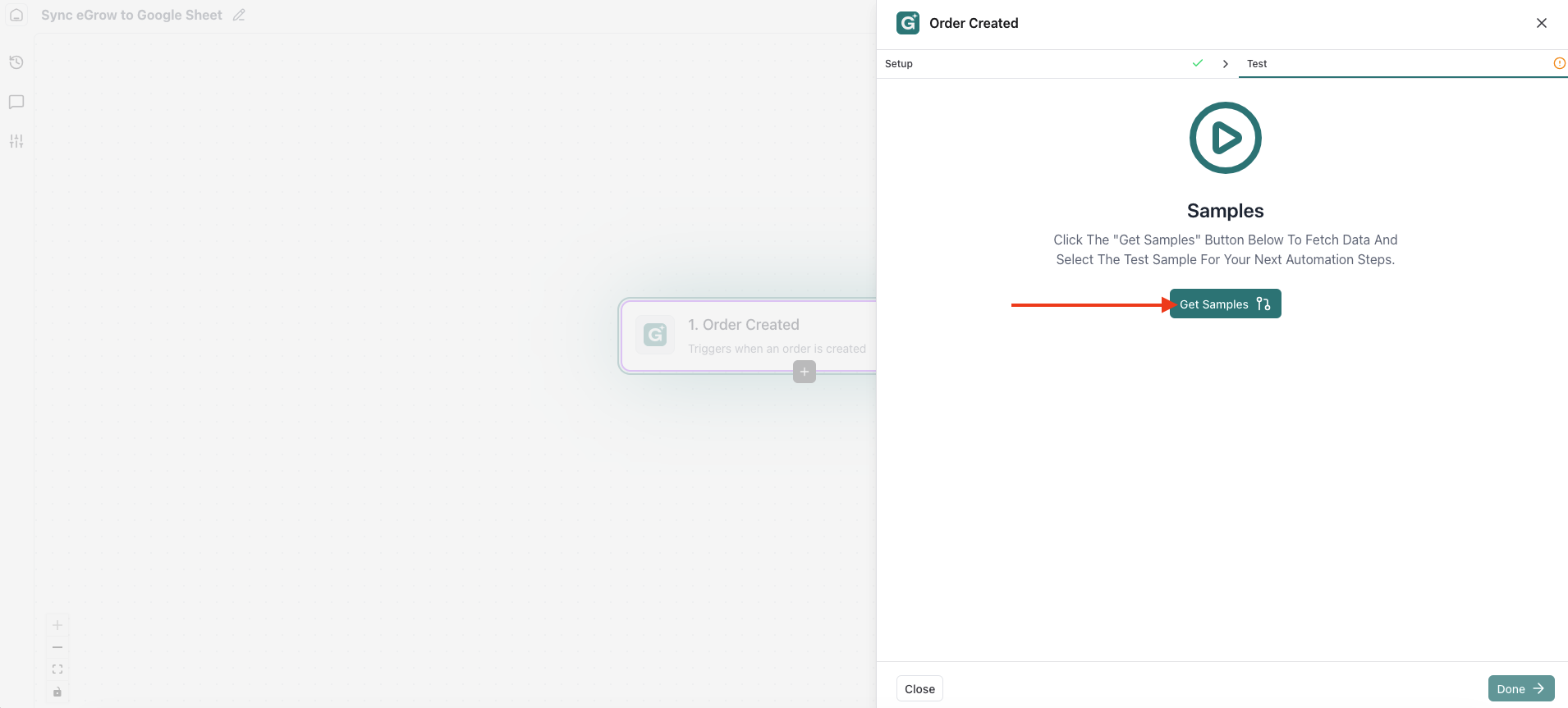
Get Sample Data
Click Get Samples to fetch a sample order
Once the sample is loaded, click Next
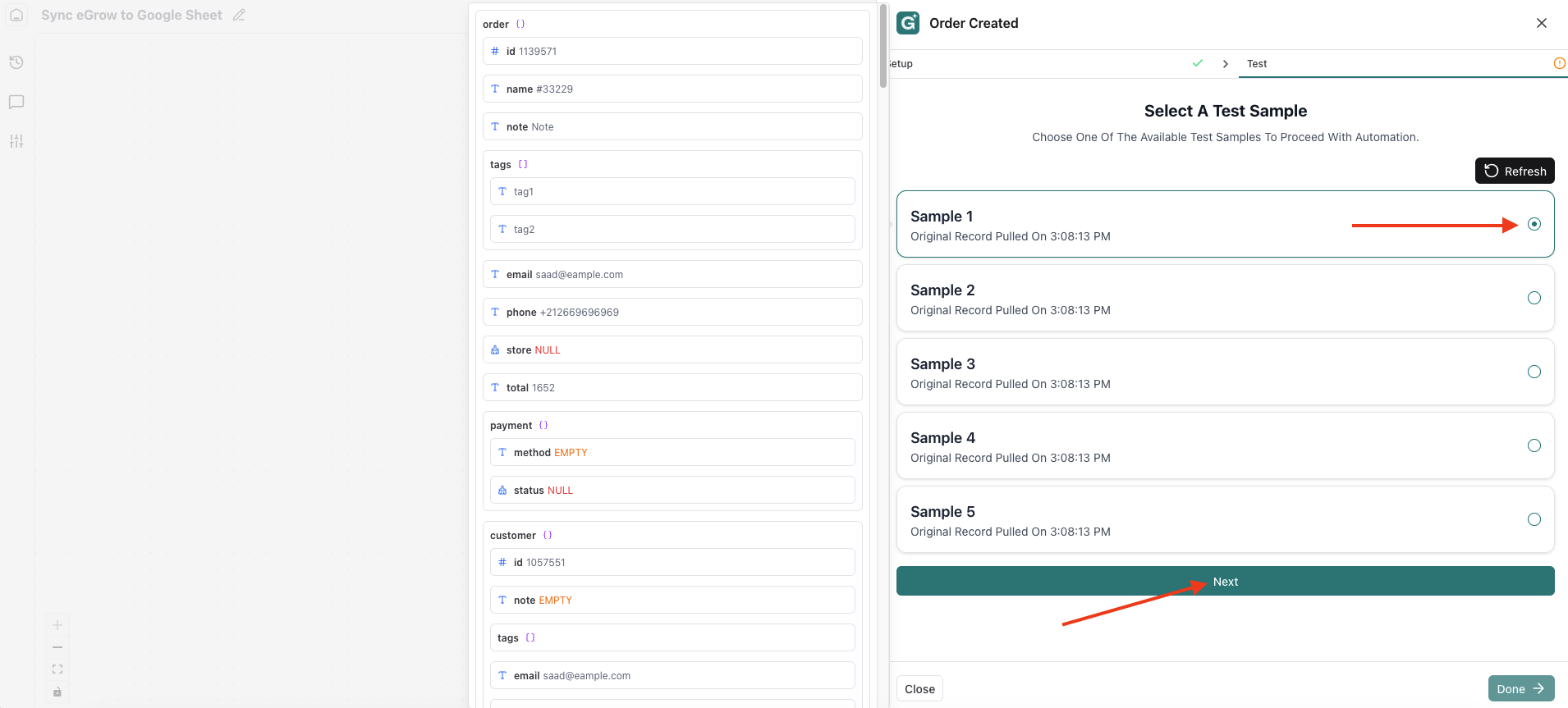
Click Done
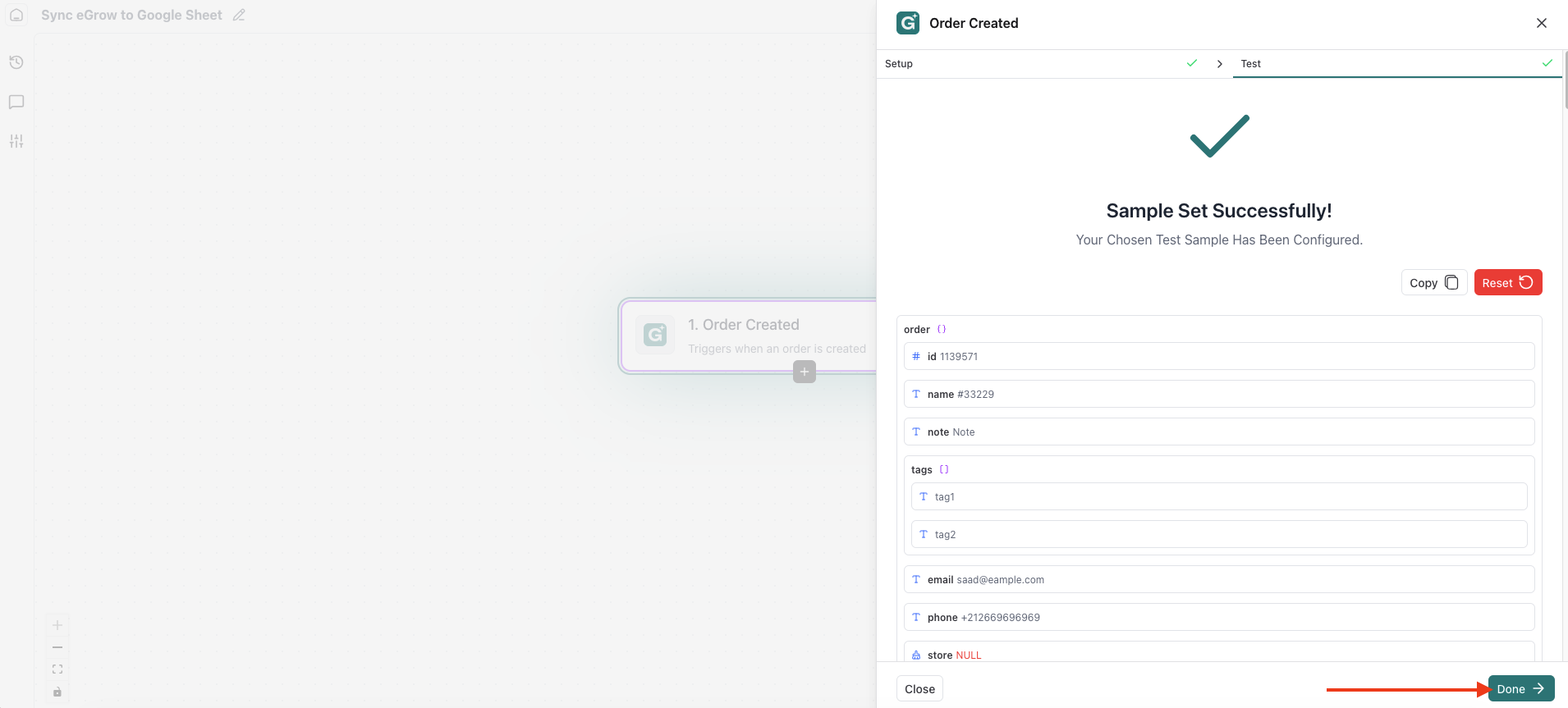
This trigger will fire every time a new order is created in eGrow.
4. Add a Condition (Optional but Recommended)
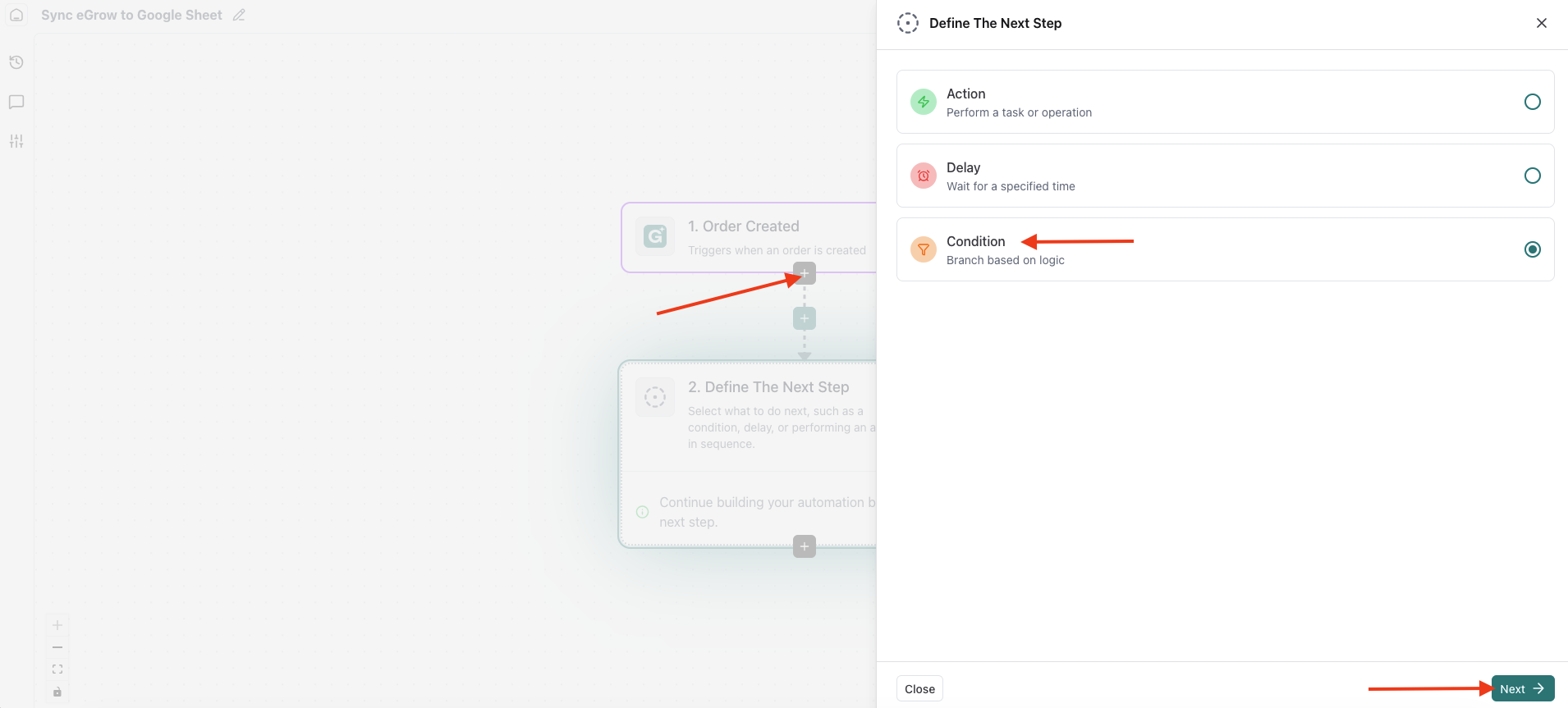
To ensure only new orders are sent to Google Sheets, add a condition.
Click the ➕ (plus) icon below the trigger
Select Condition
Configure the Condition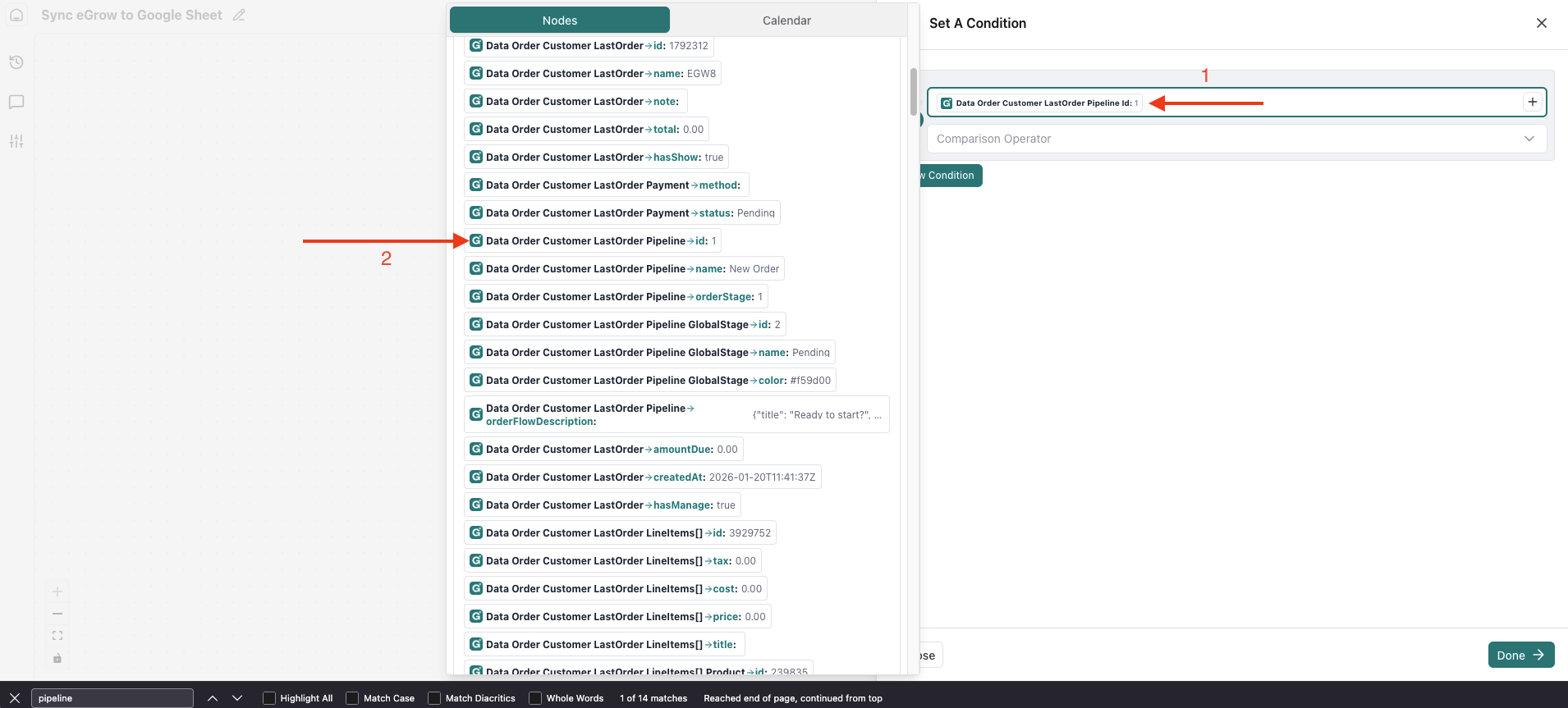
Field:
data → order → customer → lastOrder → pipeline idComparison Operator:
(text) exactly matchesValue:
Select the pipeline stage for New Orders from the RPC selector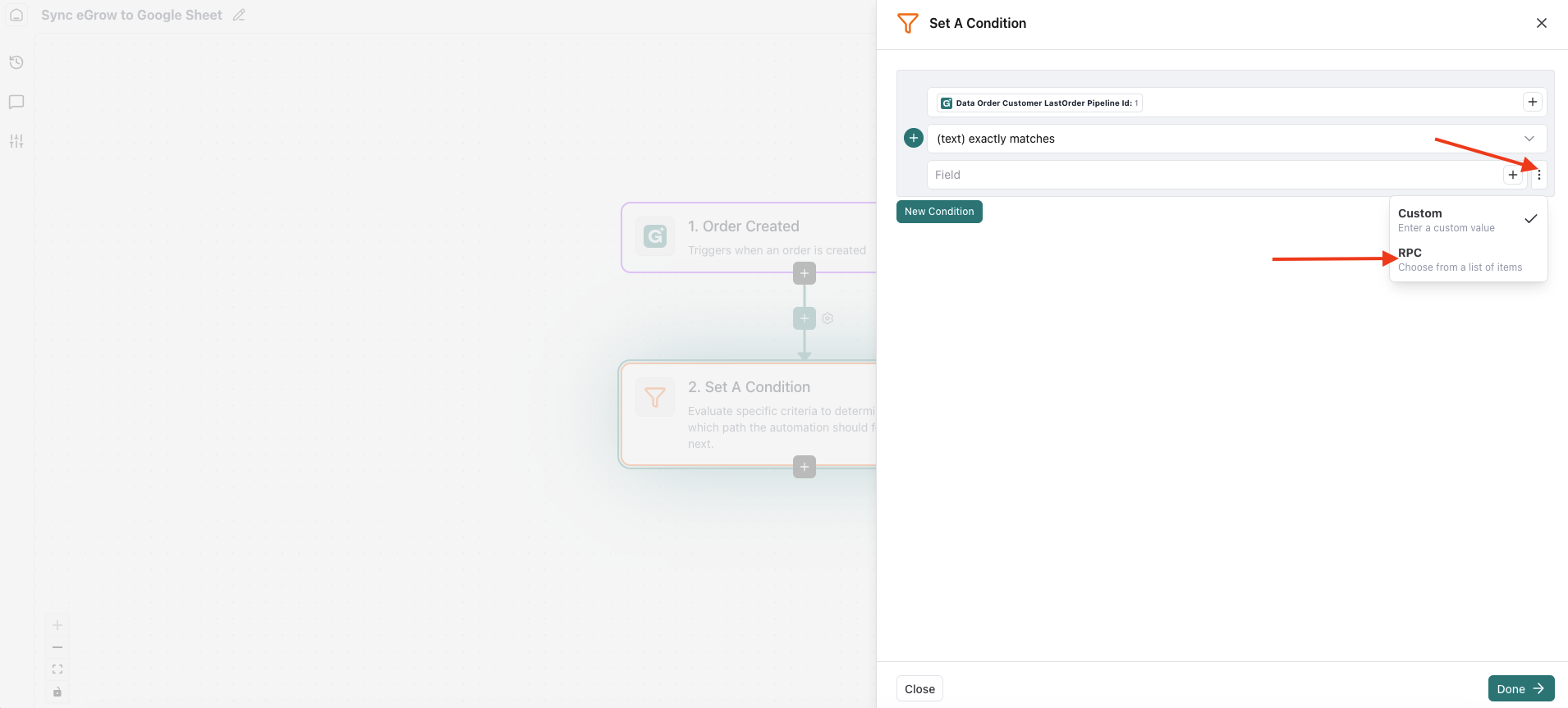
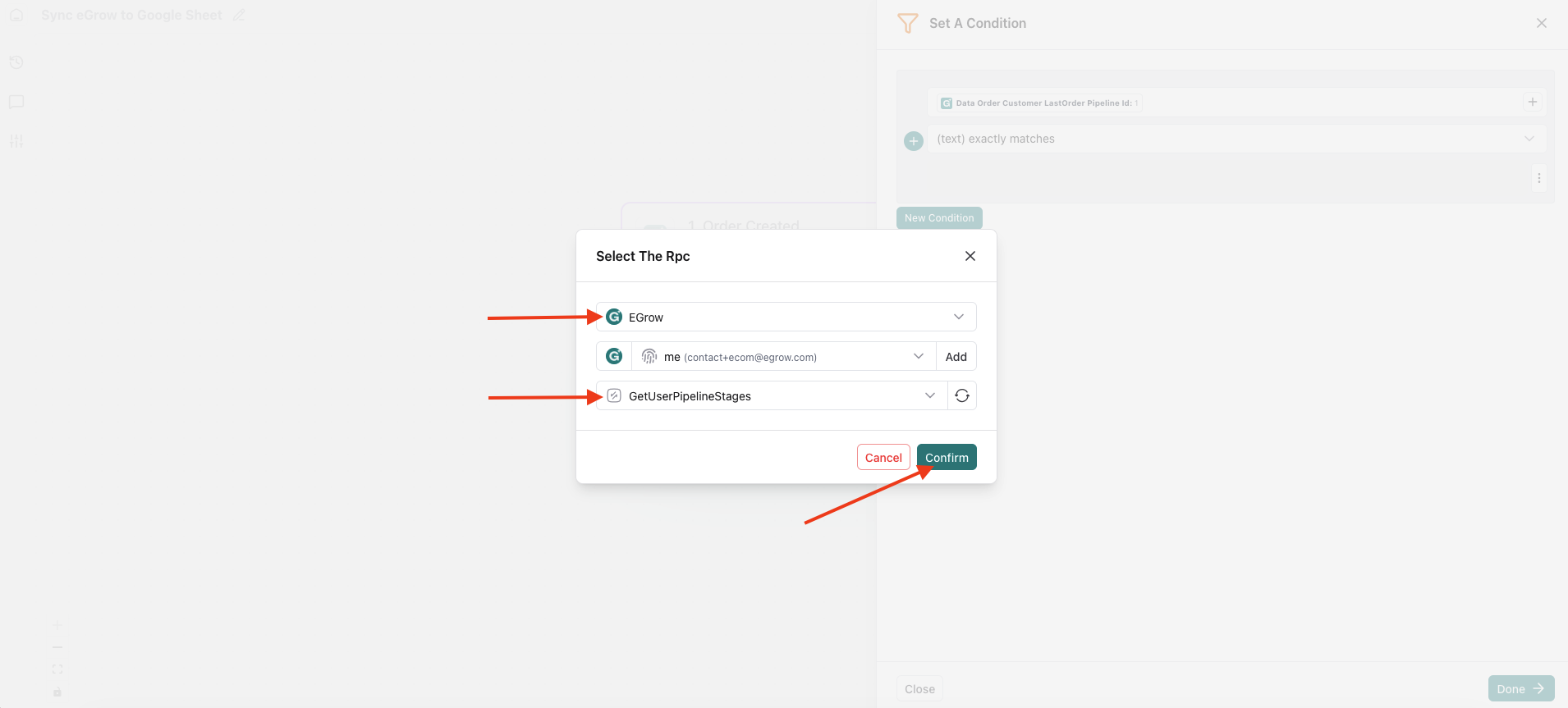
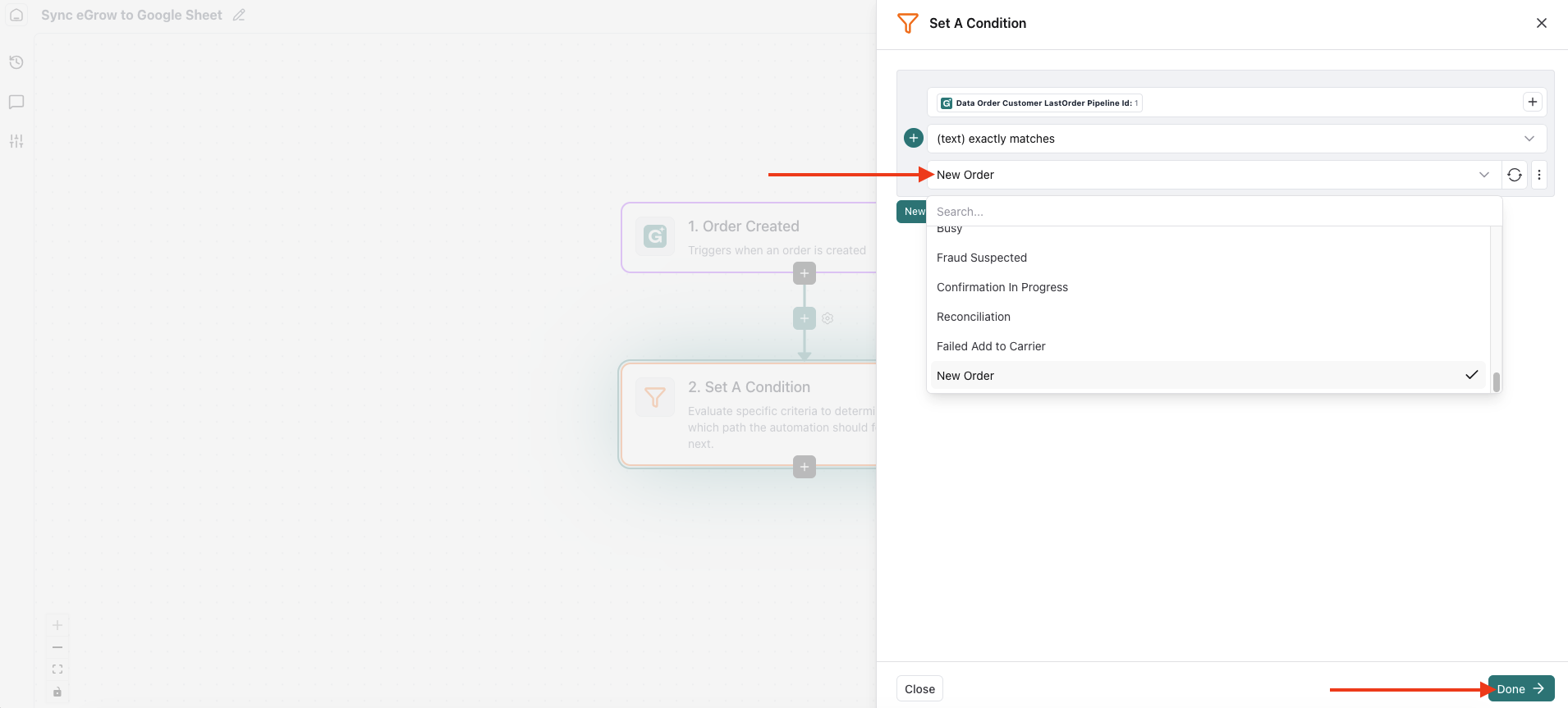
Click Save / Next
5. Add Google Sheets Action
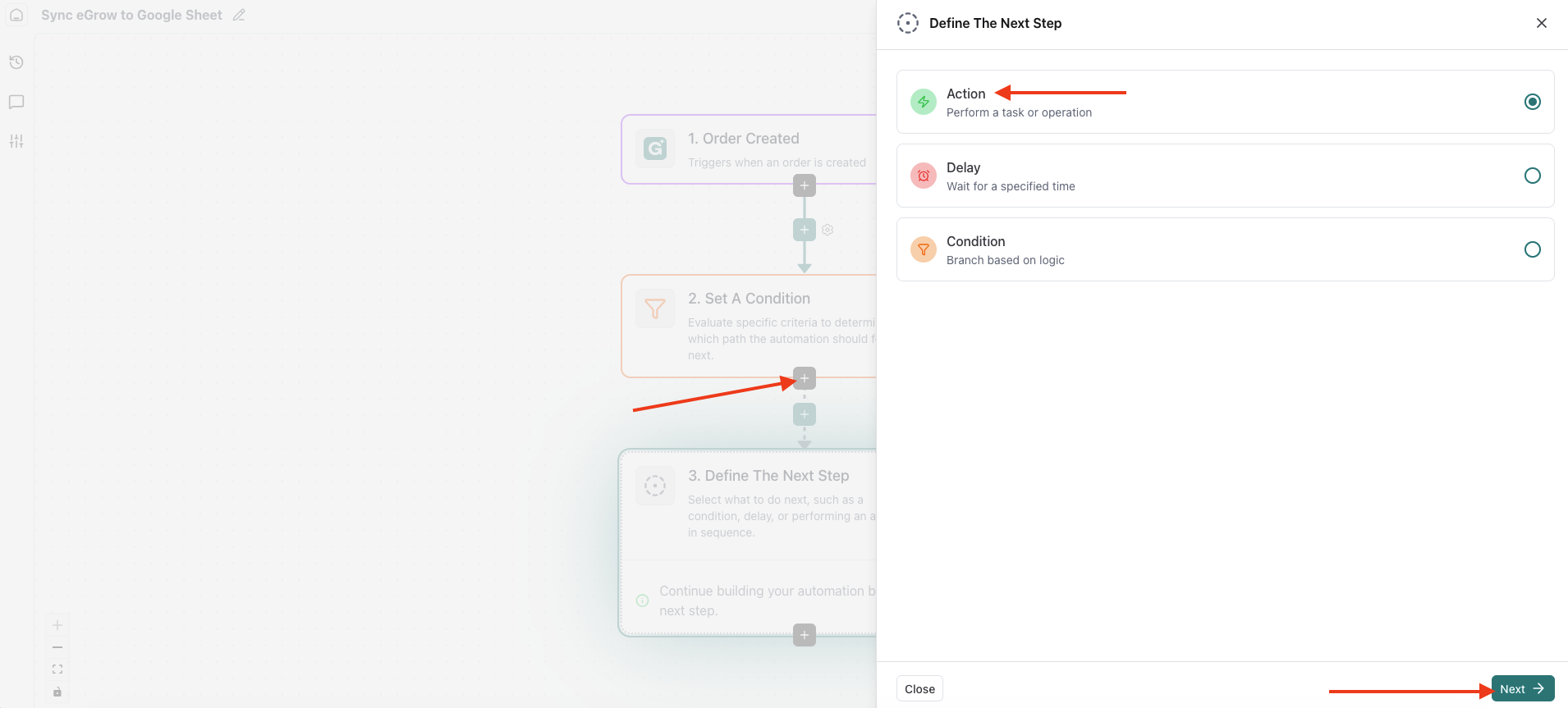
Add an Action
Click the ➕ (plus) icon
Choose Action
Select your Google Sheets connection
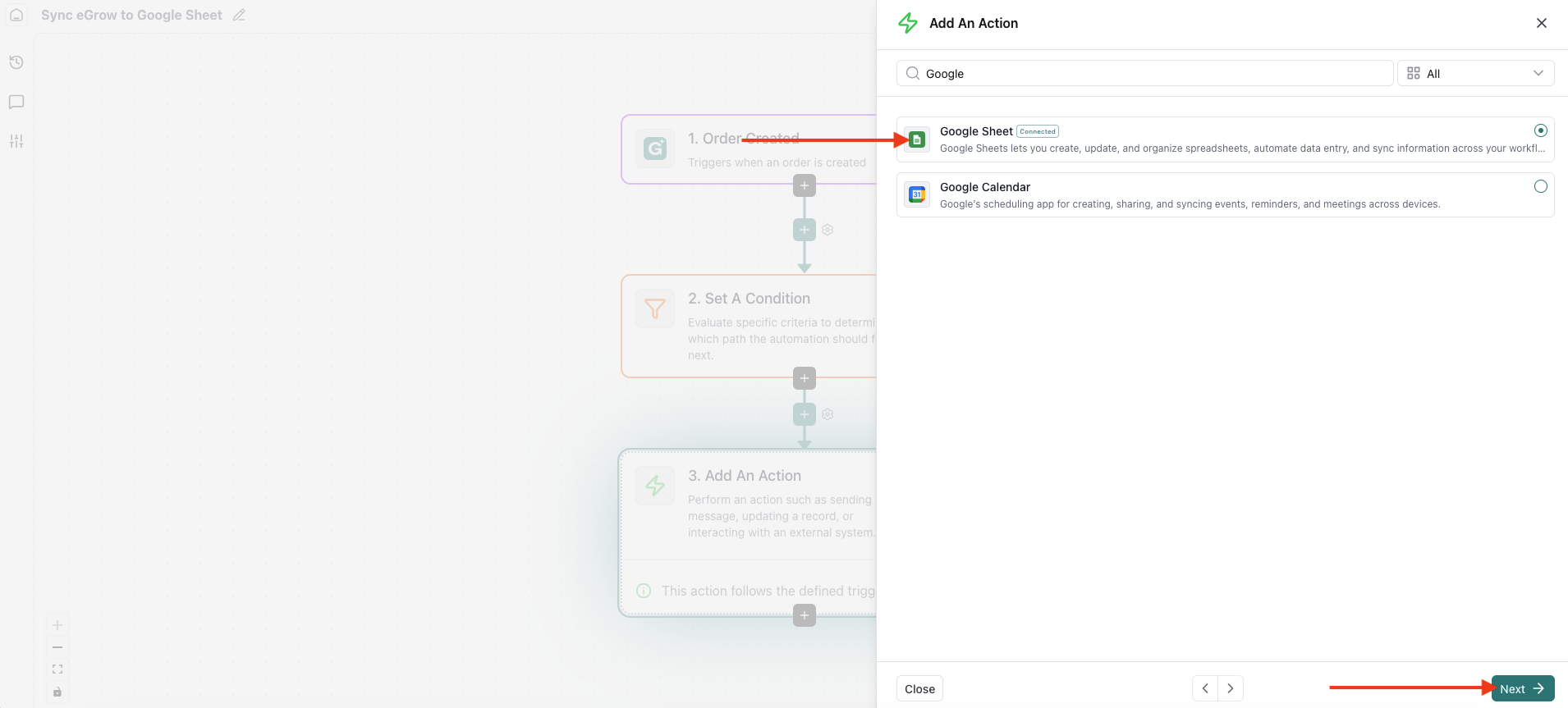
Click Next
Choose Action Type
Select Add Row
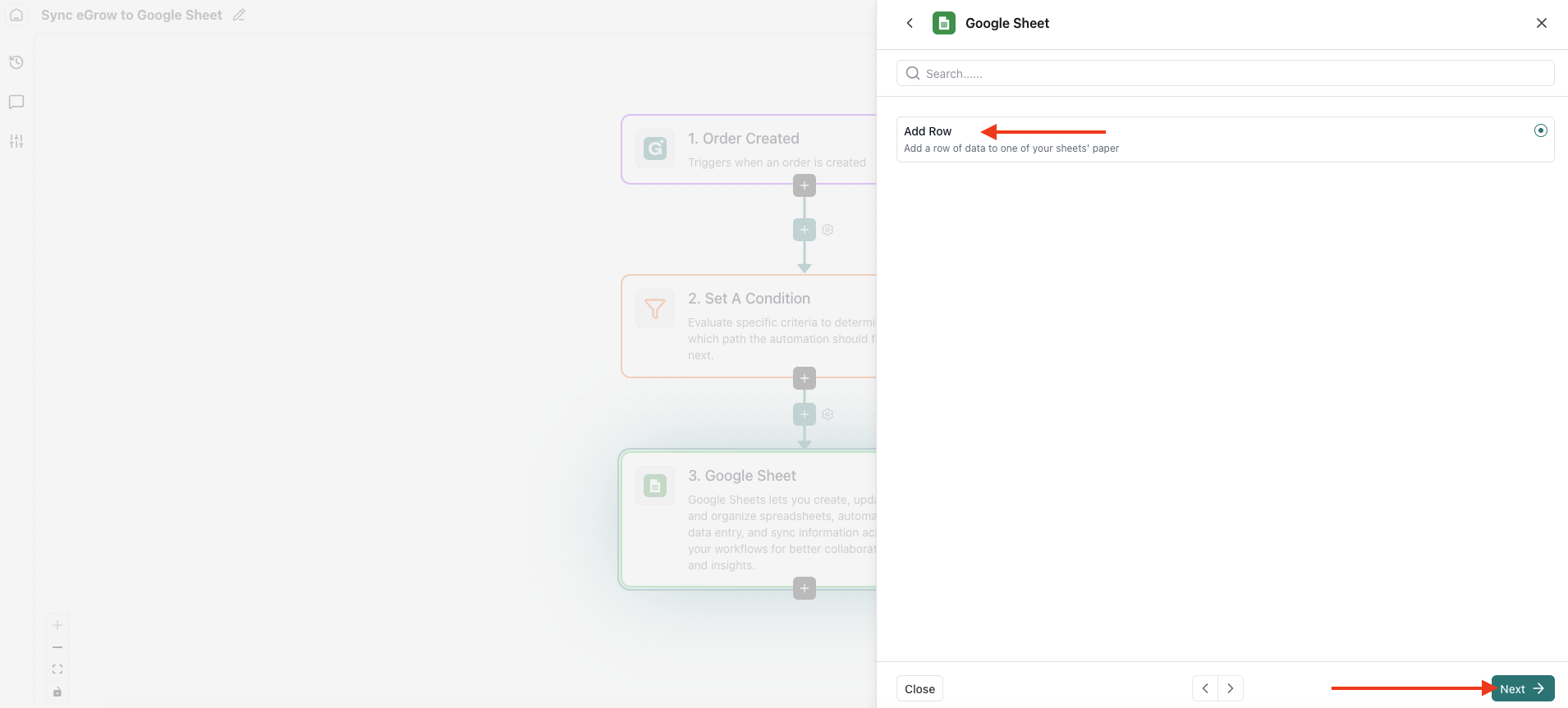
Click Next
6. Select Spreadsheet & Sheet
Spreadsheet: Choose your Google Sheet from the dropdown
Sheet Name: Select the sheet where orders should be added
7. Map Order Data to Sheet Columns
In the Row section, you need to map eGrow order fields to your Google Sheet columns.
⚠️ Important:
The order of fields must match the column order in your Google Sheet.
Example Mapping
If your Google Sheet columns are: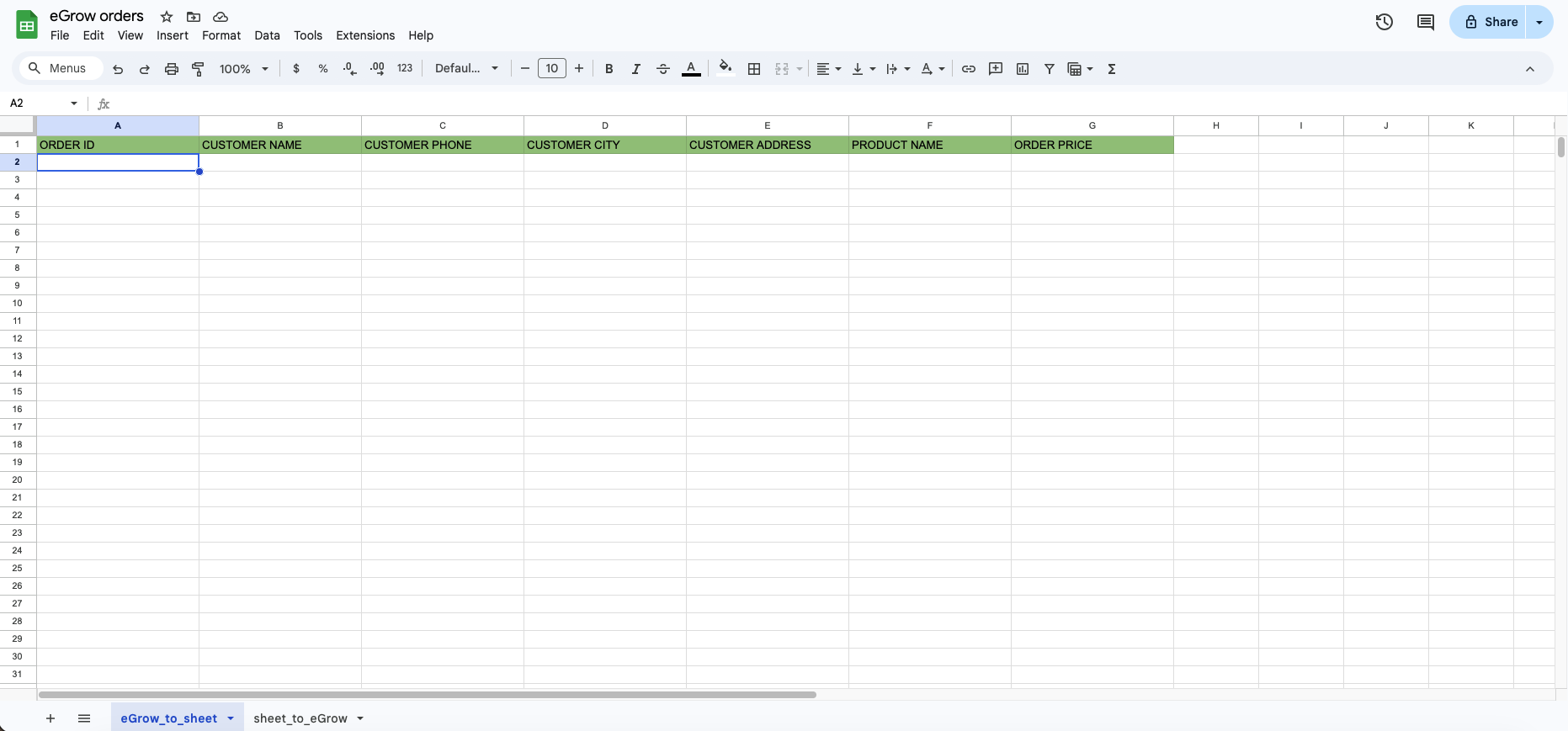
| Column Name | eGrow Field |
|---|---|
| Order ID | Data Order Name |
| Customer Name | |
| Phone | |
| City | |
| Total Amount | |
| Product Name | |
Match each column with the corresponding eGrow order field.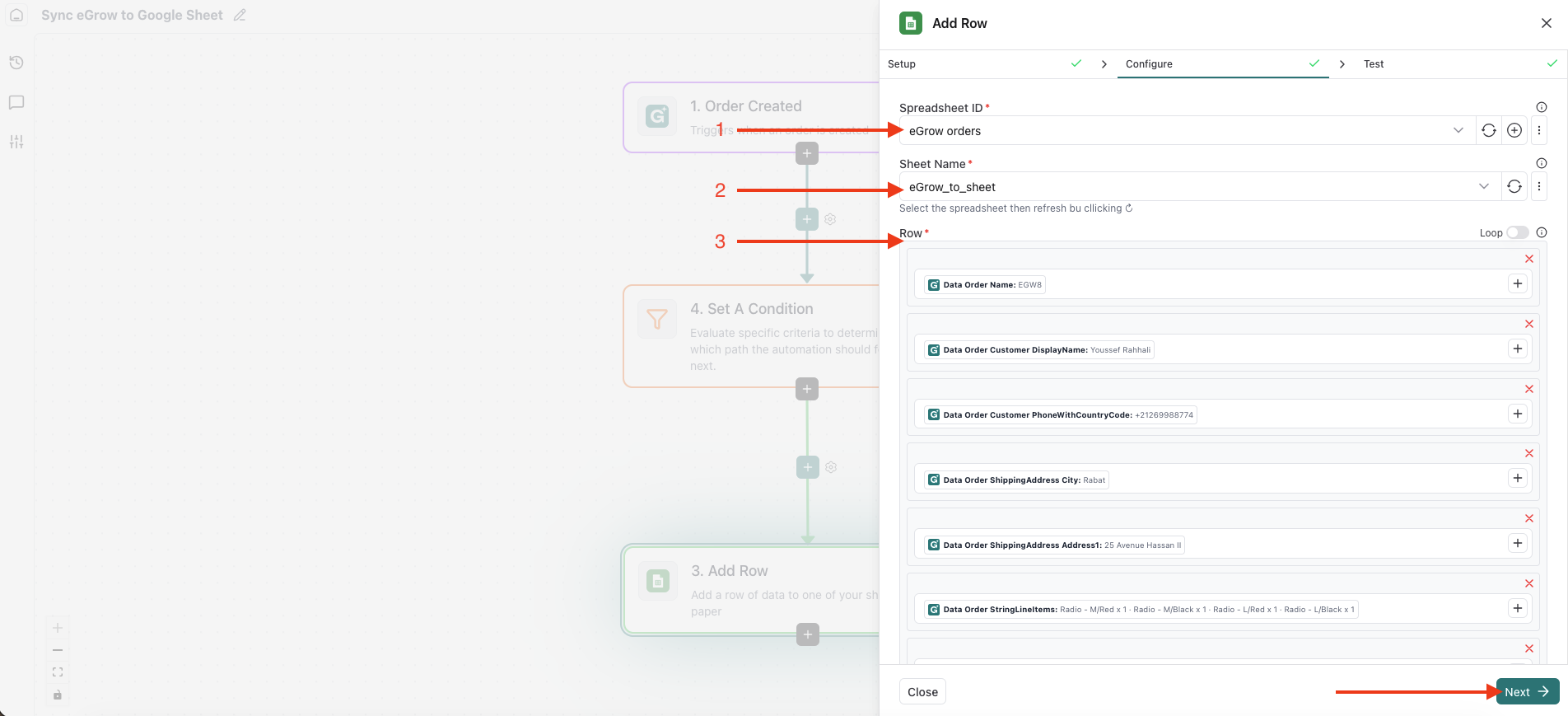
Once mapping is complete, click Next.
8. Activate the Automation
Review your automation setup
Click Done or Save
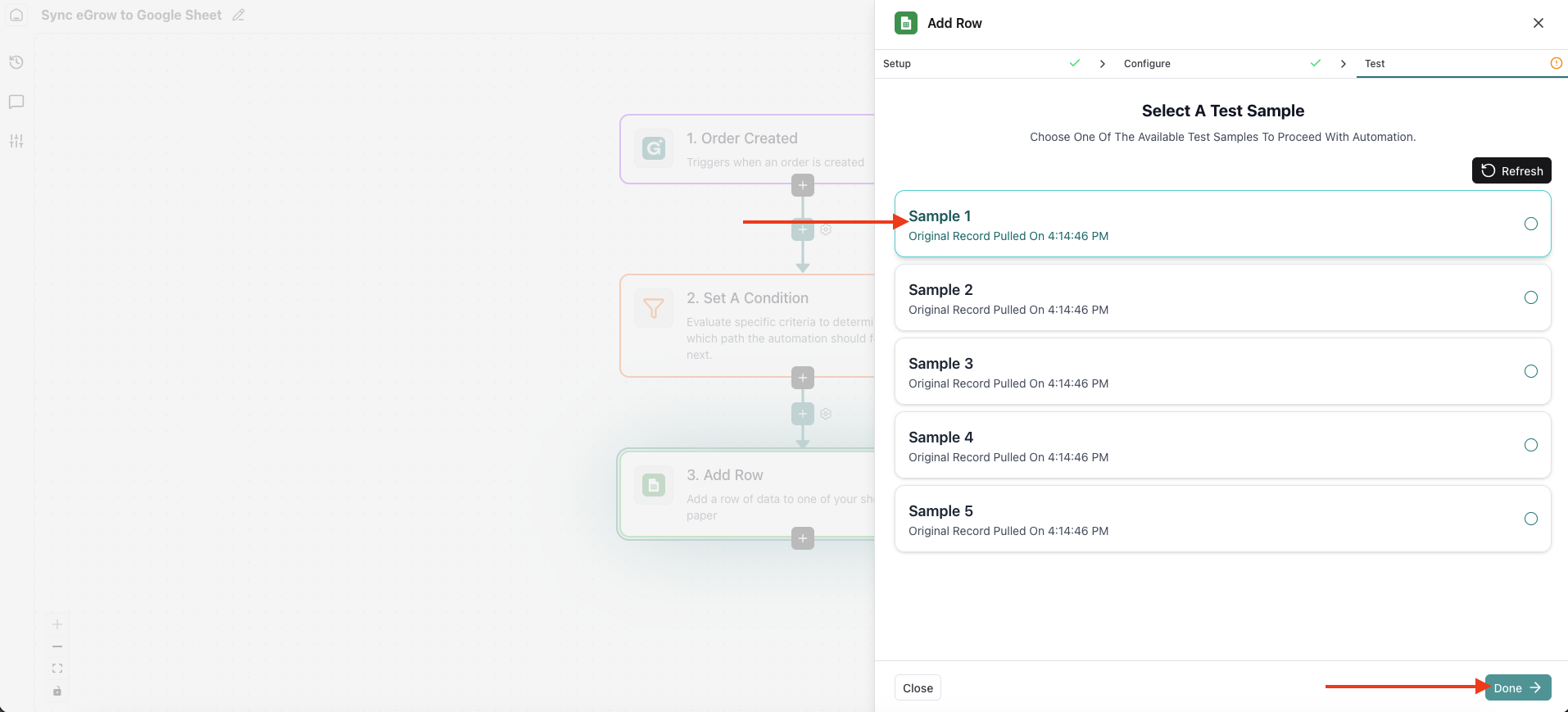
Make sure the automation is Enabled
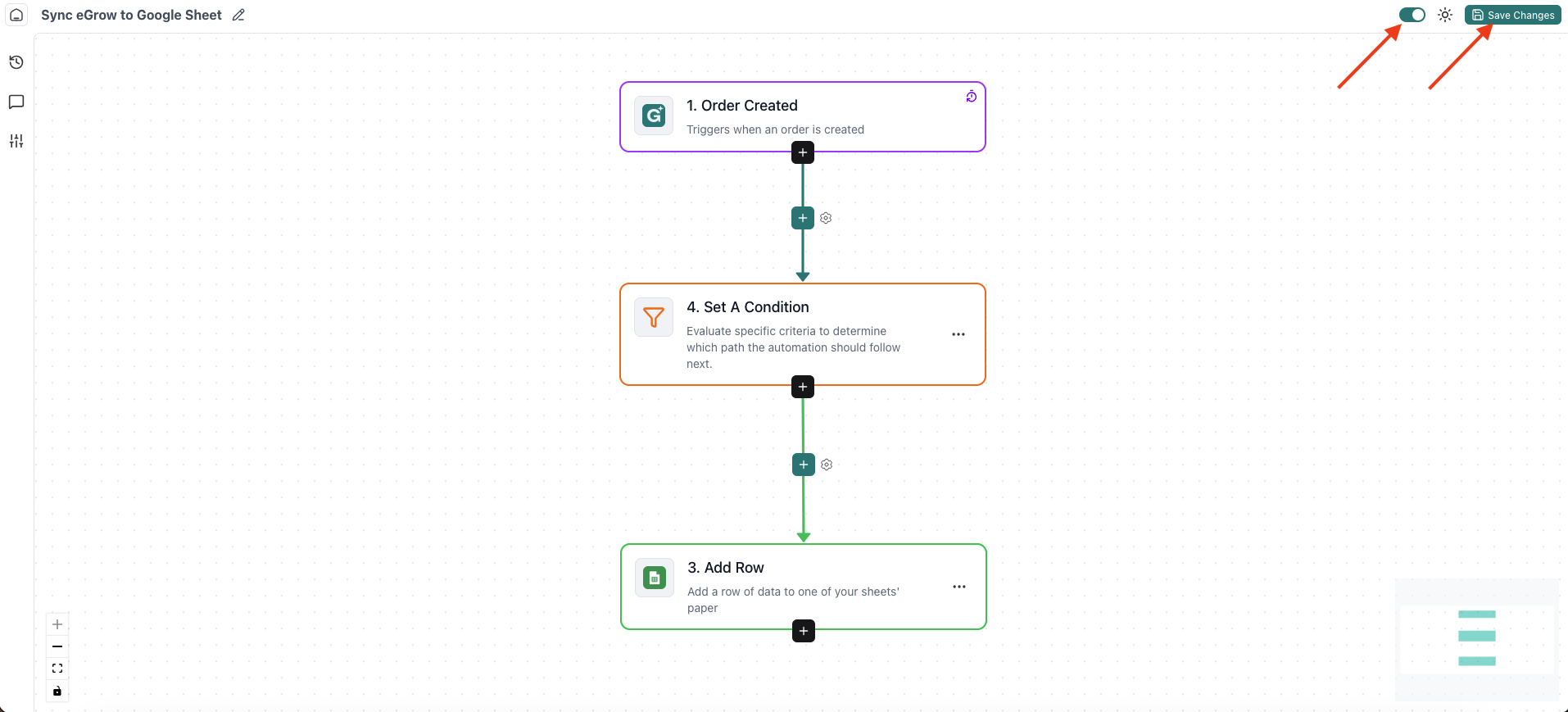
✅ Result
From now on:
Every new order created in eGrow
That matches the New Orders pipeline stage
Will automatically be added as a new row in your Google Sheet
You can monitor execution logs from the Automations section at any time.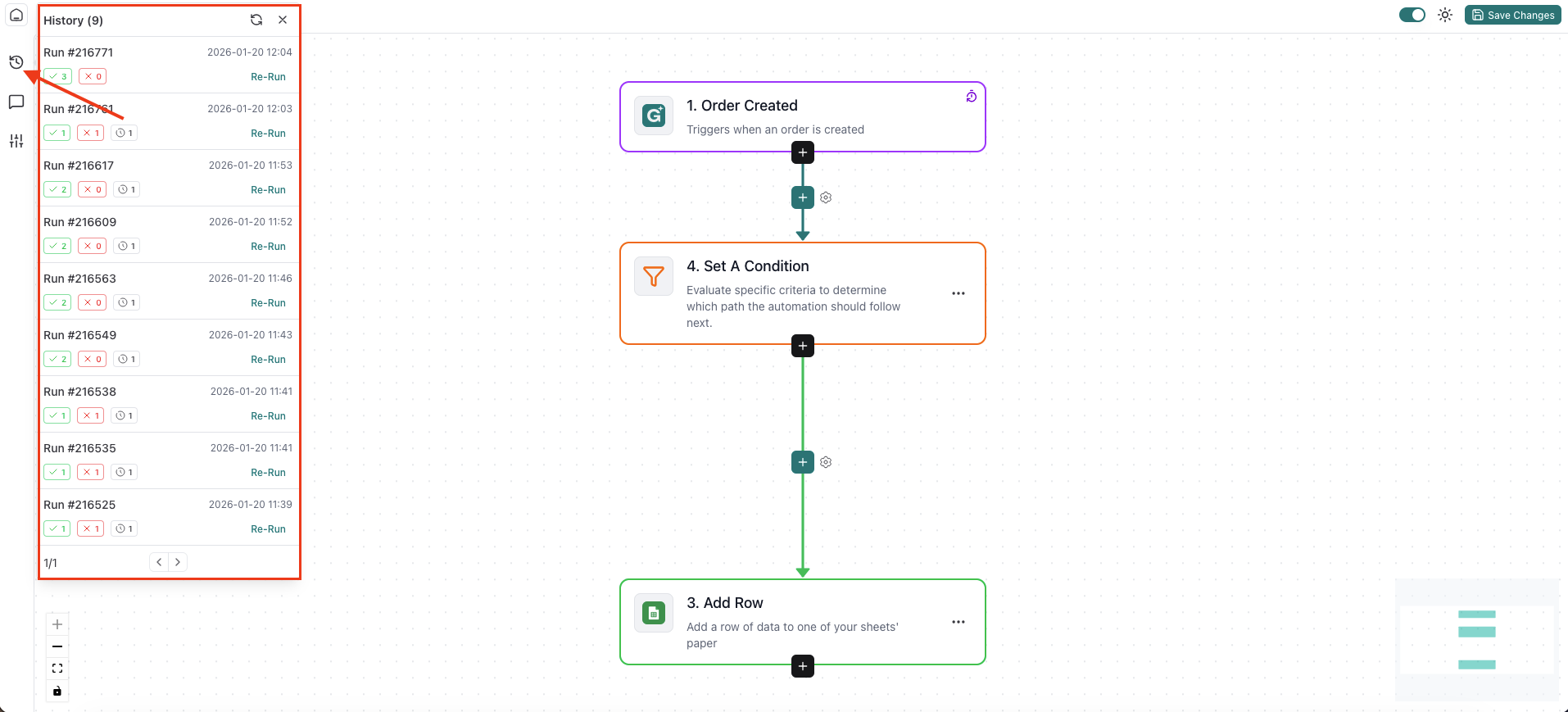
💡 Tips & Best Practices
Ensure your Google Sheet headers are finalized before mapping
Avoid changing column order after automation is live
Use separate sheets for different pipelines if needed
Test with a sample order before going live