Step 1: Find the Dhd Livraison Template
The first step is to locate the ready-to-use template within your eGrow dashboard.
Log in to your eGrow account.
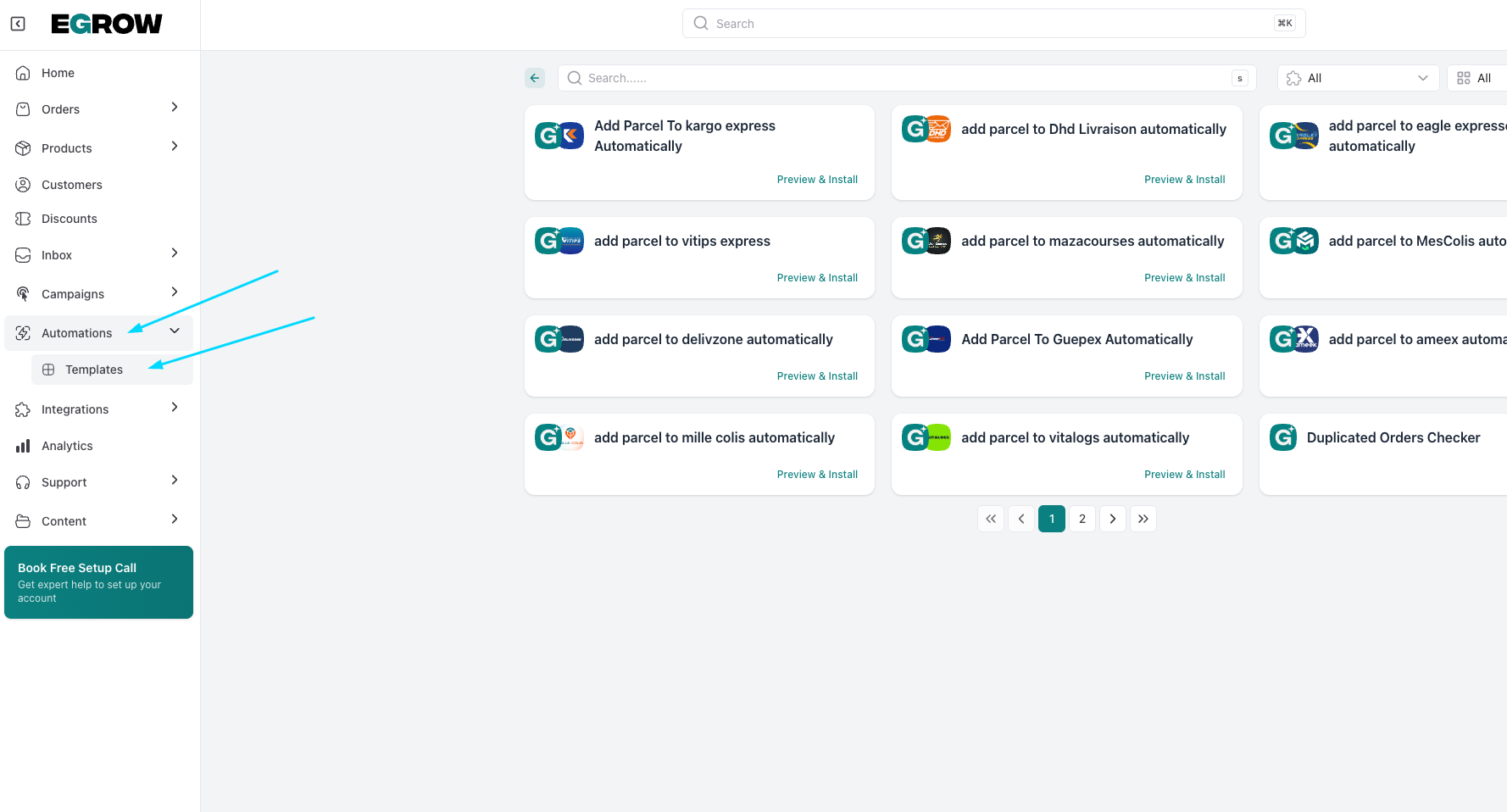
On the left-hand sidebar, click on the Automations menu.
Select Templates from the list.
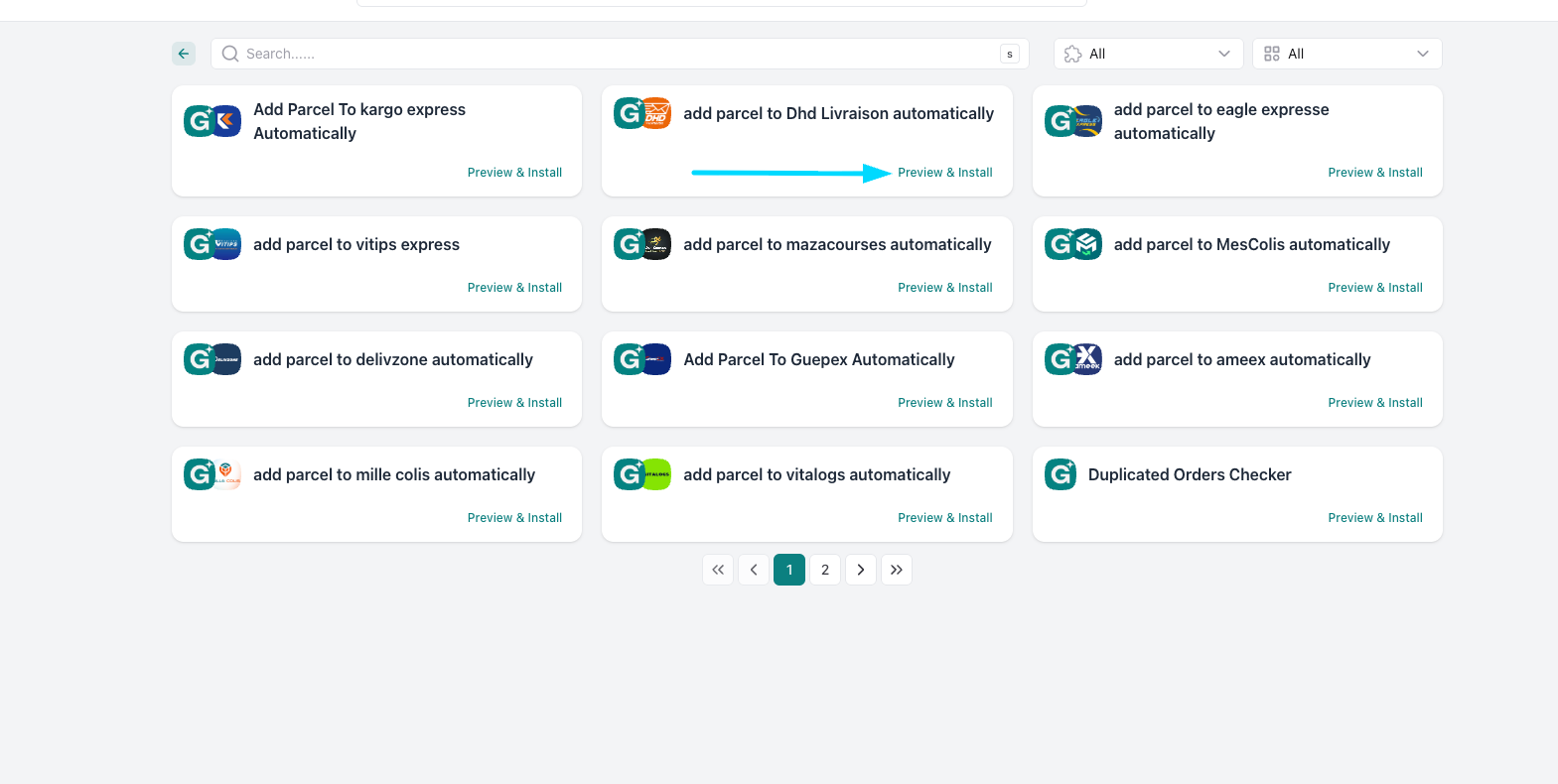
Look for the card titled "Add Parcel To Dhd Livraison Automatically."
Click the Preview & Install button.
Step 2: Name and Install Your Automation
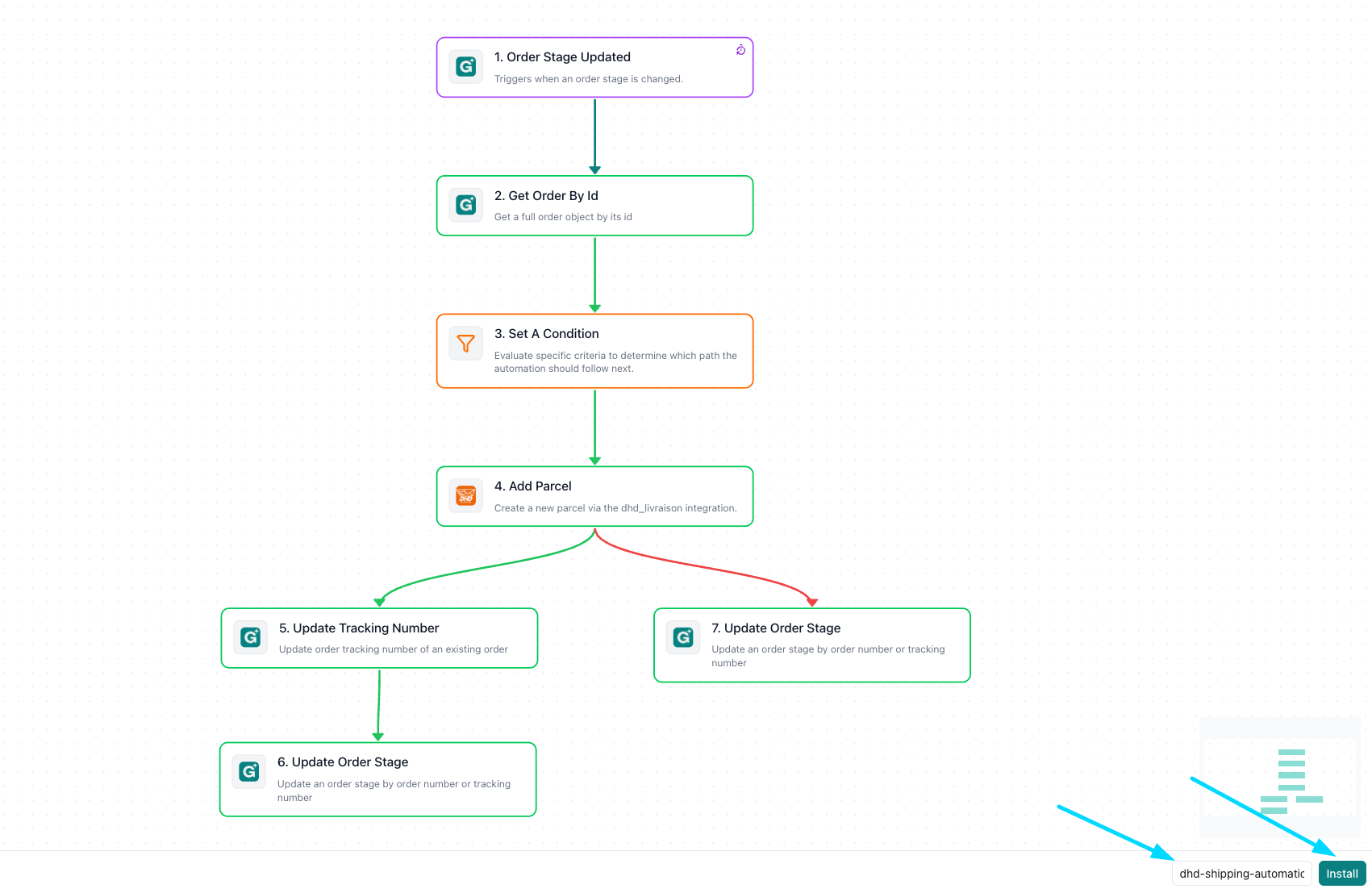
The "Preview" screen shows you a visual map of the workflow. To move this template into your active automations, you just need to give it a unique name.
Go to the bottom right corner of the screen.
Find the box labeled Slug.
Type in a simple identifier for this task (for example:
dhd-shipping-automation).Click the teal Install button.
tep 3: Save and Activate
Once installed, you will be taken to the automation editor. The technical settings are already handled by the template, so you just need to finalize and save it.
Review the visual workflow to ensure everything is set up to your liking.
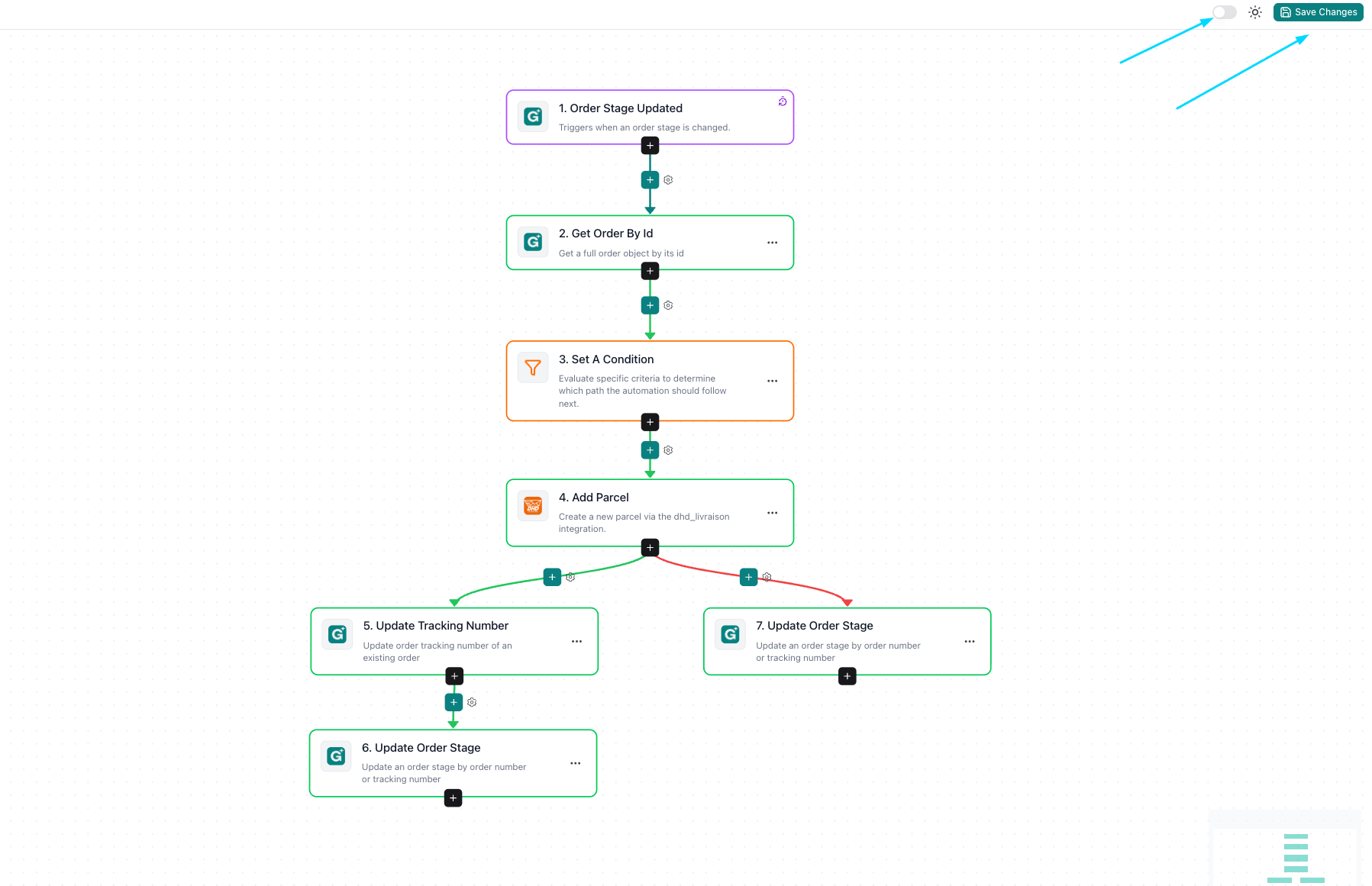
Locate the Save Changes button in the top right corner of the page.
Click it to activate the automation.
You’re all set! eGrow will now automatically communicate with Dhd Livraison whenever your orders move to the designated stage.