Step 1: Start the Shopify Integration in eGrow
Log in to your eGrow account.
Navigate to:
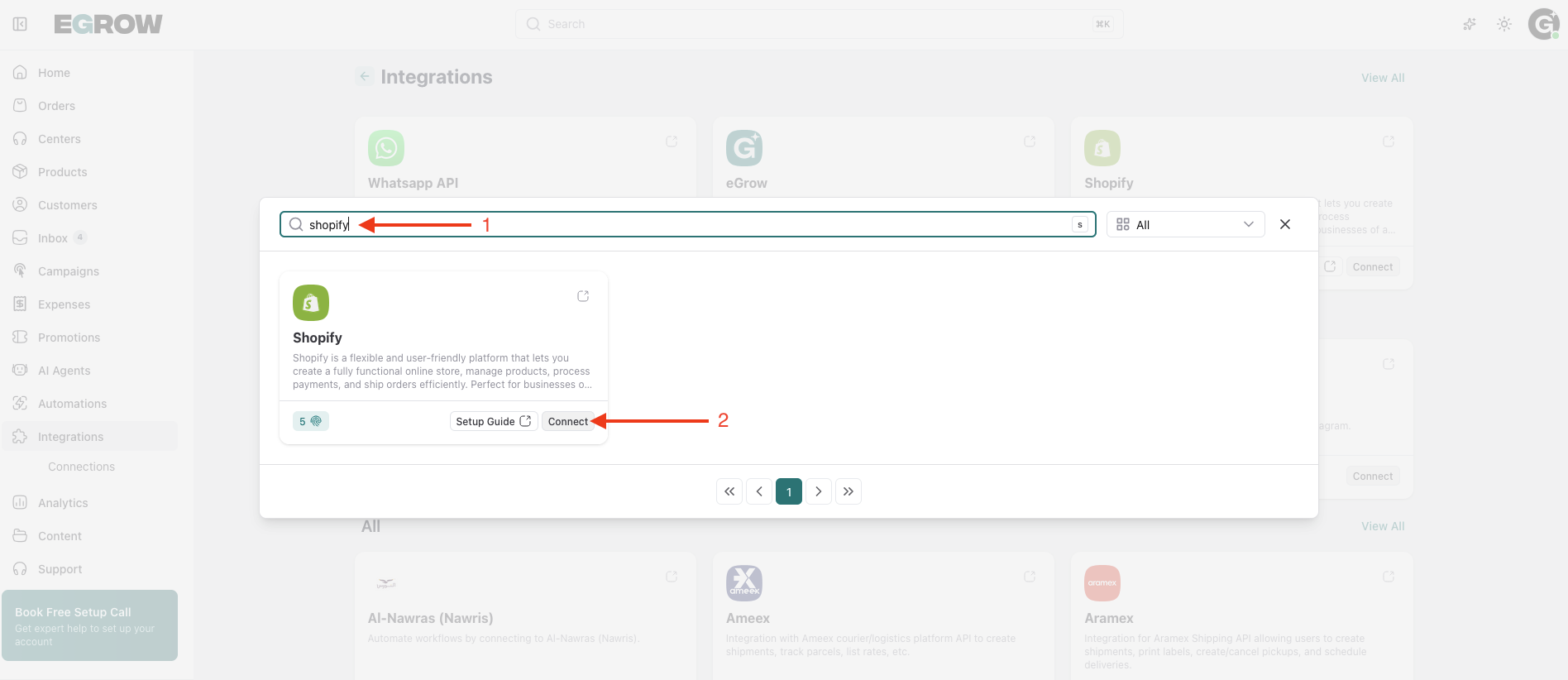
Integrations → View All → Search for Shopify
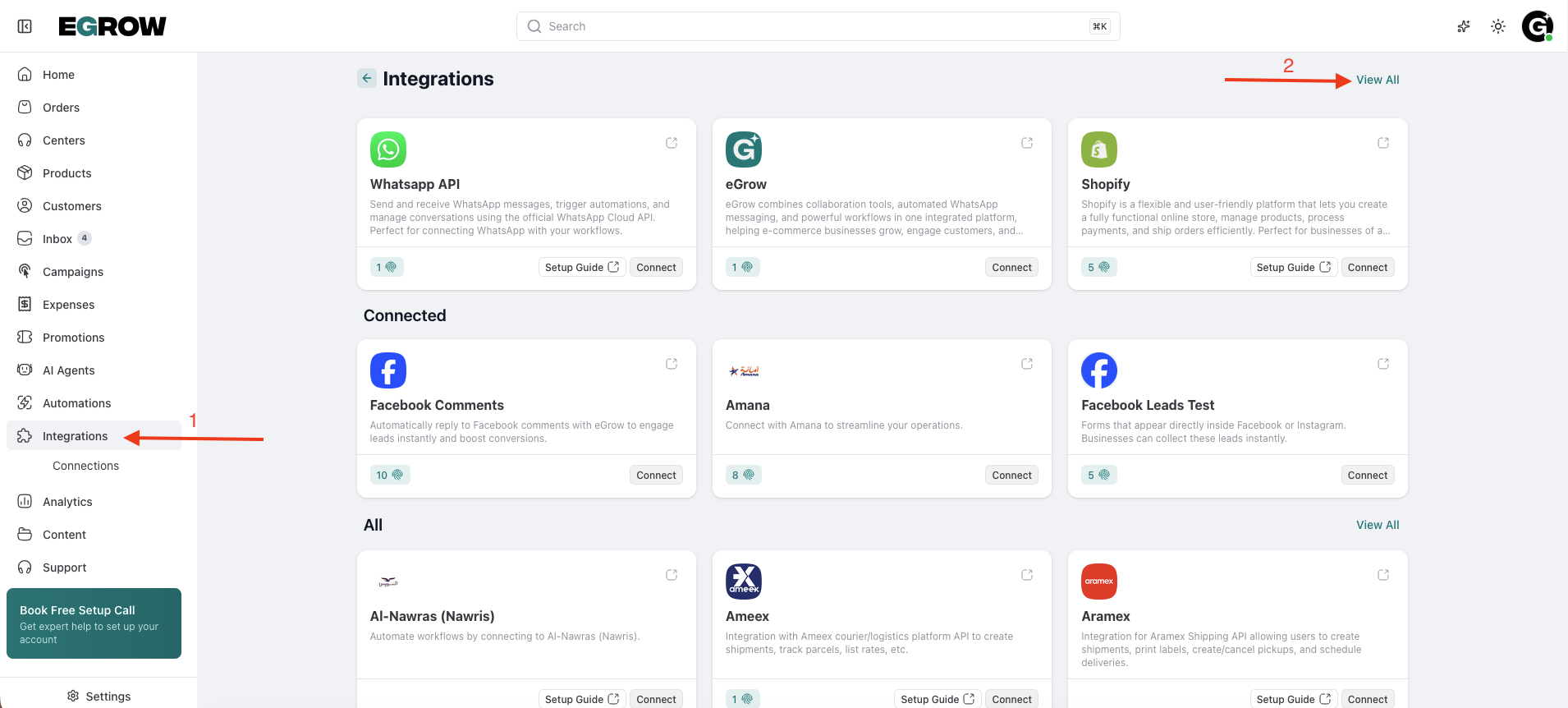
Click Connect.
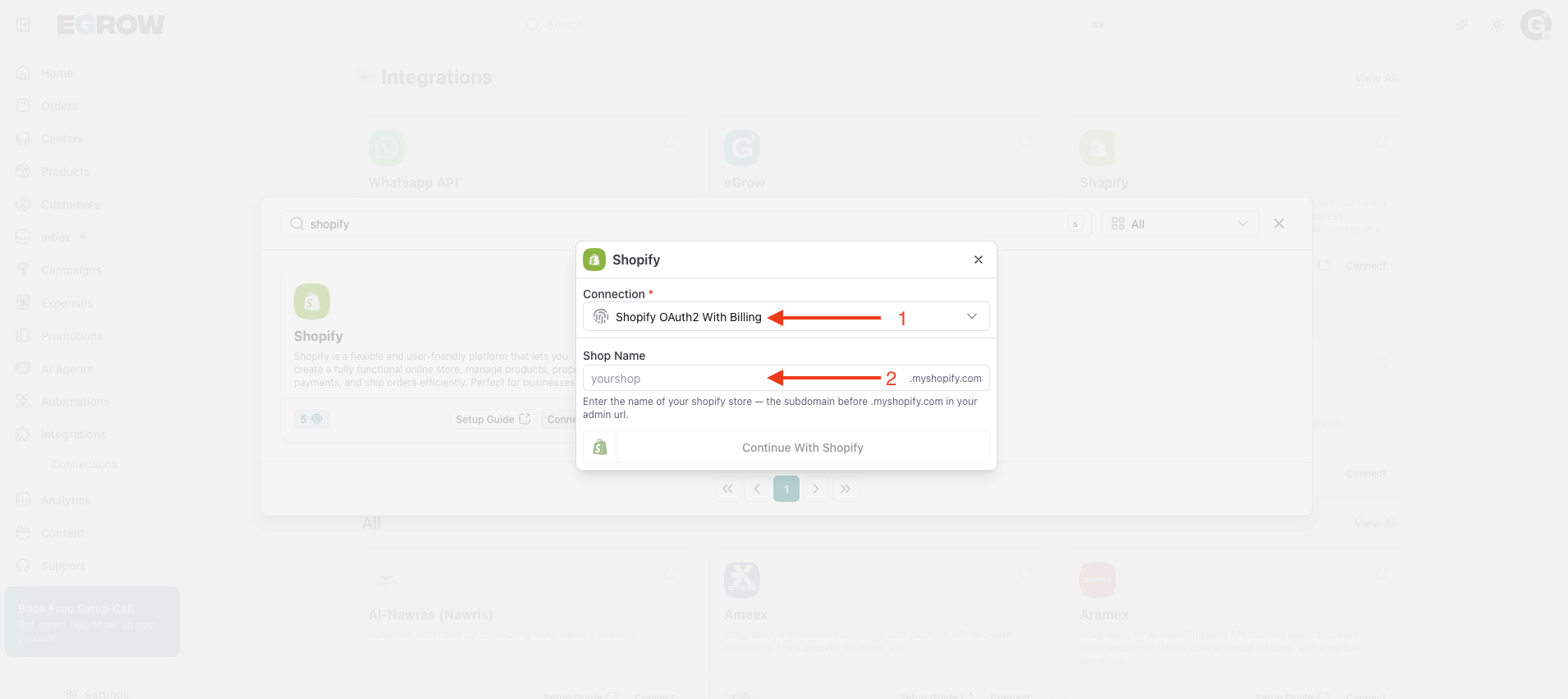
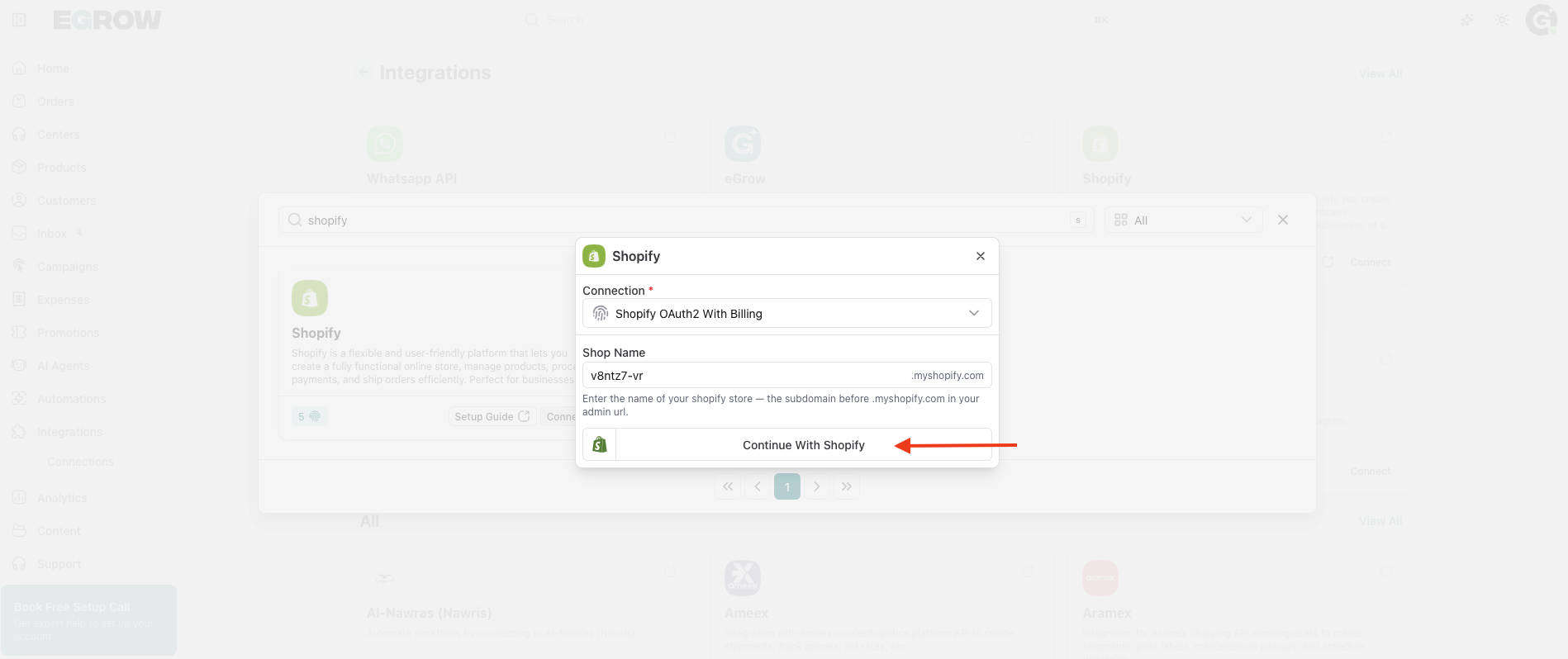
A new connection window will appear.
Step 2: Choose the Connection Type
From the connection type list, select:
Shopify OAuth2 with Billing
You will then be asked to enter your Shopify store information.
Step 3: Enter Your Shopify Store Name
In the Shop Name field, enter your Shopify store domain.
Example:
If your store URL is:
mystore.myshopify.com
Enter:
mystore
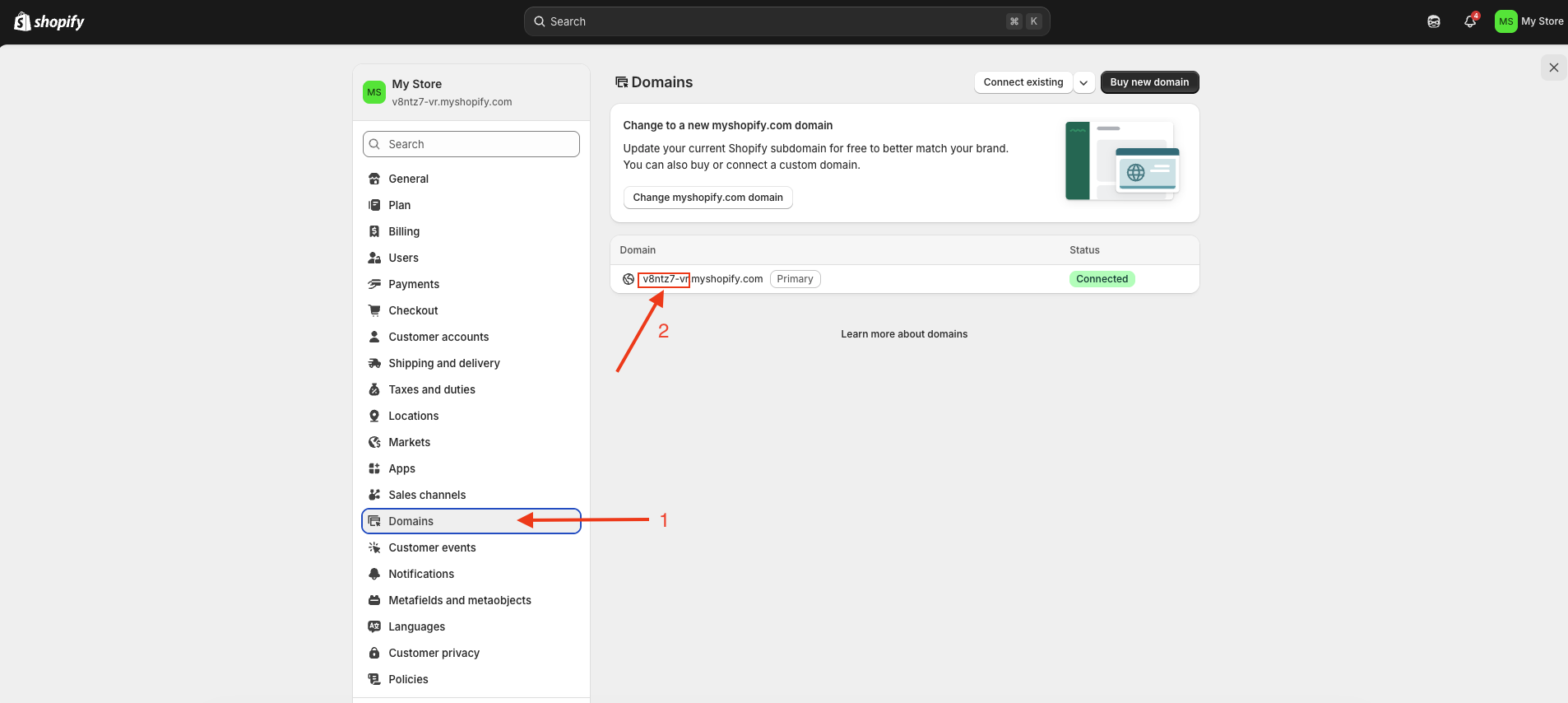
📍 You can find your store domain in:
Shopify Admin → Settings → Domains
Once entered, click:
Continue with Shopify
Step 4: Install the eGrow App on Shopify
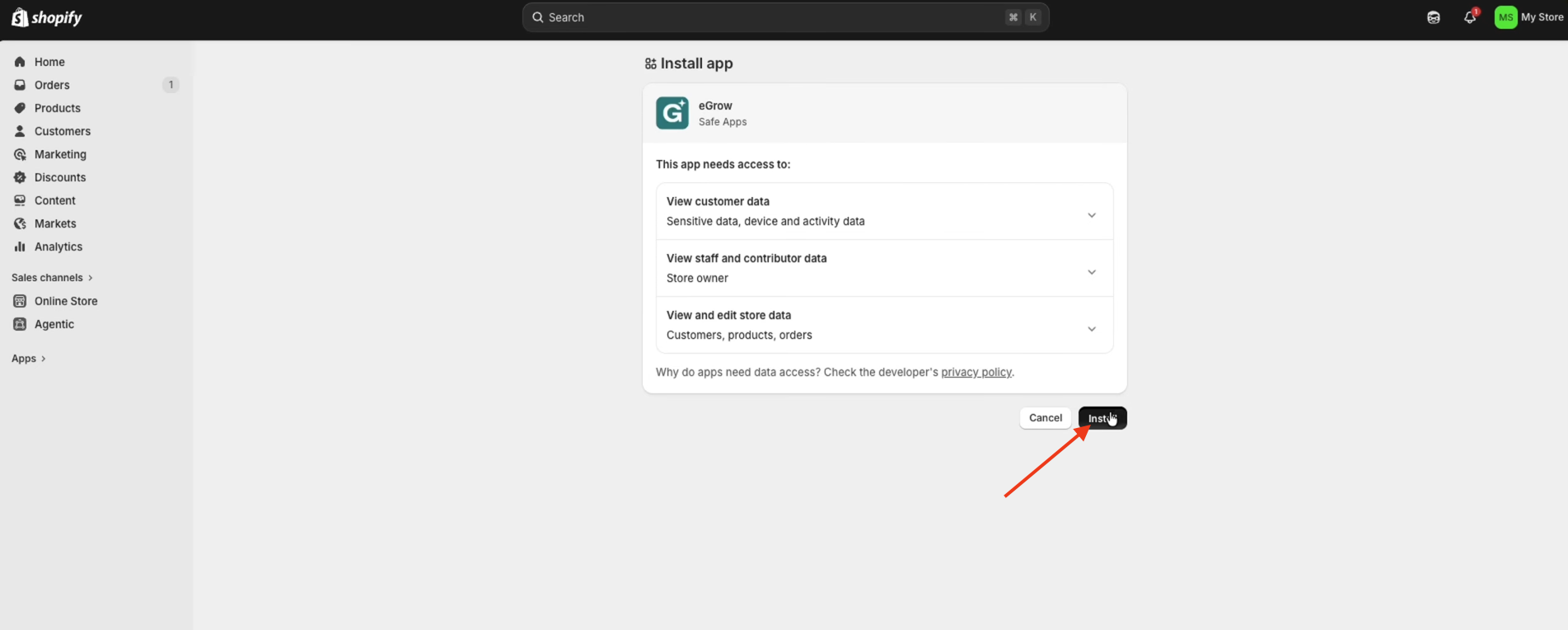
You will be redirected to Shopify.
A new page will appear asking you to install the eGrow app.
Click:
Install
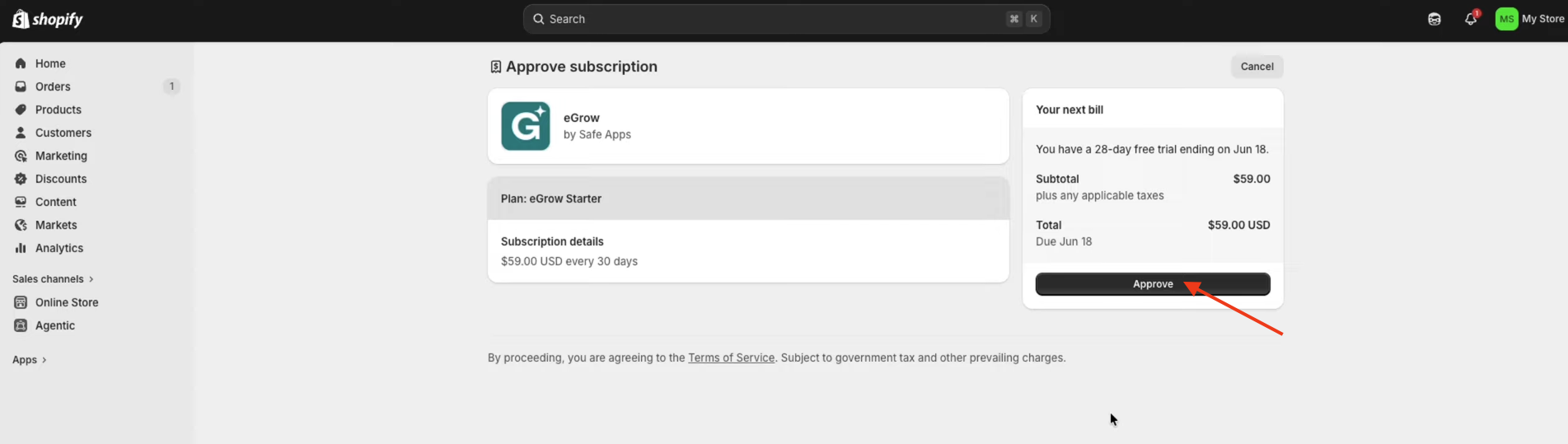
After installation, Shopify will open a billing approval page.
Click:
Approve
Once approved, you will see a message confirming:
“Your subscription is now active”
Click:
Close
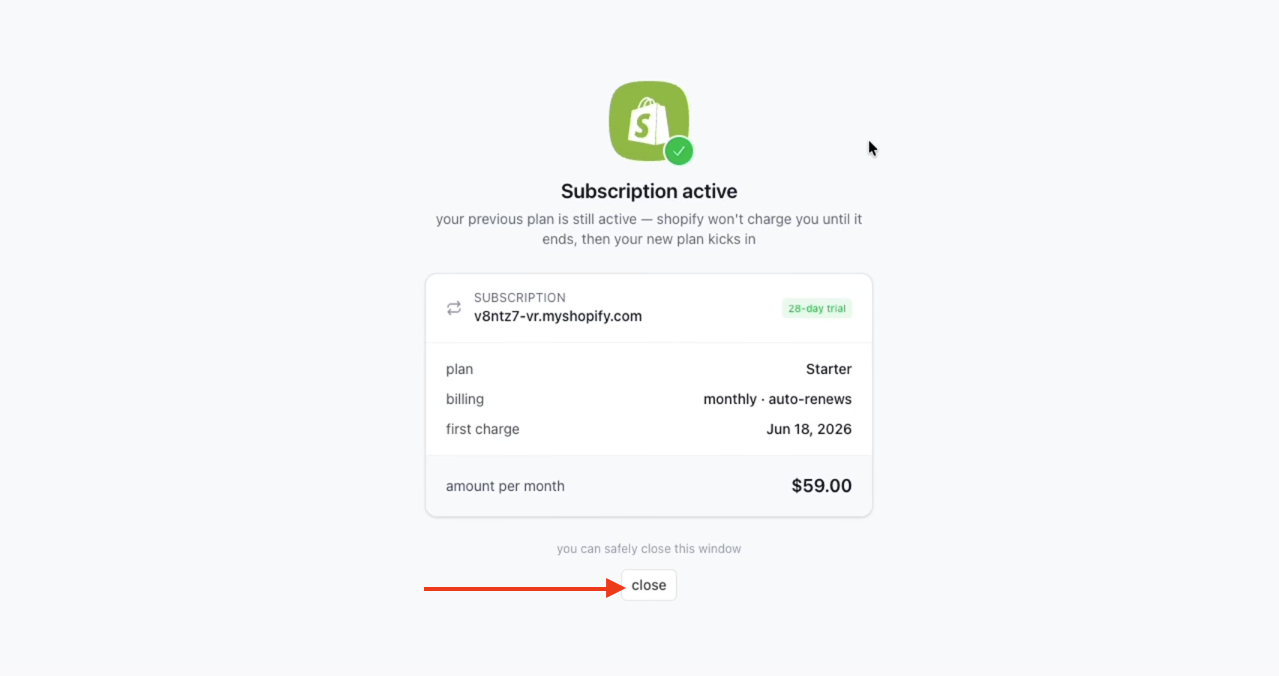
✅ Your Shopify store is now successfully connected to eGrow.
Step 5: Install the Shopify Orders Automation
To automatically create Shopify orders inside eGrow, you need to install the ready-made automation template.
In your eGrow dashboard, go to:
Automations → Templates
Search for:
Send Orders from Shopify to eGrow
Click:
Preview & Install
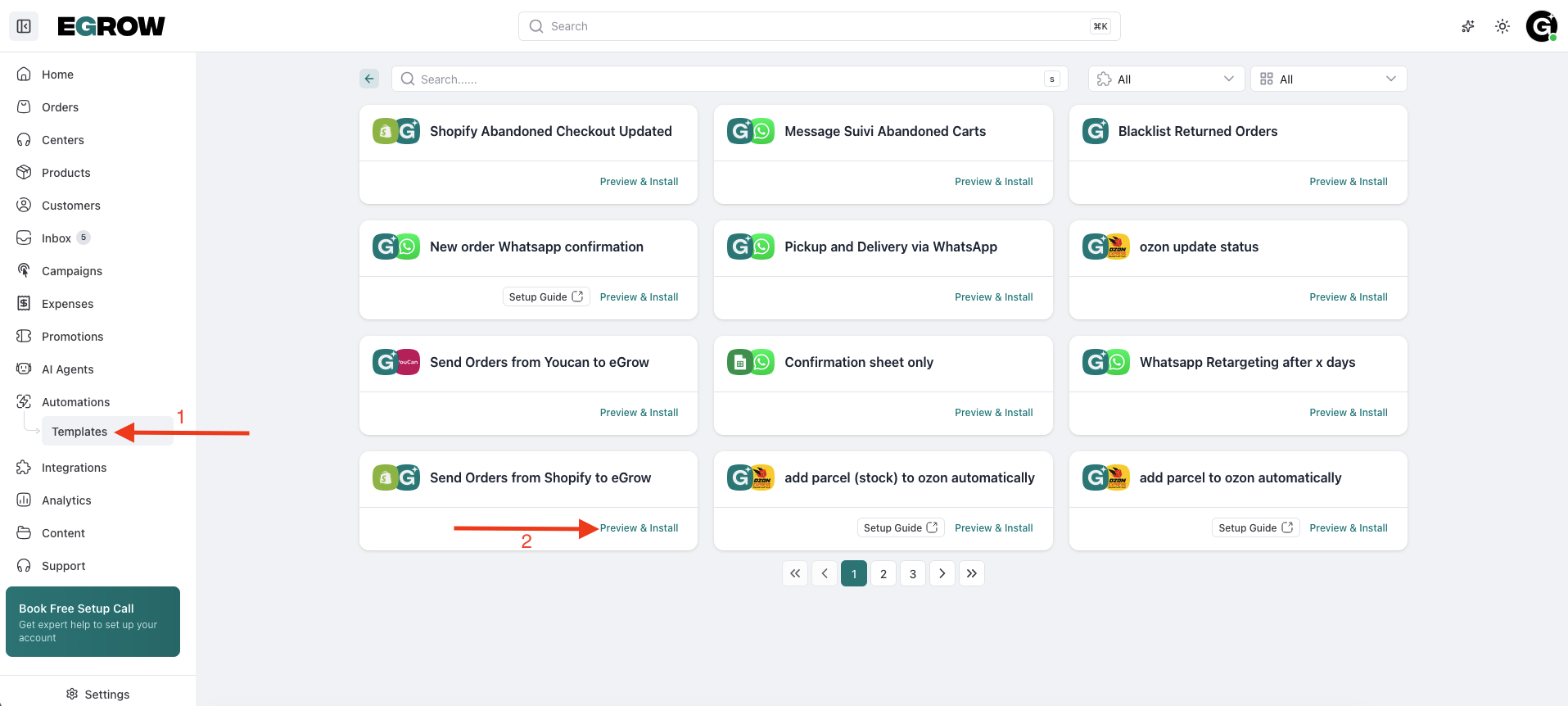
Follow the installation steps and configure the automation fields according to your needs.
1. Configure the Trigger — New Order Created
Click on:
1. New order created
Select your Shopify Connection from the dropdown list.
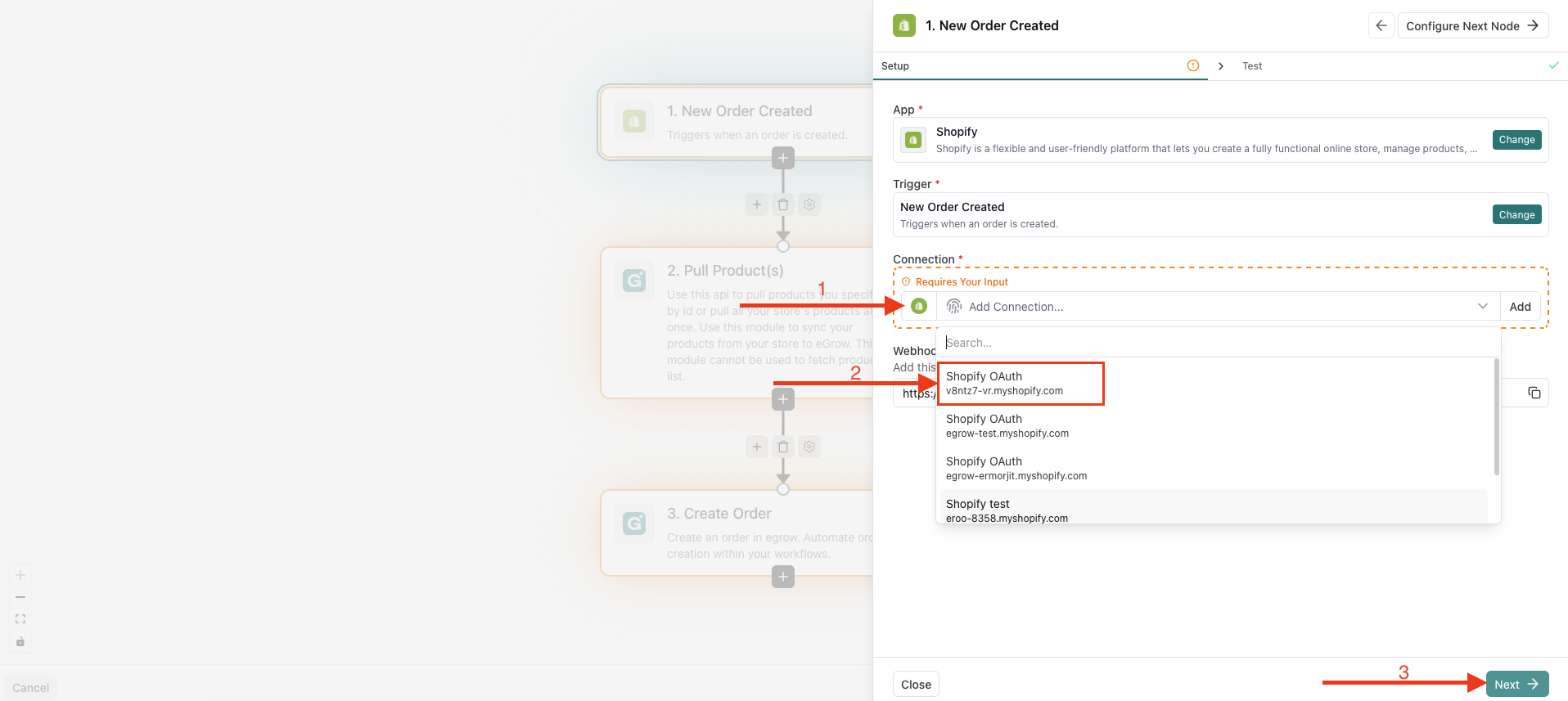
Click:
Next → Done
2. Configure the Action — Pull Products
Click on:
2. Pull products
Select your eGrow Connection.
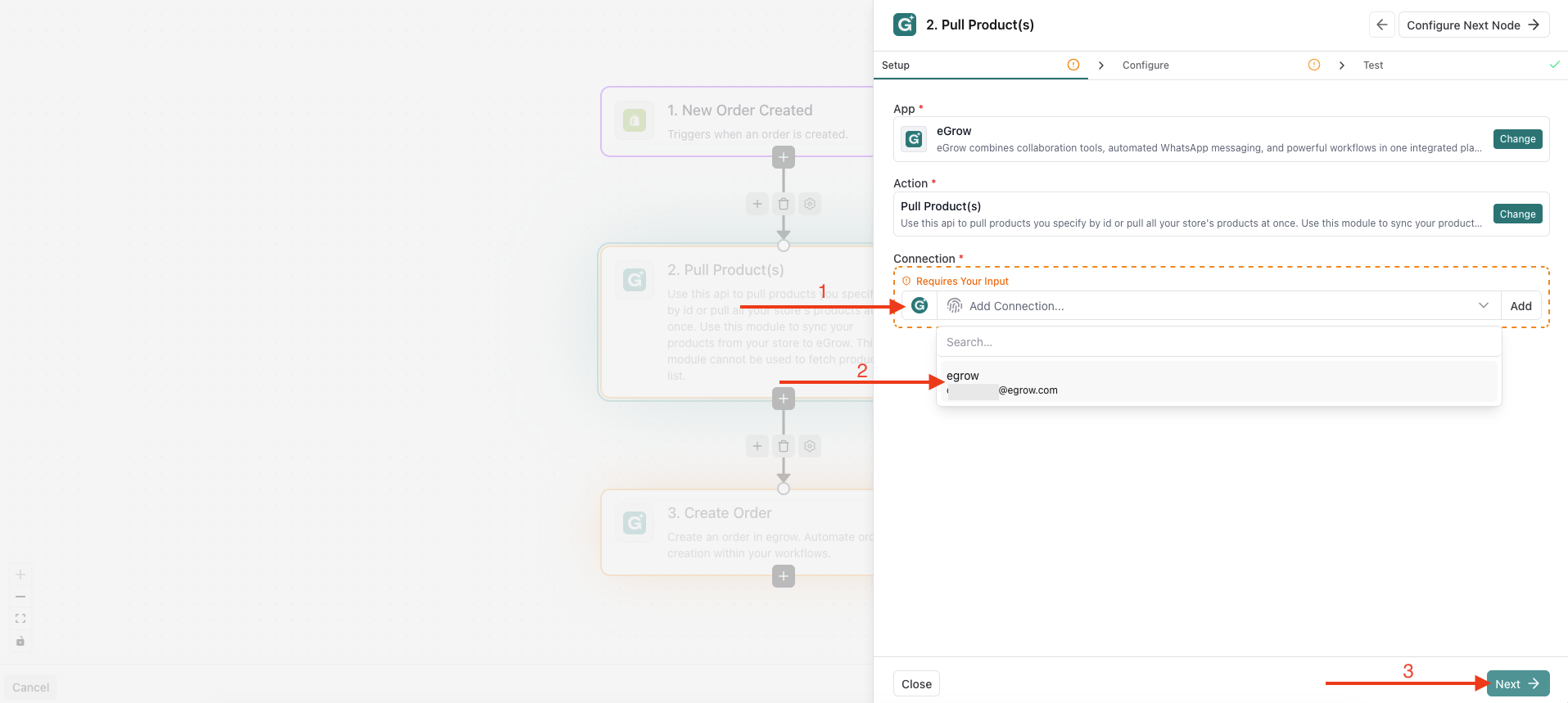
👉 If your eGrow connection is not already linked, click Add and connect it first.
Click:
Next
In the Configure step:
Under User Connection ID, select your Shopify Connection from the dropdown list.
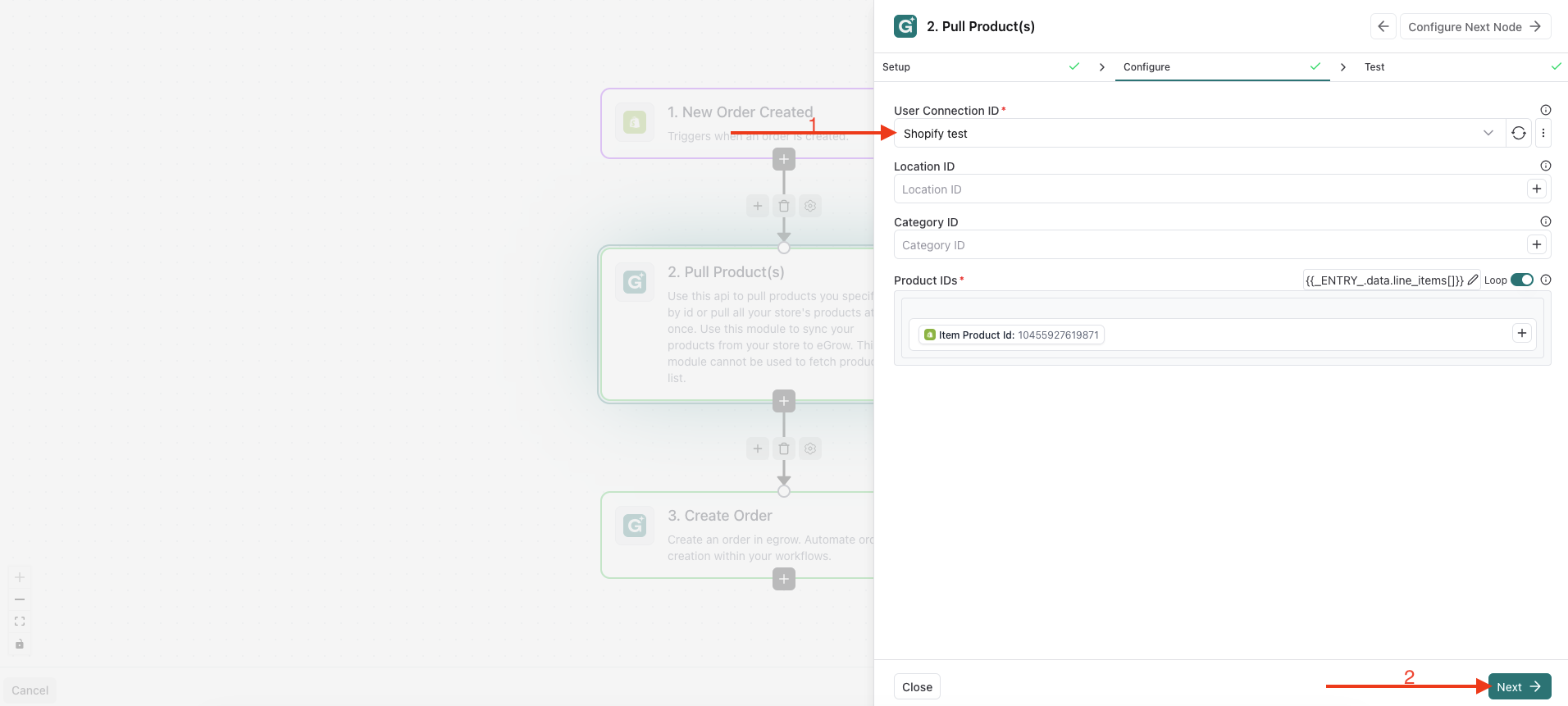
Click:
Next → Done
3. Configure the Action — Create Order
Click on:
3. Create order
Open the Configure section.
Scroll down to:
Products Line Items Form
Under:
User Connection ID
Select your Shopify Connection from the dropdown list.
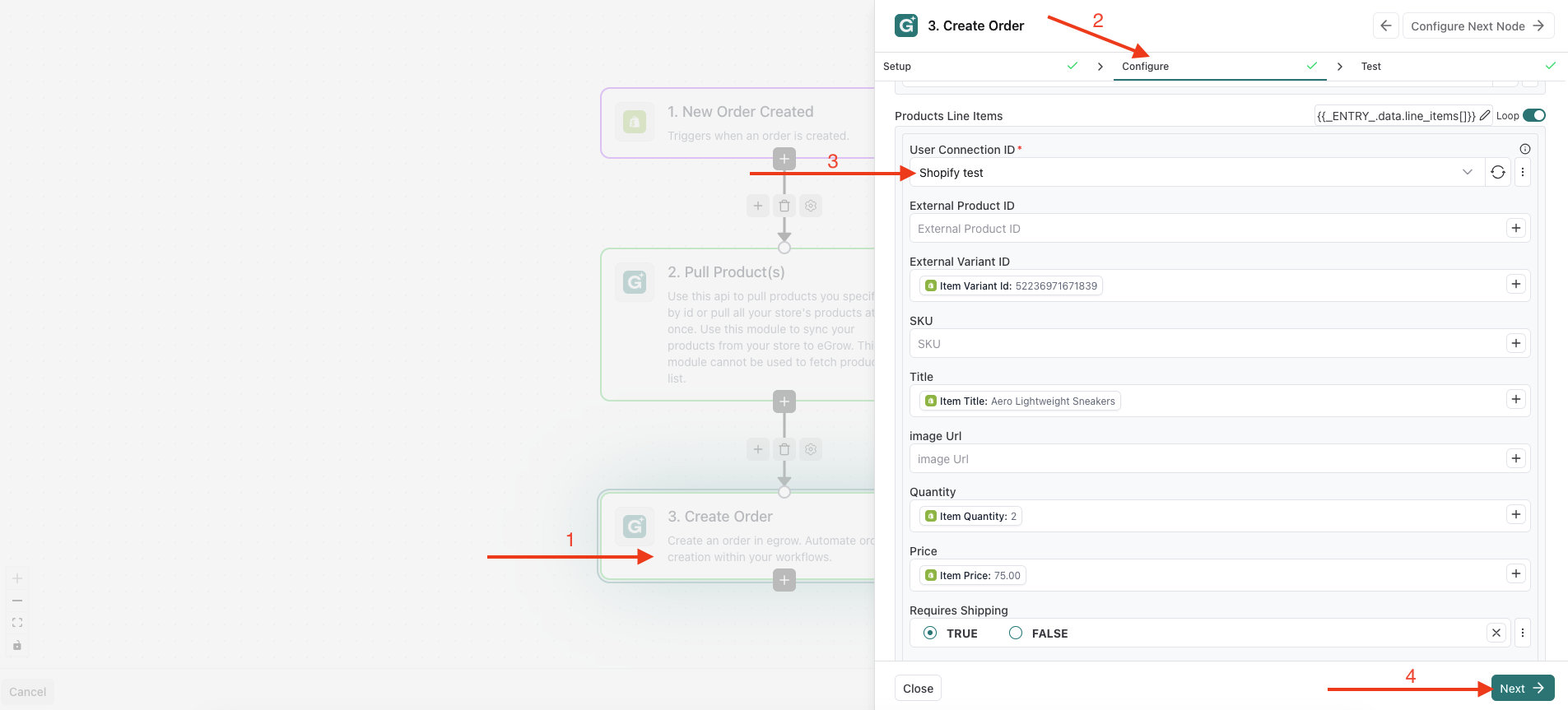
Click:
Next → Done
Final Step
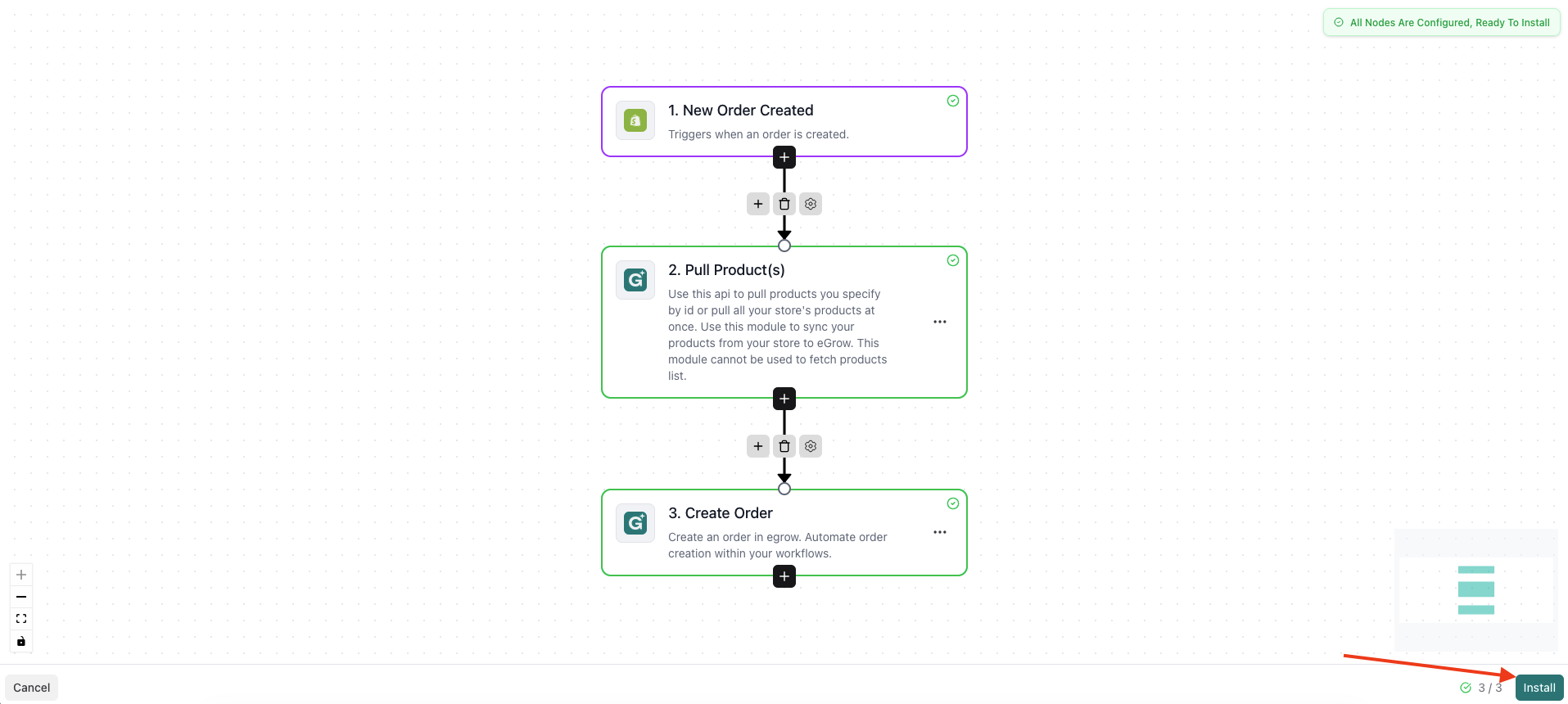
Click:
Install Automation
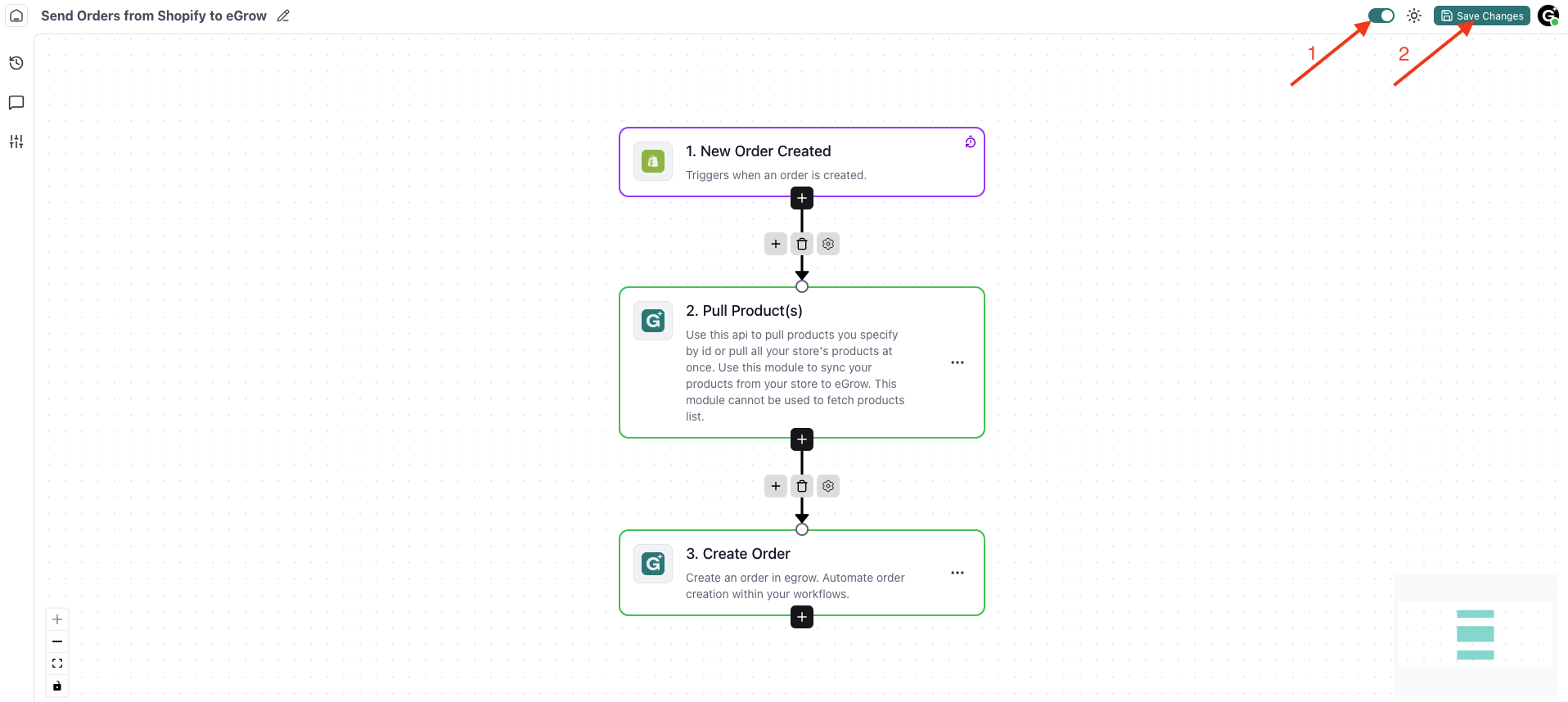
Then:
- Enable the automation
- Click Save
✅ Done!
Your Shopify orders will now automatically sync to eGrow.
You can now test the integration by creating a new order from your Shopify store.
✅ Integration Complete
Your Shopify store is now fully connected to eGrow.
What Happens Next?
- New Shopify orders will automatically appear in eGrow
- You can automate confirmations, shipping workflows, and WhatsApp messages
- Customer and order data will sync automatically
💡 Tips
If orders do not appear in eGrow:
- Make sure you installed the eGrow app on the correct Shopify store
- Verify that the automation template is installed and active
- Test the integration by creating a new order from your Shopify store