Prerequisites
Active eGrow account
Google (Gmail) account
Step-by-Step: Integrate Google Sheets with eGrow
1. Navigate to Integrations
Log in to your eGrow account
Go to Integrations
Look for Google Sheets Integration
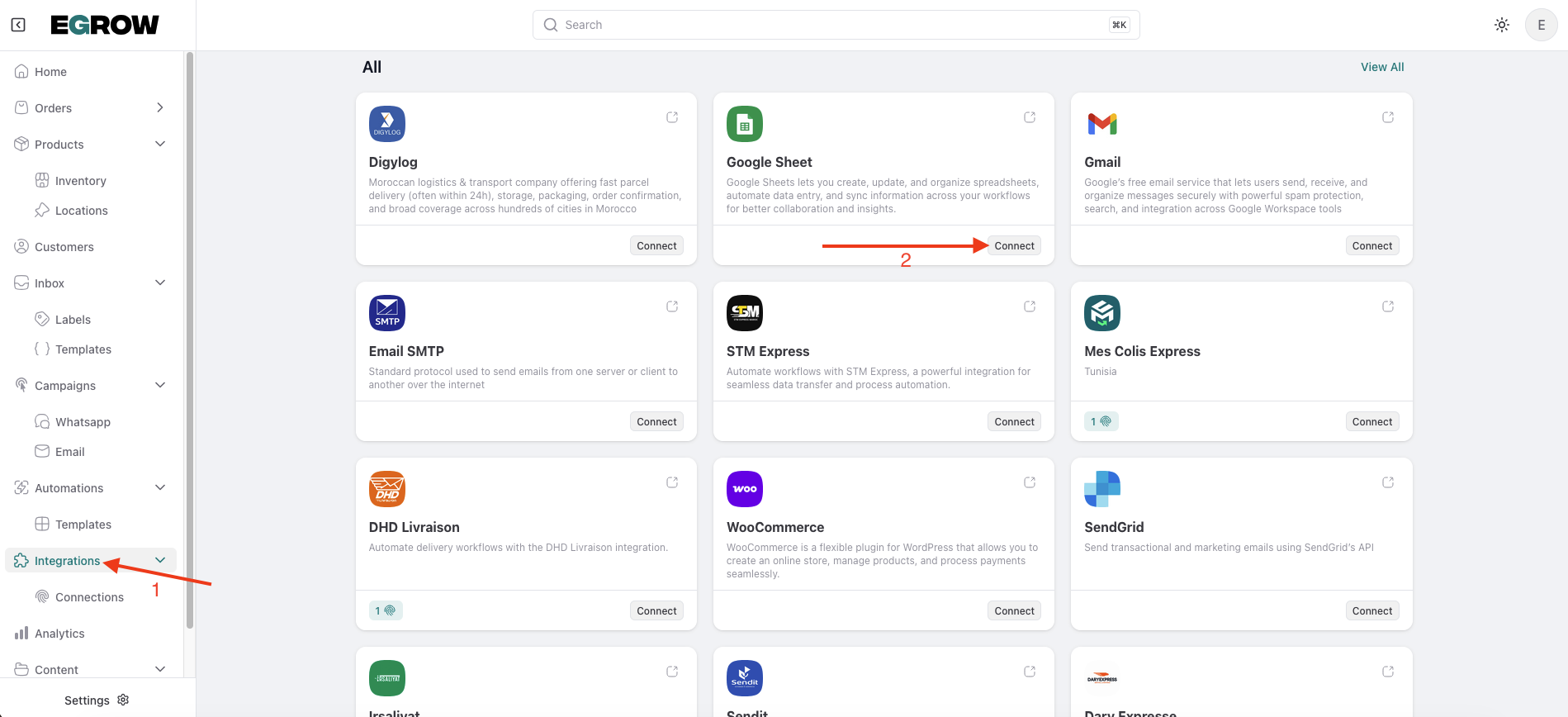
2. Connect Google Sheets
Click Connect
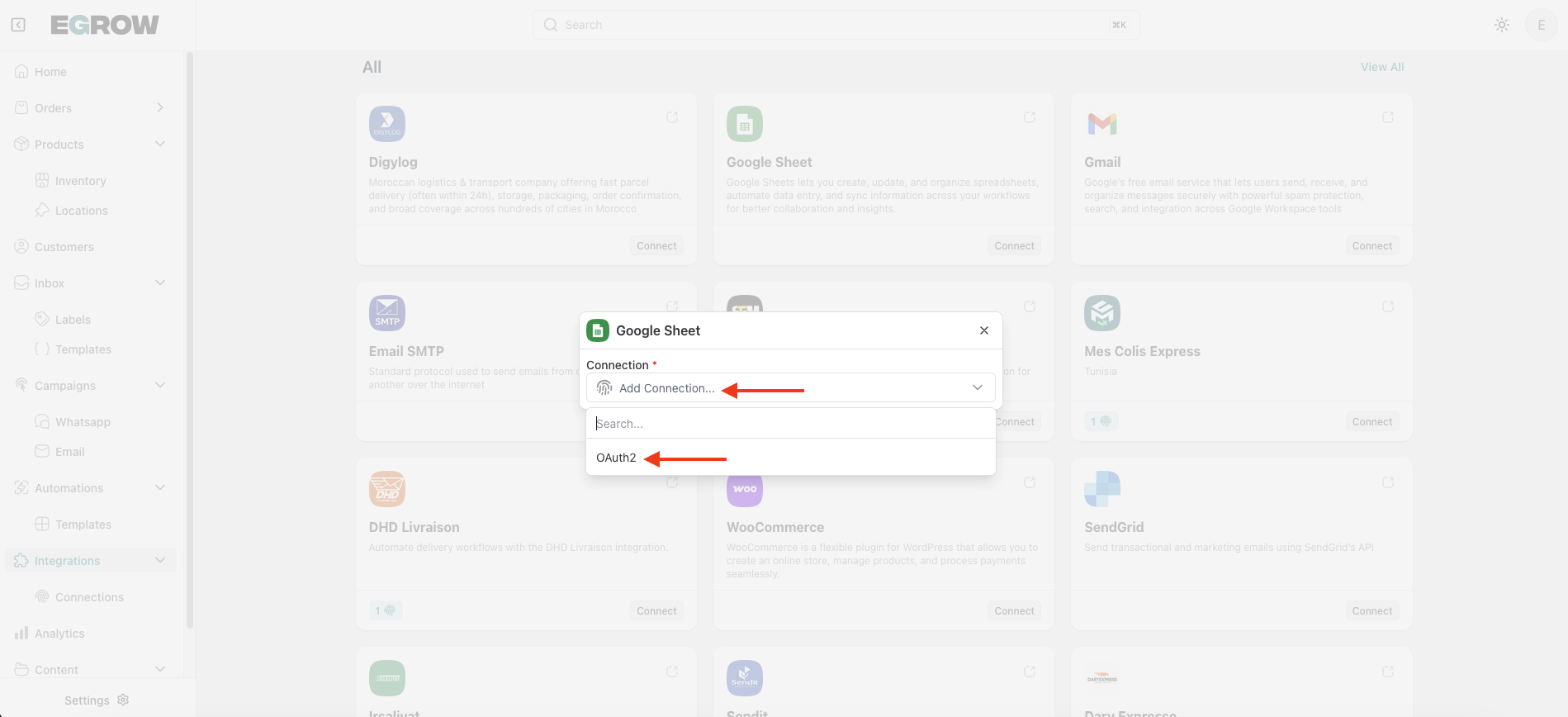
Click Add Connection
From the connection type dropdown, select OAuth2
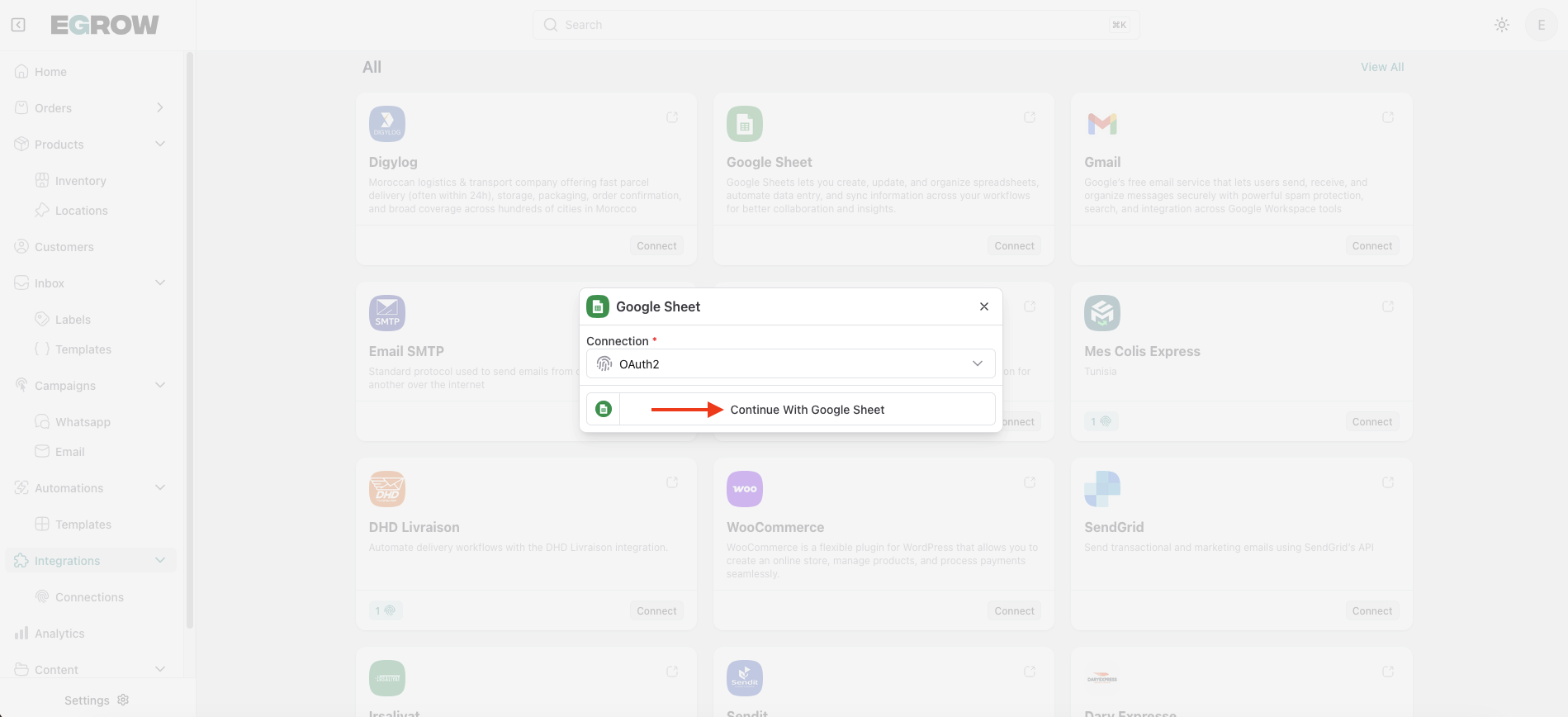
Click Continue with Google Sheets
3. Sign in with Google
A Google sign-in popup will open.
Log in using your Gmail account
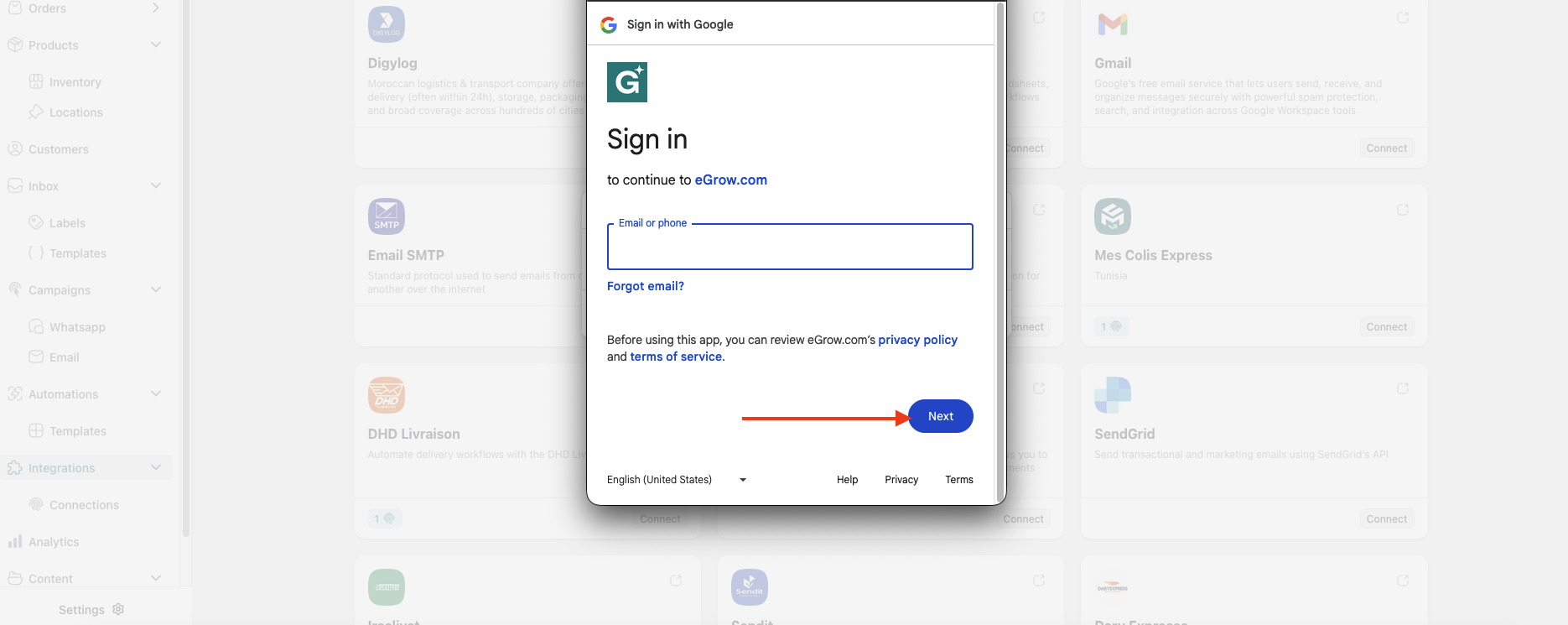
Select the Google account you want to connect
4. Grant Access to eGrow
Review the requested permissions
Click Allow to grant eGrow access to your Google account
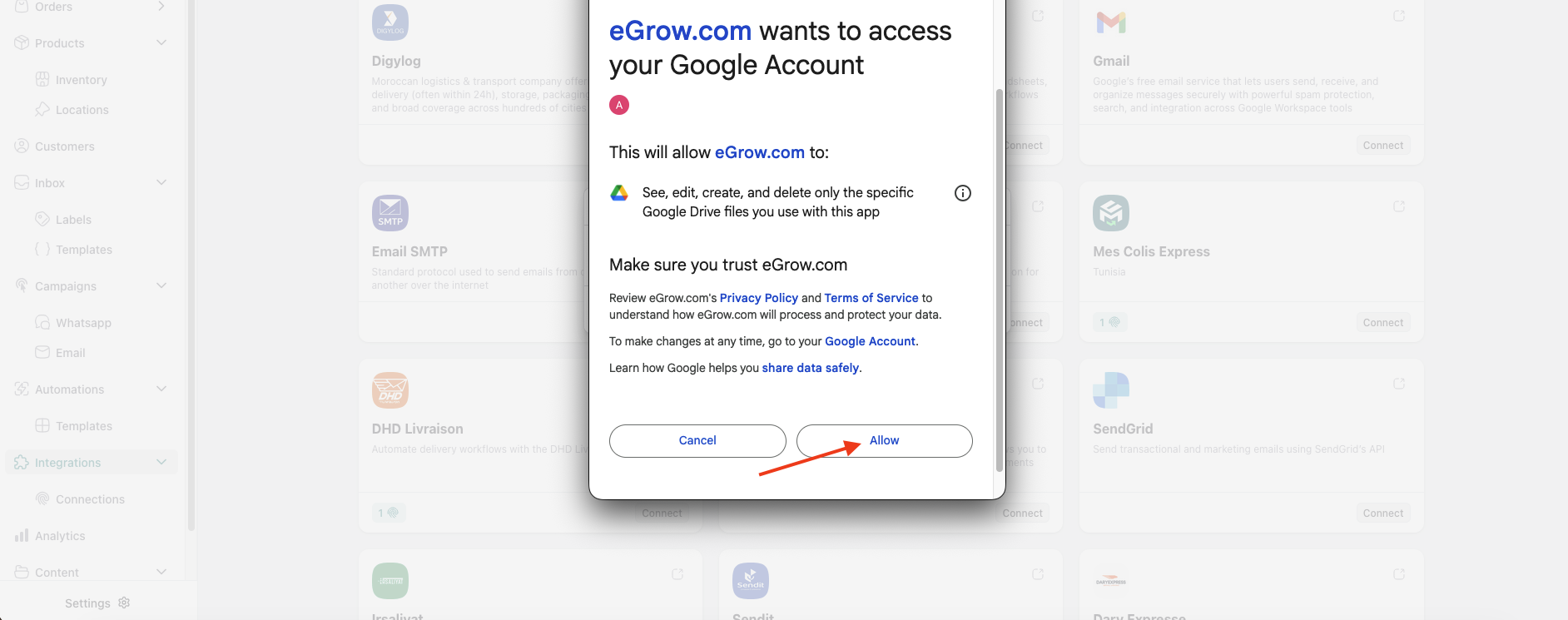
This access is required to connect and use Google Sheets with eGrow.
Success Confirmation
After authorization, a success message will appear confirming that the Google Sheets integration has been successfully added to your eGrow account.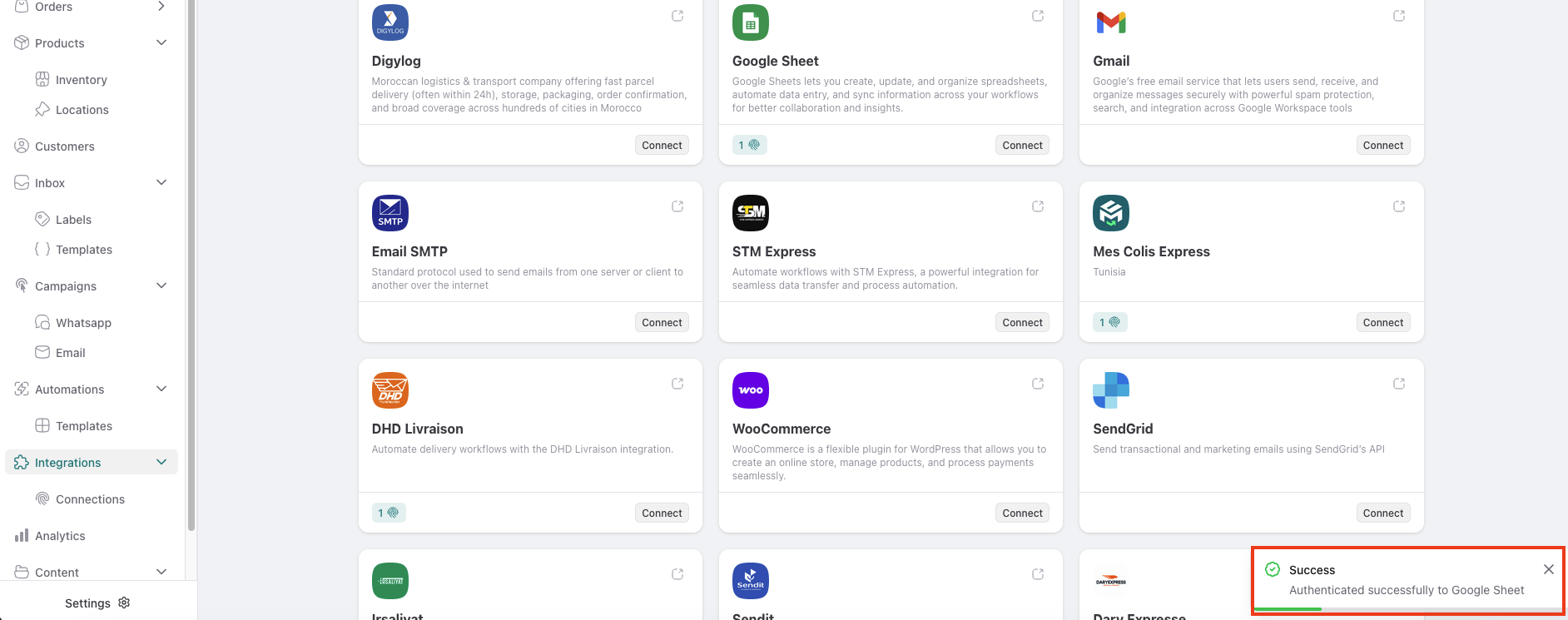
You can now start using Google Sheets in your workflows and automations inside eGrow.
If you encounter any issues during connection, make sure you’re logged into the correct Google account or contact eGrow Support for assistance.