What This Automation Does
After a new order is created:
The system checks for similar or duplicated orders from the same customer
It verifies based on selected order stages
It checks orders created within a specific time range (24 hours by default)
If a duplicate is detected, the order is automatically moved to a selected stage
Step 1: Install the Duplicated Orders Checker Template
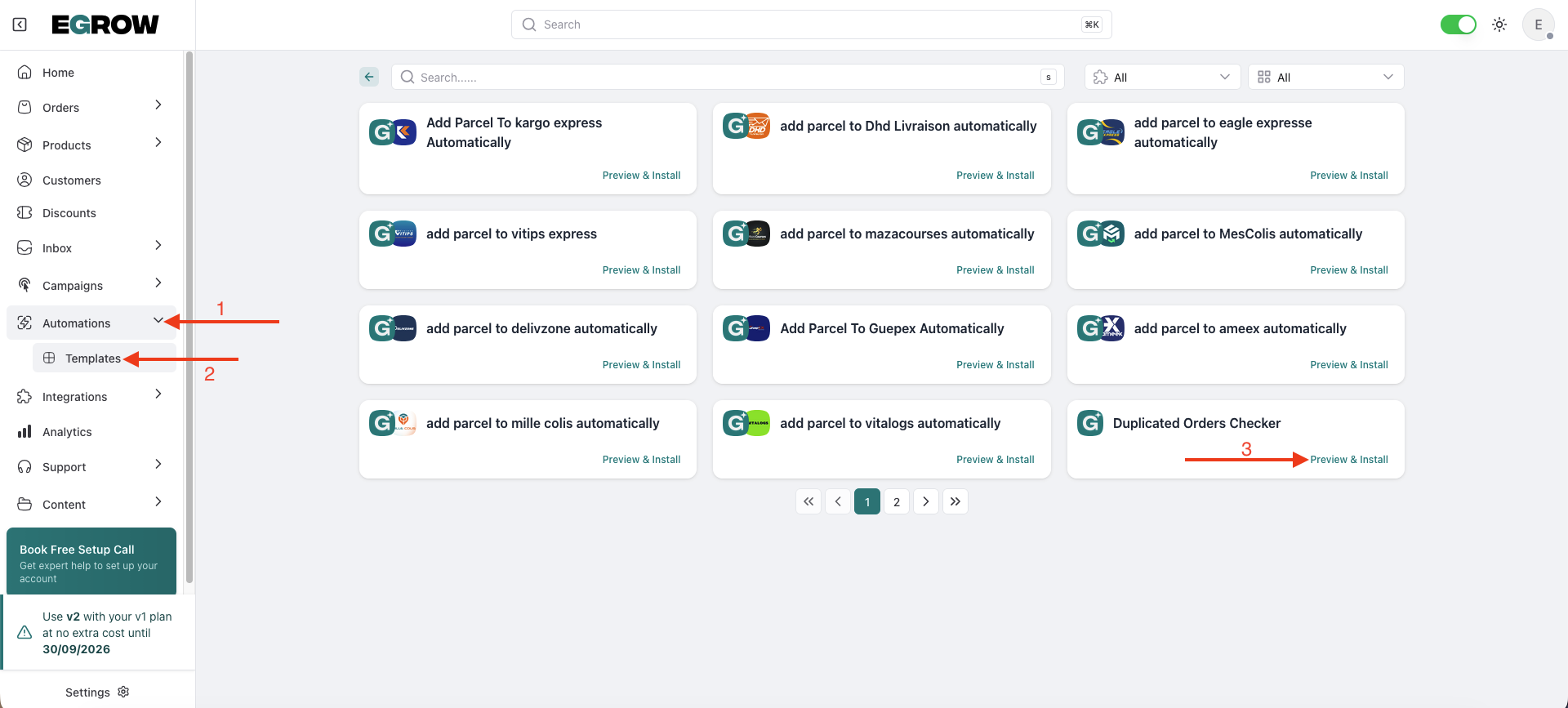
Log in to your eGrow dashboard
Go to Automations
Click on Templates
Search for “Duplicated Orders Checker”
Click Preview & Install
Enter a Slug (example:
duplicate-orders-check)Click Install
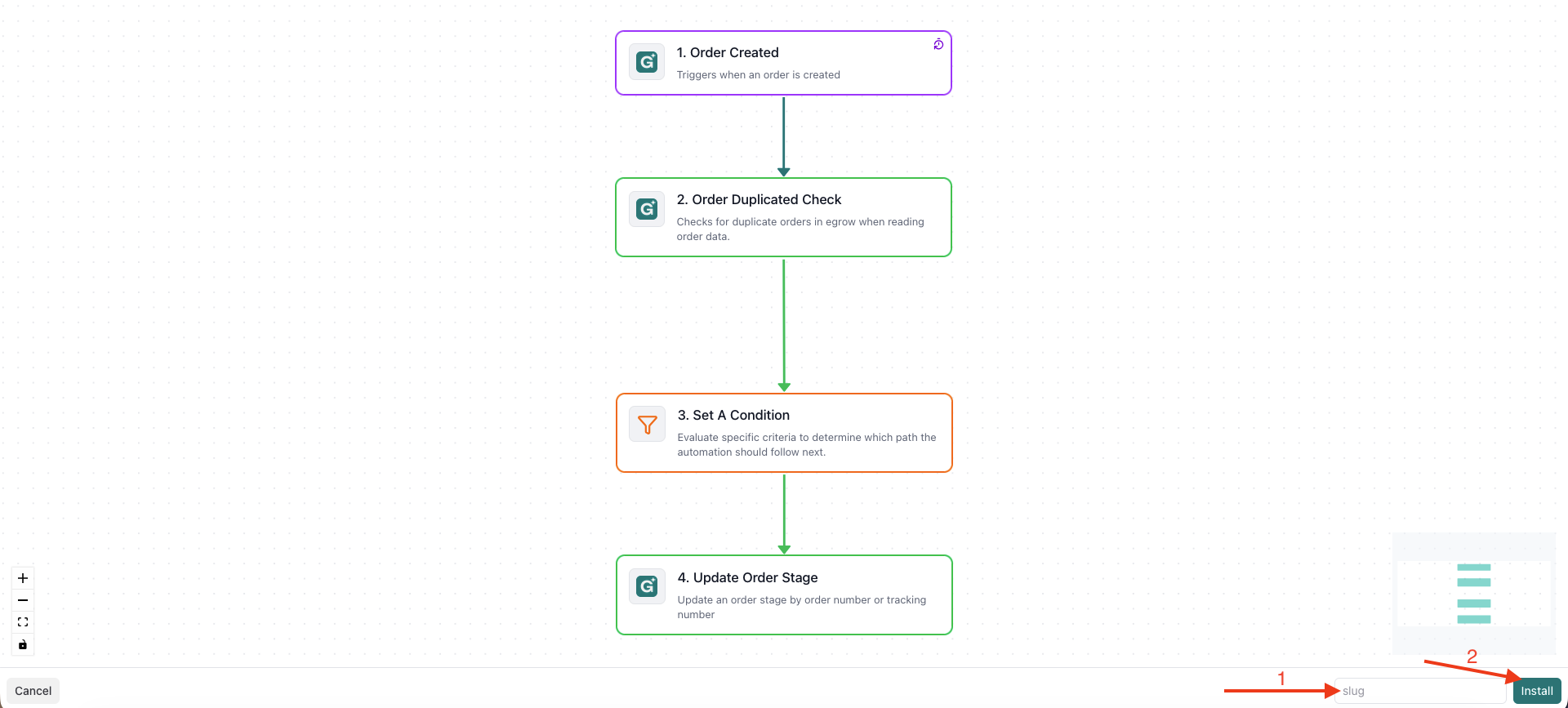
You will now be redirected to the automation editor.
Step 2: Configure the Duplicate Check Action
Inside the automation workflow:
Click on the action named Order duplicated check
Configure the following settings:
Select Order Stages to Check
Choose the pipeline stages that the system should check for duplicates.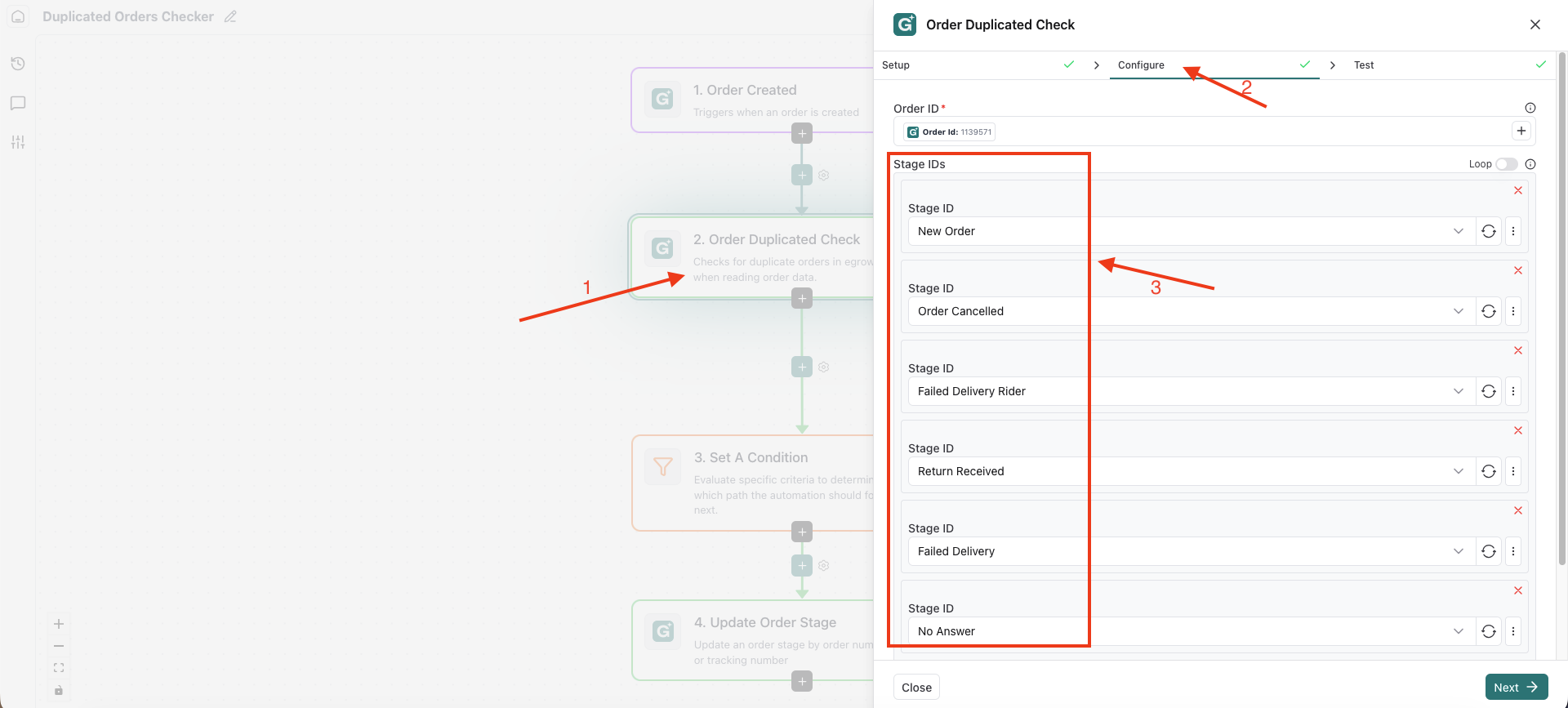
Example:
New Orders
Confirmed
Preparing
The automation will only compare new orders against orders in these selected stages.
Set Time Range (Created After)
By default, the automation checks orders created within:
24 hours
You can adjust this value if needed.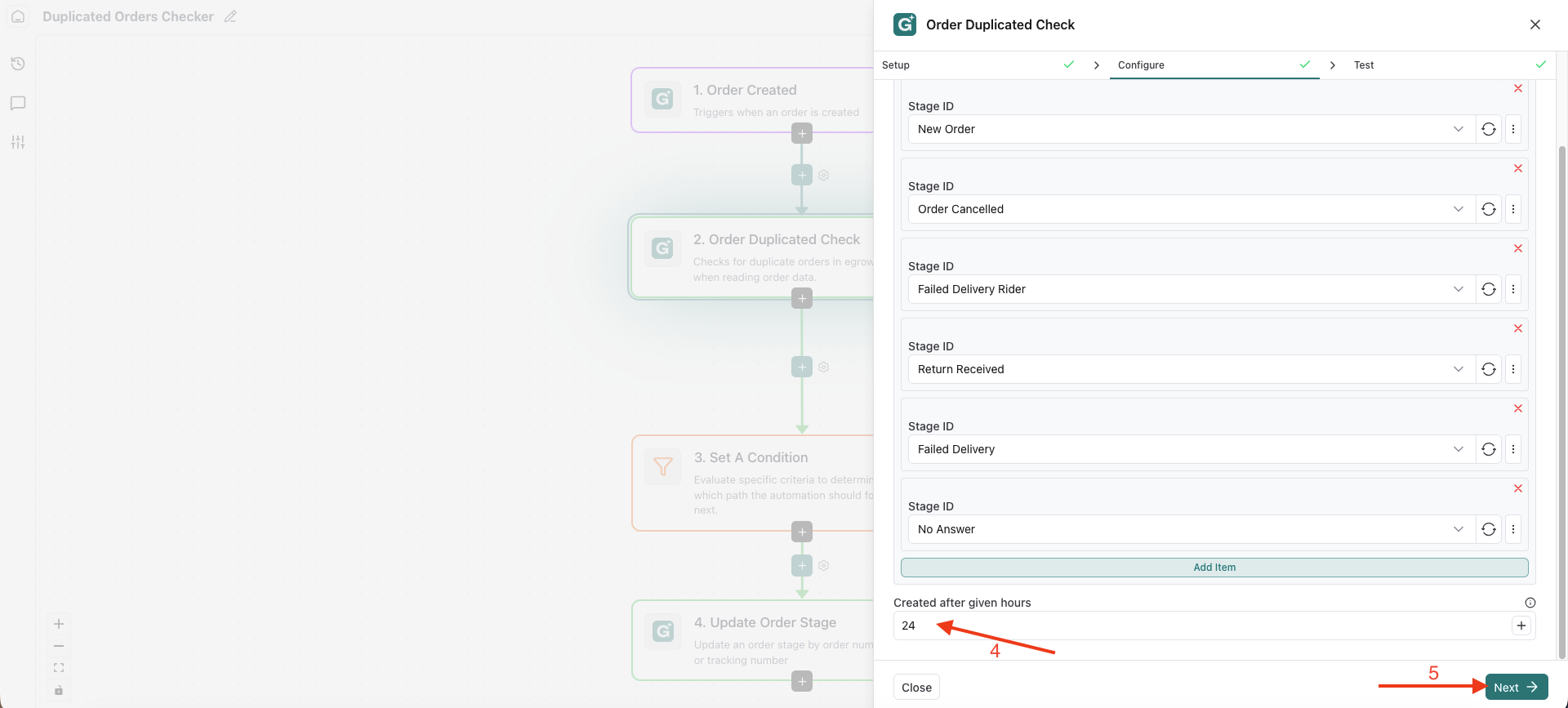
For example:
12 hours (for stricter control)
48 hours (for wider comparison)
This prevents very old orders from being considered duplicates.
Step 3: Configure the Update Order Stage Action
Next, configure where duplicated orders should be moved.
Click on the action Update Order Stage
Select the pipeline stage where duplicated orders should be placed
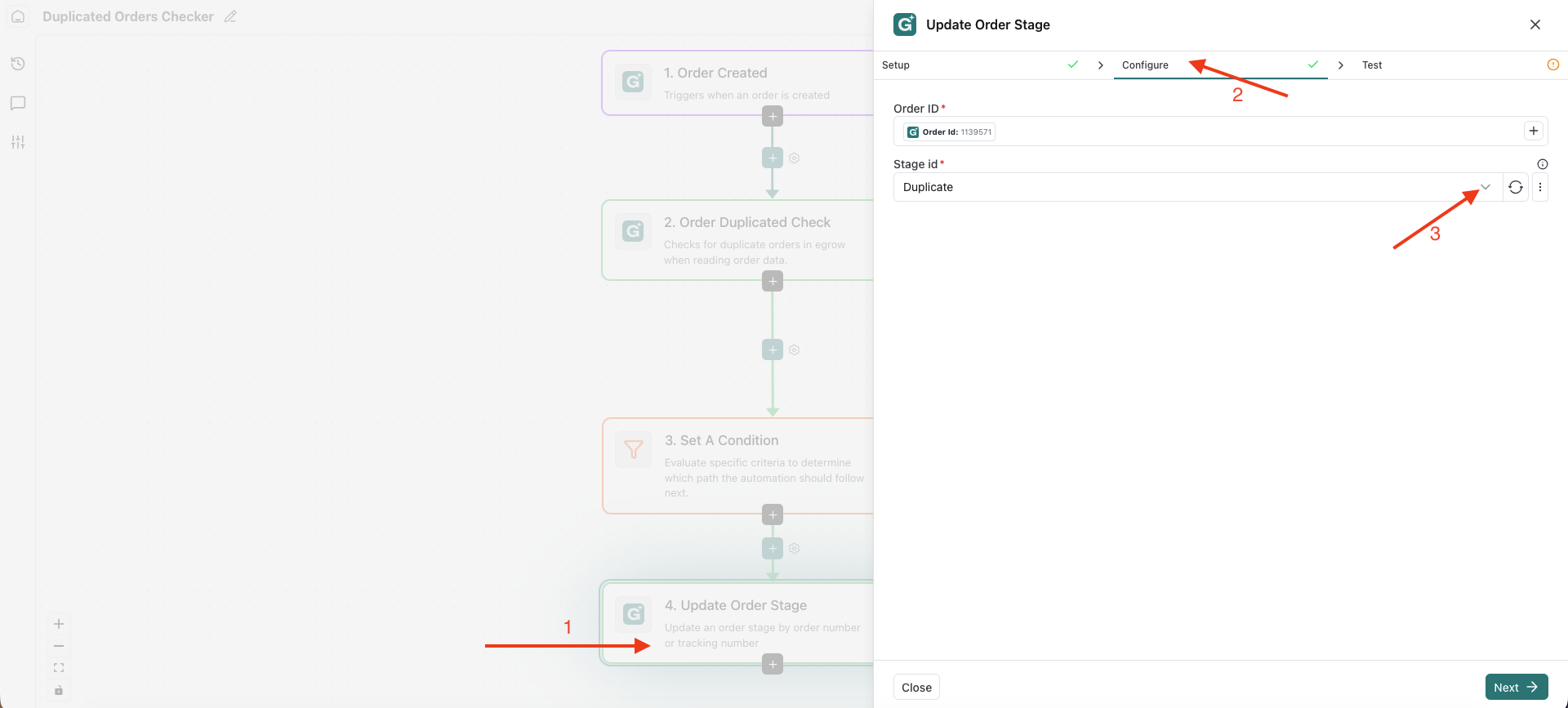
Example stages:
Duplicated Orders
Review Duplicate
On Hold
Cancelled (if applicable)
This ensures your team can easily identify and manage duplicated orders.
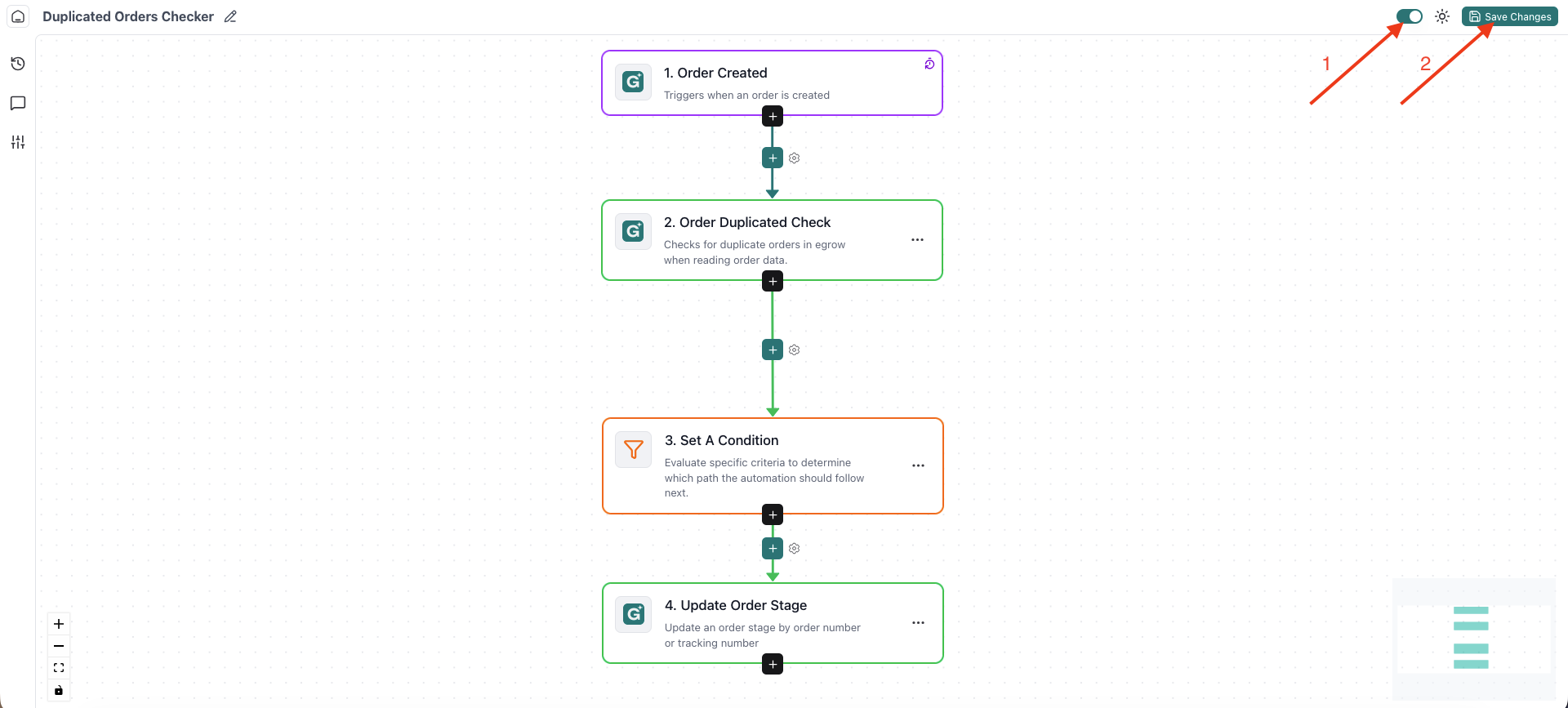
Step 4: Save and Activate the Automation
Review your configuration
Click Save Changes
Make sure the automation is Enabled
✅ What Happens Next?
From now on:
Every time a new order is created
The system checks for duplicates based on your selected stages
It compares orders created within the defined time range
If a duplicate is found, the order is automatically moved to your selected stage
No manual verification required.
💡 Best Practices
Create a dedicated stage called “Duplicated Orders”
Train your team to review that stage daily
Avoid including “Cancelled” or “Delivered” stages in duplicate checking unless necessary
Keep the time window realistic (24h is recommended for COD businesses)