Running a smooth e-commerce operation—whether you are handling Cash on Delivery or prepaid orders—requires your team to act fast. Sending instant, automated notifications to your confirmation or processing teams can drastically improve your workflow.
In this guide, we will walk you through creating a free Telegram bot and connecting it to eGrow so you can automatically alert your team members the second a new order is placed.
Part 1: Create Your Telegram Bot
First, we need to generate the bot inside Telegram.
Open Telegram: You can use the mobile app or the web version (we will use Telegram Web for this tutorial).
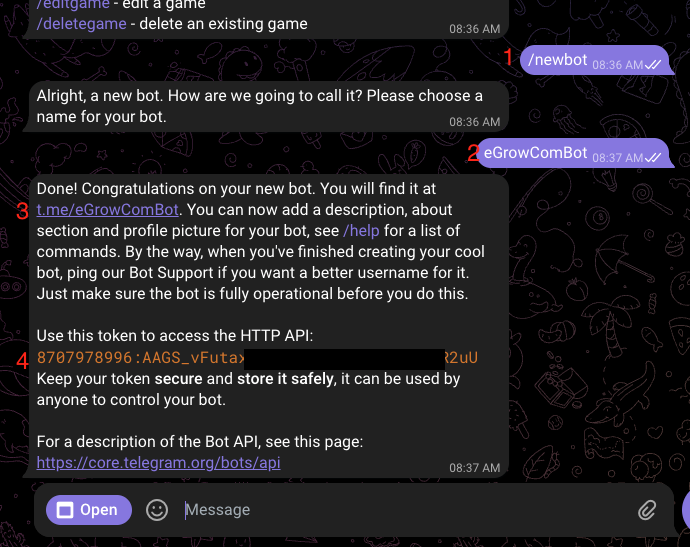
Find the BotFather: In the search bar, type
@BotFather. Look for the verified account with millions of followers (or use this direct link: https://web.telegram.org/k/#@BotFather). Start the Process: Send the message
 /newbotin the chat to create your new bot.Name Your Bot: Give your bot a clear name. The username must end with the word "bot" (for example:
myBusinessBotoregrow_notifications_bot).Save Your Token: Once created, BotFather will reply with: "Done! Congratulations on your new bot." This message includes an API token. Copy this token—you will need it for the next step.
 Part 2: Connect the Bot to eGrow
Now, let's link your new bot to your workspace.
Access Integrations: Log into your account and navigate to the connections page at v2.egrow.com/integrations/connections.
Add a New Connection: Click on New Connection and select Telegram Bot from the list of options.
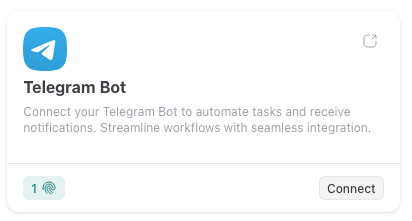
Enter Details: Click Connect. Provide a name for the bot inside eGrow and paste the API token you copied from BotFather.
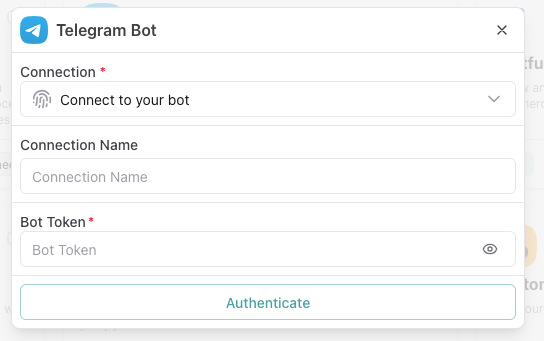
Finalize: Save the connection. Your bot is now successfully linked and ready to send messages!
Part 3: Opt-In Your Team Members
Crucial Step: Telegram's privacy rules prevent bots from sending messages to users out of the blue.
Before you can automate notifications, your team members must explicitly allow the bot to message them.
Share your bot's custom link (found in the confirmation message from BotFather) with your team.
Ask each team member to click the link, open the chat, and send a simple message (like "Hello" or
/start) to the bot.
Once they do this, eGrow will be able to route notifications to them.
Part 4: Automate Your Order Notifications
Let's set up an automation so your team gets pinged whenever a new order comes in.
Create an Automation: Go to the Automation Builder in eGrow and start a new workflow.
Set the Trigger: Select eGrow as the app and choose Order Created as the trigger event.
Set the Action: Add an action step and select Telegram Bot. Choose the Send Message action.
Customize the Alert: Select the specific user (or team member) who should receive the alert. Draft the message using dynamic variables to include details like the order number, customer name, and order total.
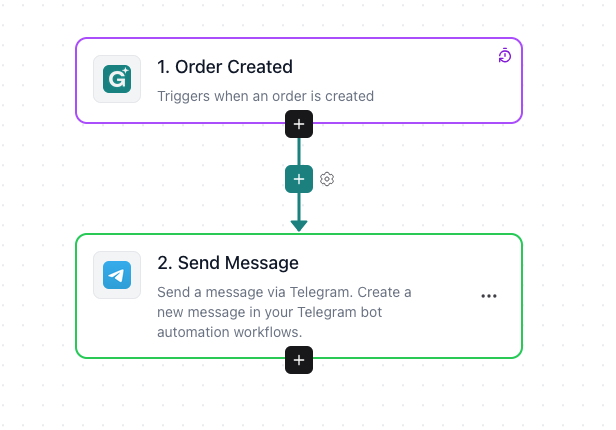 Save and activate your automation. You now have a completely free, instant notification system keeping your team aligned and ready to process orders!